
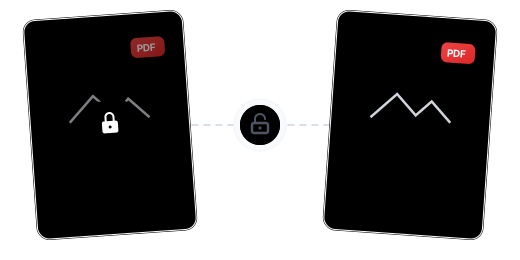
Beyond Unlocking: Restore Full Document Usability
One-Click Password Removal

Content Fully Preserved

Batch Files in One Go

Chain Multiple Operations

Your Files Stay Private

Use It Anywhere

Unlock a PDF in Just 3 Steps

Upload Your Encrypted PDF
Click "Choose Files" or drag and drop your encrypted PDF into the secure workspace.

Enter the Password
Enter the file's open password in the password field. The correct password is required to unlock.

Download Your Unlocked PDF
The system verifies the password and removes protection — download your freely usable, password-free PDF.
PDF Unlock FAQ
Can I unlock without knowing the password?
No. The correct password is required to unlock. We do not provide password cracking — this is an important principle for document security.
Will the content change after unlocking?
No. Unlocking only removes password protection — all content, formatting, and layout remain completely identical.
Is it legal to unlock PDFs?
Only unlock files you have authorization to access. If you've forgotten a password you set, or need to remove a known password's protection, using this tool is completely legitimate.
What are the free plan limits?
Free users can process PDFs up to 100 MB. Upgrade to Pro for files up to 2 GB.
Is the unlock process safe?
Your files are safe. 256-bit encrypted transfer, EU-based servers. Your password is used solely for unlocking and never stored — files are permanently deleted after processing.
Related Guides
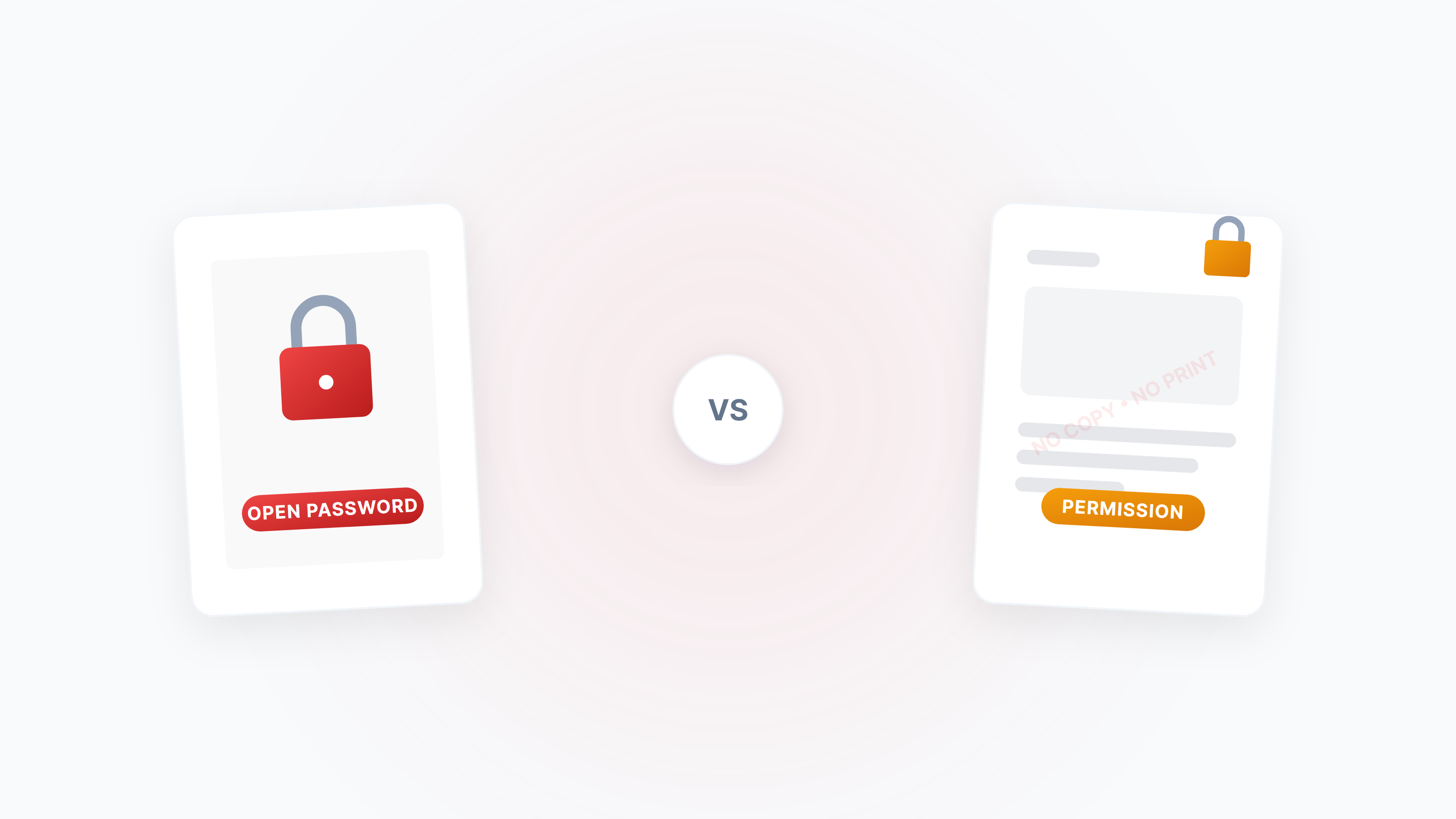
The Complete Guide to PDF Protection and Unlocking: Passwords, Permissions, and Security Strategies
A systematic guide to the two PDF password types (open password vs permission password), how to disable copying/printing/editing, and how to legally unlock restricted PDFs.
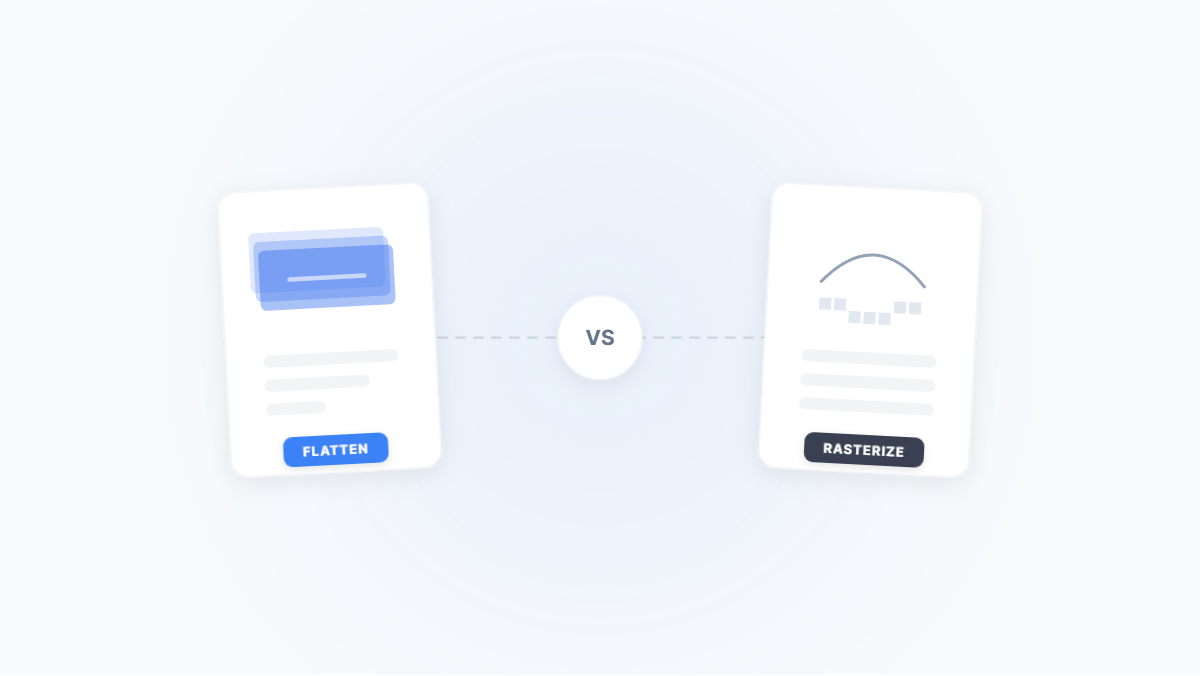
Flatten PDF vs. Rasterize PDF: Two Ways to Lock Down a Document — What's the Difference?
Both flattening and rasterizing can lock PDF content, but one preserves text while the other turns everything into an image. This article uses real-world scenarios to break down their differences, trade-offs, and when to use each.
PDF Password Types Explained: Open Password vs. Permission Password — Security Differences & Practical Guide
What's the difference between a PDF open password and a permission password? Open passwords use AES-256 to encrypt content and can't be bypassed; permission passwords are merely a 'gentleman's agreement' and can be removed instantly. This article breaks down the underlying mechanisms and best practices for both.