
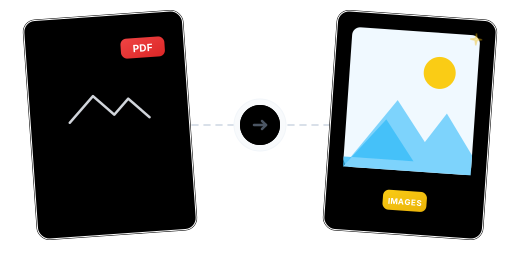
Beyond Conversion: Precise Control Over Every Image
Convert & Extract Dual Mode

Dual Control Over Quality & Resolution

JPG or PNG — Your Choice

Keep Working After Conversion

Your Photos Stay Private

Use It Anywhere

Convert PDF to Images in Just 3 Steps

Upload Your PDF
Click "Choose Files" or drag and drop your PDF into the secure workspace.

Choose Mode, Format & Resolution
Select 'Convert All Pages' or 'Extract Images', then set the output format (JPG/PNG) and DPI resolution.

One-Click Convert & Download
The system completes processing in seconds — download images individually or as a ZIP archive.
PDF to Image Conversion FAQ
What's the difference between 'Convert Pages' and 'Extract Images'?
'Convert All Pages' renders each PDF page as a complete image (including text, tables, backgrounds — everything visible). 'Extract Images' exports only the original embedded image files, excluding text and layout information.
How do quality and DPI settings affect the output?
'Image Quality' (low/medium/high) determines the compression ratio and file size. 'DPI' (dots per inch) determines the image resolution (sharpness). Higher quality and DPI yield crisper images but significantly increase file size. For web, try low/medium settings; for printing, use high quality and high DPI.
Should I choose JPG or PNG?
JPG is better for photos and color-rich images with smaller file sizes. PNG is ideal for text screenshots, charts, and scenarios requiring transparent backgrounds — lossless quality but larger files.
What are the free plan limits?
Free users can process PDFs up to 100 MB with no watermarks. Need more? Upgrade to Pro for files up to 2 GB.
Is it safe to convert PDFs containing confidential information?
Your files are safe. All data is transferred via 256-bit encryption, processed on EU-based servers under GDPR compliance, and permanently deleted after processing.
Related Guides
Convert Color PDF to Black & White/Grayscale: The Best Solution for Ink-Saving Printing and Maximum Compression
A complete guide to converting color PDFs to black & white or grayscale mode, covering ink-saving printing, maximum compression, OCR optimization, and more — with a clear breakdown of black & white vs. grayscale and step-by-step workflows.
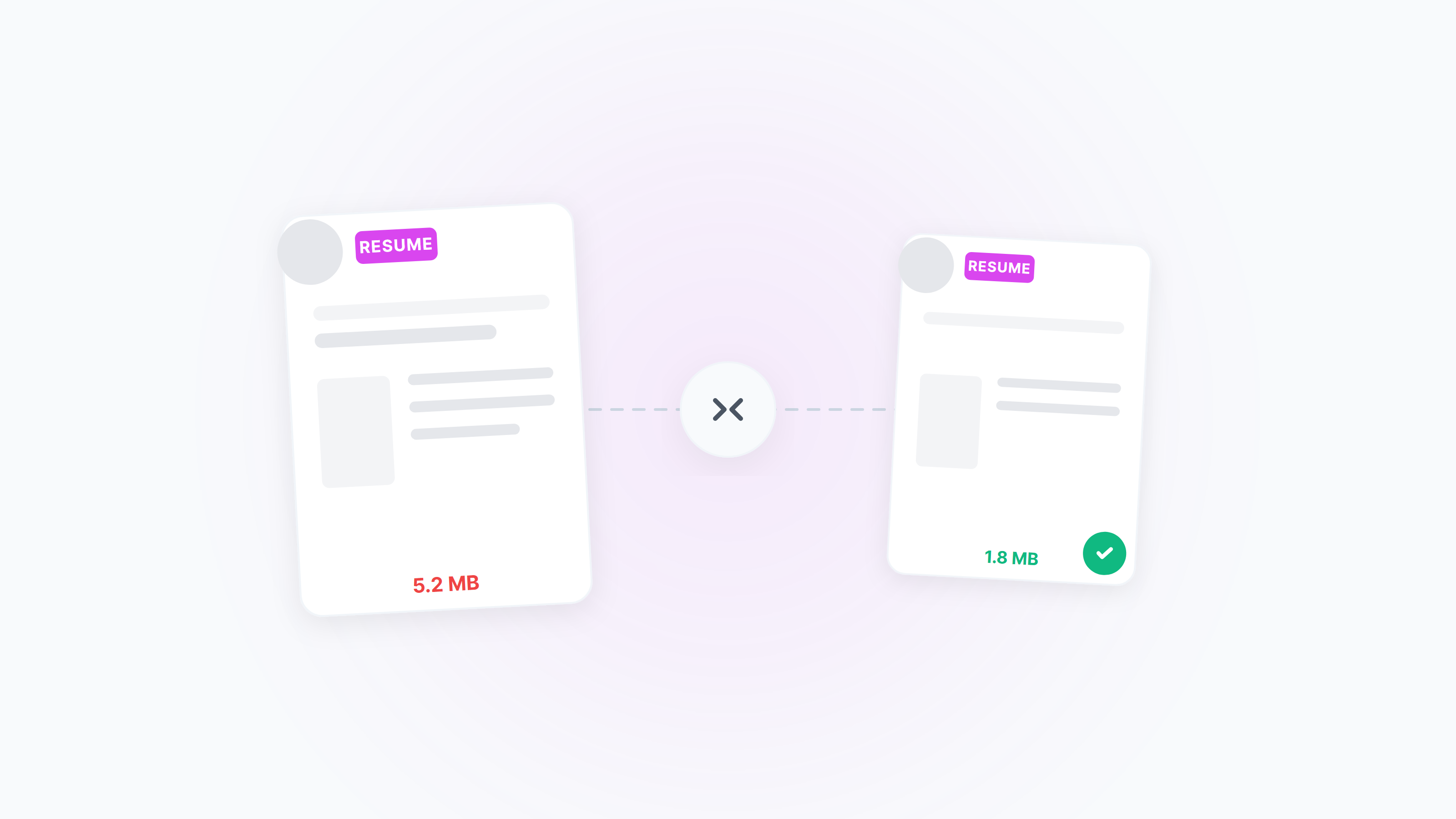
Compress Resume PDF to 2MB — Clear and ATS‑Friendly
Meet the common “≤2MB” resume limit without losing clarity. Practical online settings plus native Windows/macOS ideas, with tips for black‑and‑white, unified page size, and image optimization.
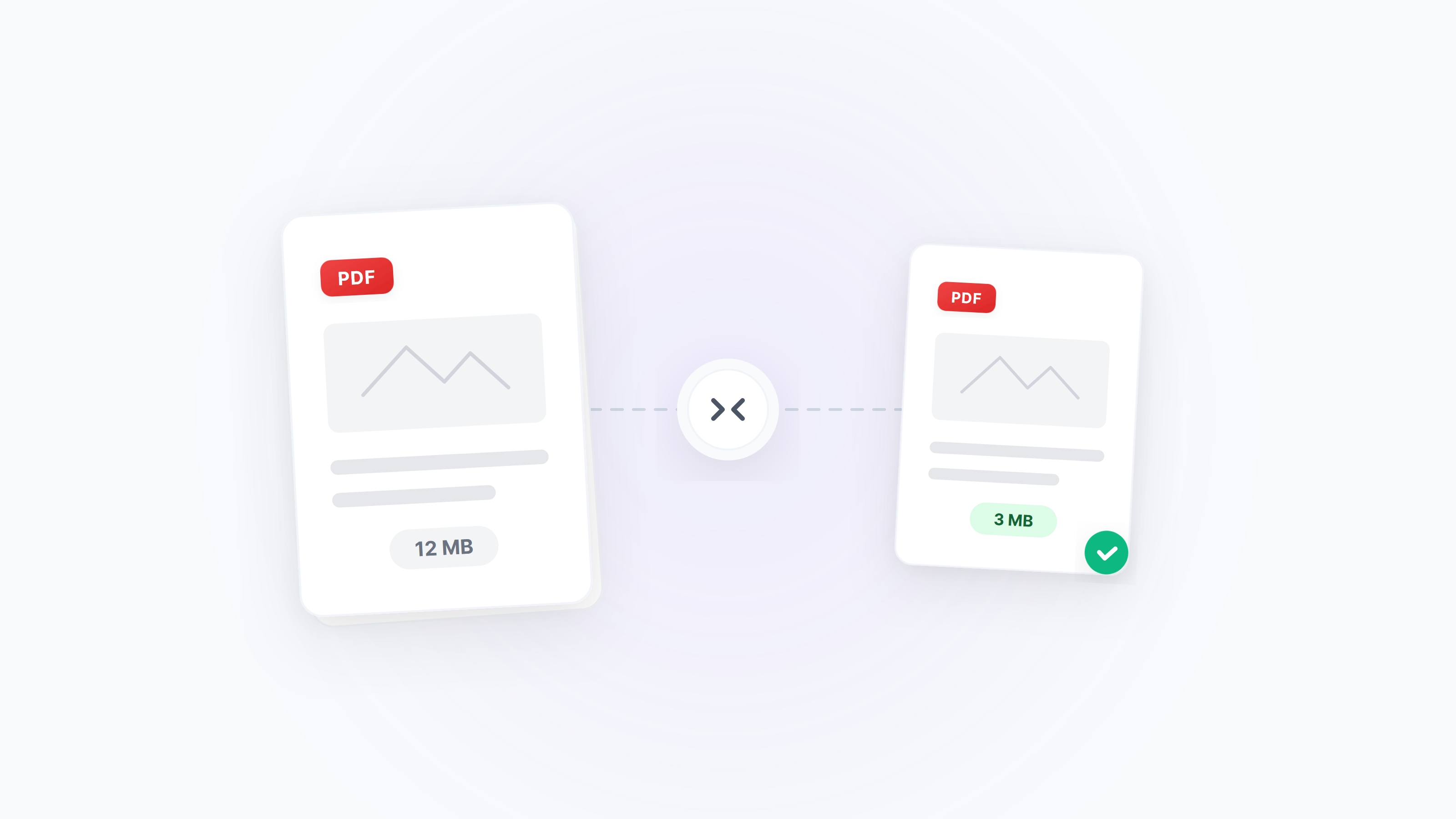
Complete Guide to PDF Compression
Choose the best compression solution based on PDF document type and usage scenario