
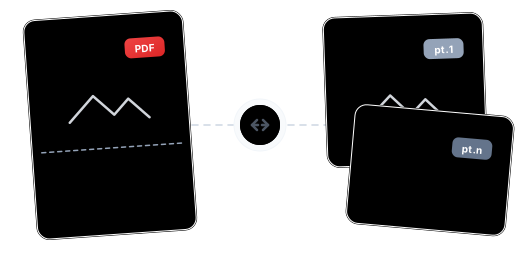
Beyond Splitting: Total Control Over Every Page
Scissors-Based Visual Splitting

Page Expression — Precision Splitting

Rotation & Page Management

Continue With More Tools

Private and Secure

Browser-Based, Any Device

Split a PDF Online in Just 3 Steps

Upload Your PDF
Click "Choose Files" or drag and drop your PDF into the secure workspace.

Mark Split Points or Type a Page Expression
In the thumbnail view, click scissors icons between pages to mark split positions — or type a page expression (e.g. 1-3,6,8 or every:5) to define splits instantly. You can also drag to reorder, rotate, or delete pages.

One-Click Split & Download
Once everything looks right, hit "Split." The system completes processing in seconds — download each split PDF individually or as a ZIP archive.
PDF Splitting FAQ
Can I split a PDF into individual pages?
Yes. Type every:1 in the page expression input — the system will output each page as a separate PDF file, perfect for archiving or distribution.
How do I choose exactly where to split?
Two ways: ① After uploading, scissors icons appear between page thumbnails — click to mark a split point, click again to cancel. ② Type a page expression (e.g. 1-3,4-6) to precisely define each group's page range. Both methods stay in real-time two-way sync.
Will splitting reduce the quality?
Not at all. Splitting is a lossless operation — it simply separates pages without re-encoding, preserving 100% of the original text clarity, image DPI, and layout formatting.
What are the free plan limits?
Free users can process PDFs up to 100 MB, covering the vast majority of everyday needs. Need more? Upgrade to Pro for files up to 2 GB.
Is it safe to split PDFs containing confidential information?
Your files are safe. All data is transferred via 256-bit encryption, processed on EU-based servers under GDPR compliance, and permanently deleted after processing.
Can I split a password-protected PDF?
Encrypted PDFs need to be unlocked first. Use Dpdf's "Unlock PDF" tool to remove the password in one click, then split.
Can I continue processing after splitting?
Yes. After splitting, the system recommends follow-up tools like compression, merging, watermarking, and format conversion. Click to continue — no re-uploading needed.
Related Guides
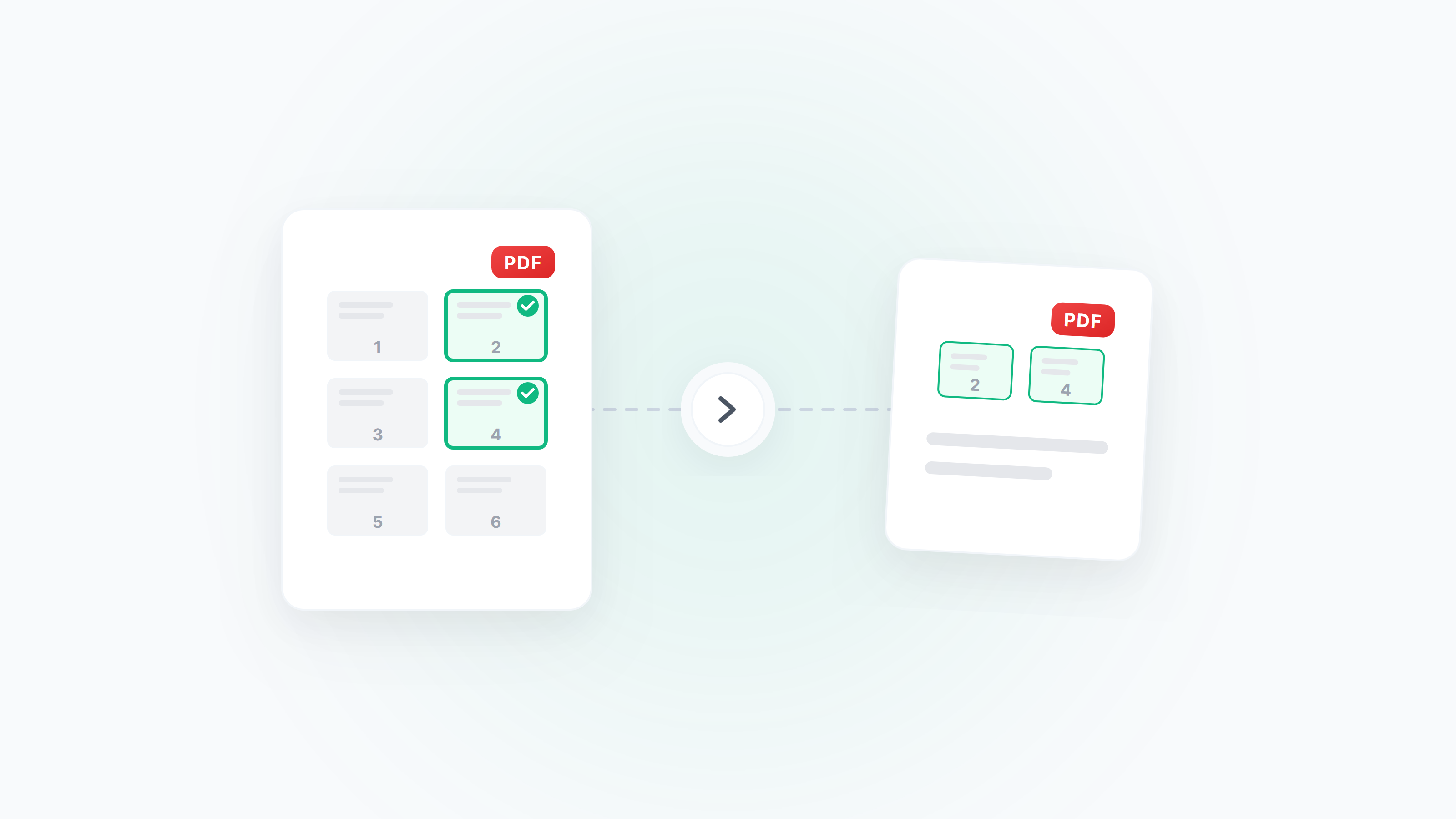
Guide to Extracting and Deleting PDF Pages: Pick Exactly What You Need
How to extract specific pages from a PDF, delete unwanted pages, and reorder pages by drag and drop. Covers scenarios like extracting contract signature pages, cleaning up scanned files, and splitting chapters from long documents.
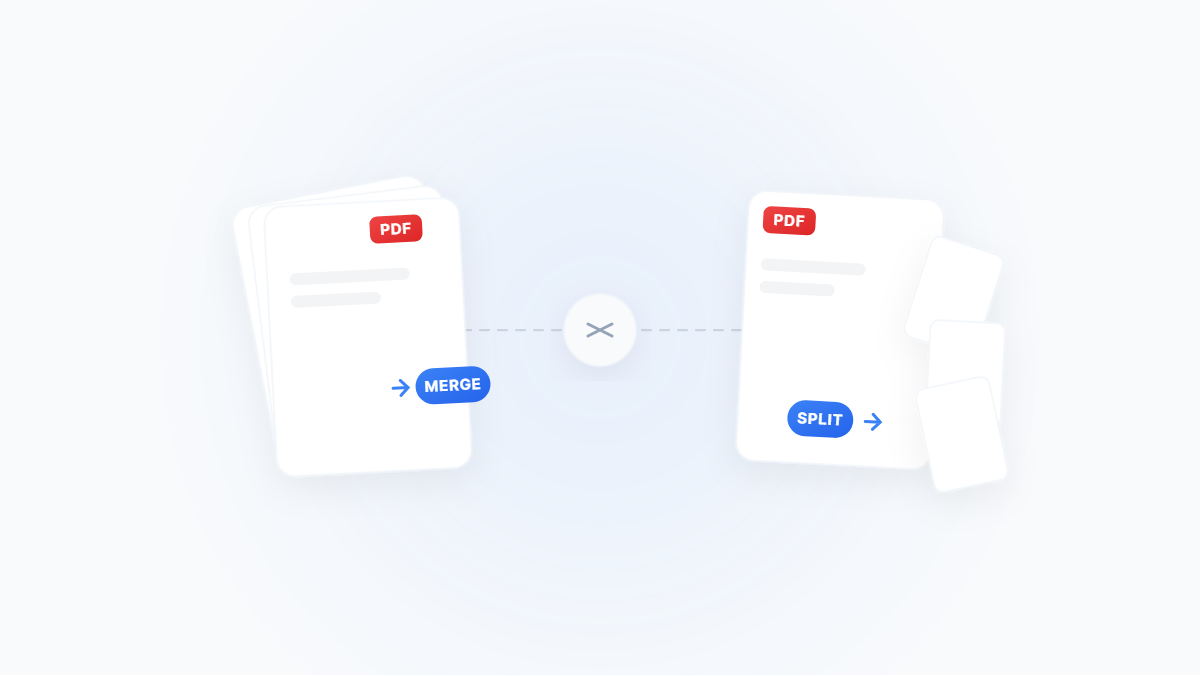
The Complete Guide to Merging and Splitting PDFs: Merge, Extract, Delete, Rotate — All You Need
A scenario‑driven guide to PDF page management: merge, split, extract pages, delete pages, rotate and reorder — with Windows/macOS and online methods plus practical tips.
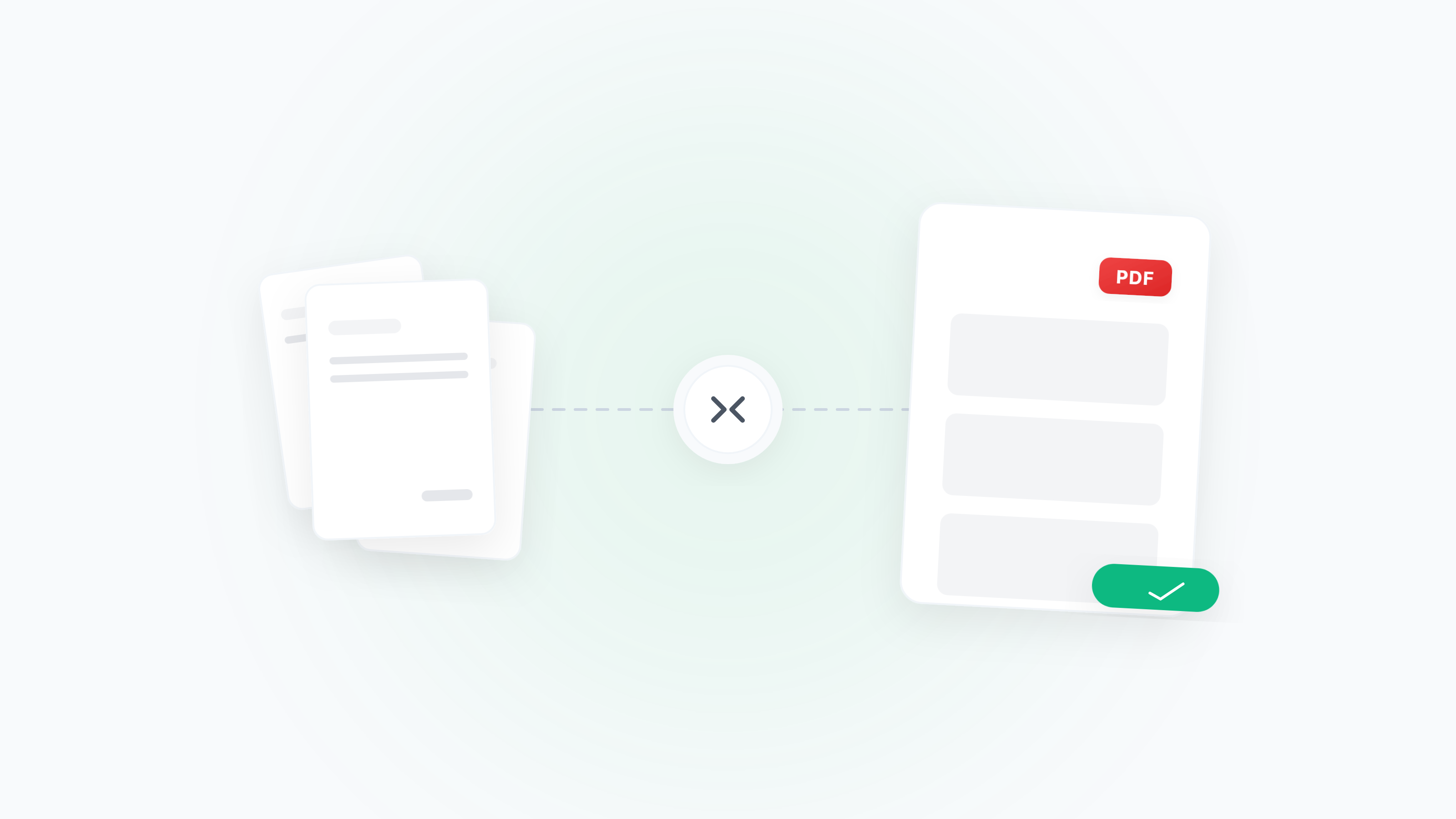
Merge Receipts/Invoices for Reimbursement — Multi‑Format, Sorting, Rotation, Compression
Turn messy receipts/invoices into a single, submission‑ready PDF. Handle mixed formats, sorting, orientation fixes, blank page removal, size limits, and common error checks.