
You have a contract PDF with form fields and need to send it to the other party for archiving — you don't want them changing any of the data. Or you've received an annotated design draft and need to deliver the final version to your client — you don't want them seeing the revision history.
Two options are on the table: Flatten and Rasterize. Both can "lock down" a document, but the degree of locking, the trade-offs, and the ideal use cases are entirely different.
Quick Decision Guide
- Just want to lock form fields and annotations while keeping text searchable and selectable → Use Flatten PDF
- Need content to be completely uneditable and text unextractable → Use Rasterize PDF
- Not sure? Keep reading — it's a 3-minute read
What Does Flattening Actually Do?
A PDF document can contain many "interactive layers": form input fields, dropdown menus, checkboxes, comment bubbles, highlight marks, signature fields, and more. Inside the PDF, these elements are independent objects that can be selected, modified, or even deleted.
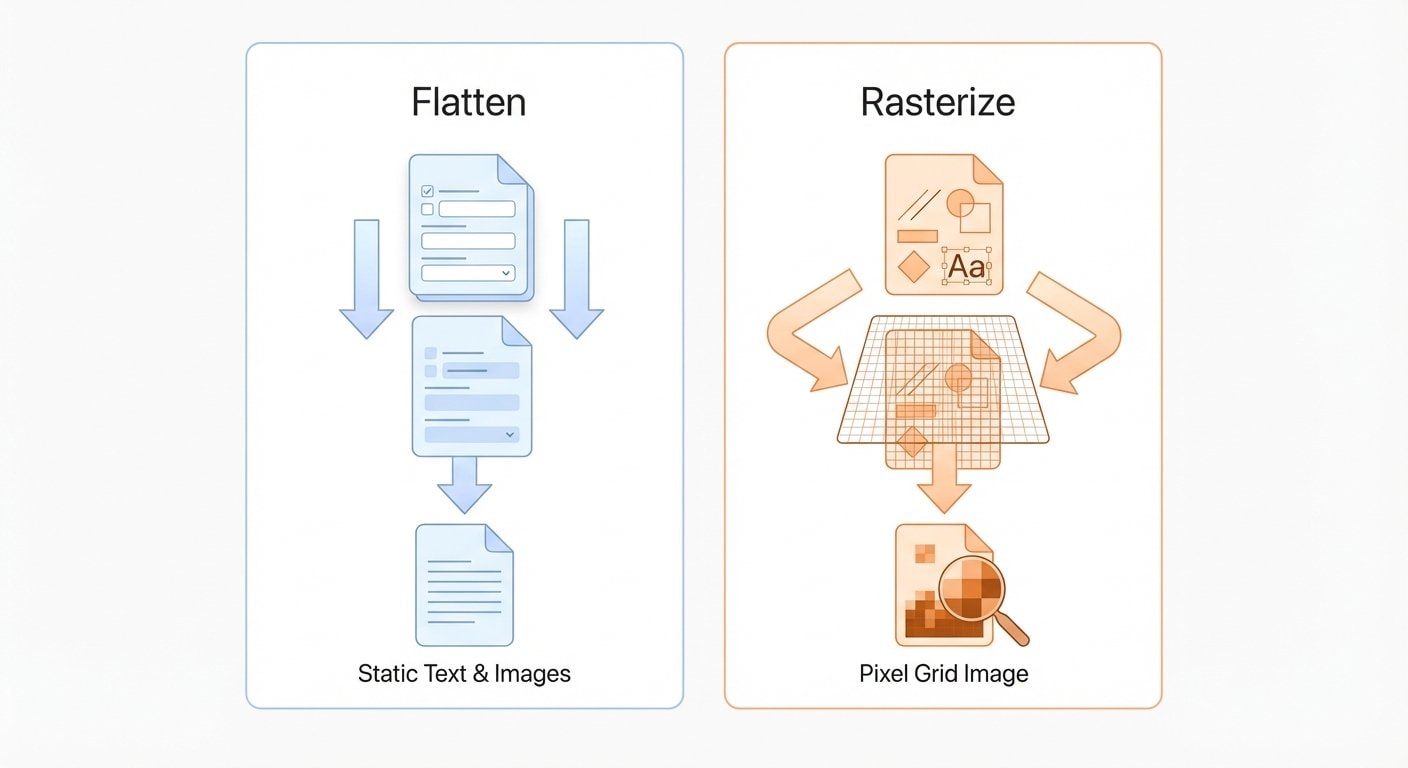
Flattening takes these independent interactive layers and "burns" them into the base page — like permanently gluing sticky notes onto paper. After flattening:
- ✅ Form data becomes fixed text on the page — field values can no longer be changed
- ✅ Annotations and markups merge into the page — they can't be individually selected or removed
- ✅ Text remains vector text — still searchable, selectable, and copyable
- ✅ File size stays roughly the same, and may even decrease slightly
- ⚠️ The underlying vector content structure still exists — professional PDF editors can still modify the text
In One Sentence
Flatten = permanently glue sticky notes and labels onto the document. The document's text content stays the same; only the interactive layers disappear.
What Does Rasterizing Actually Do?
Rasterization is far more aggressive than flattening. It renders every element on each PDF page — text, vector graphics, images, annotations — into a single bitmap image, then replaces the entire page content with that image.
Think of it as printing a document and scanning it back in — only pixels remain, no structure.
After rasterization:
- ✅ No editable elements remain on the page — even text becomes pixels
- ✅ Text cannot be selected, copied, or searched
- ✅ Metadata and hidden information are completely stripped
- ⚠️ File size usually increases (depending on DPI and page count)
- ⚠️ Zooming in may reveal pixel aliasing (depending on DPI settings)
- ⚠️ The document no longer supports accessibility readers (screen readers)
Core Comparison: A Side-by-Side Overview
| Feature | Flatten | Rasterize |
|---|---|---|
| What It Processes | Form fields, annotations, comments | All content on the entire page |
| Text Still Selectable/Searchable? | ✅ Yes | ❌ No |
| Vector Graphics Preserved? | ✅ Yes | ❌ No — converted to pixels |
| File Size Impact | Minimal change or slightly smaller | Usually larger |
| Editable with Professional Tools? | ⚠️ Text content can still be edited | ❌ Nearly impossible to restore |
| Accessibility Support | ✅ Preserved | ❌ Lost |
| Security Lock Level | 🔓 Medium | 🔒 Maximum |
Common Misconception
Many people assume "flattening a PDF" means "the file can't be edited anymore." In reality, flattening only locks down form fields and annotations — the body text on the page remains vector text that can still be edited with professional tools like Adobe Acrobat. If your goal is "absolutely uneditable," you need rasterization.
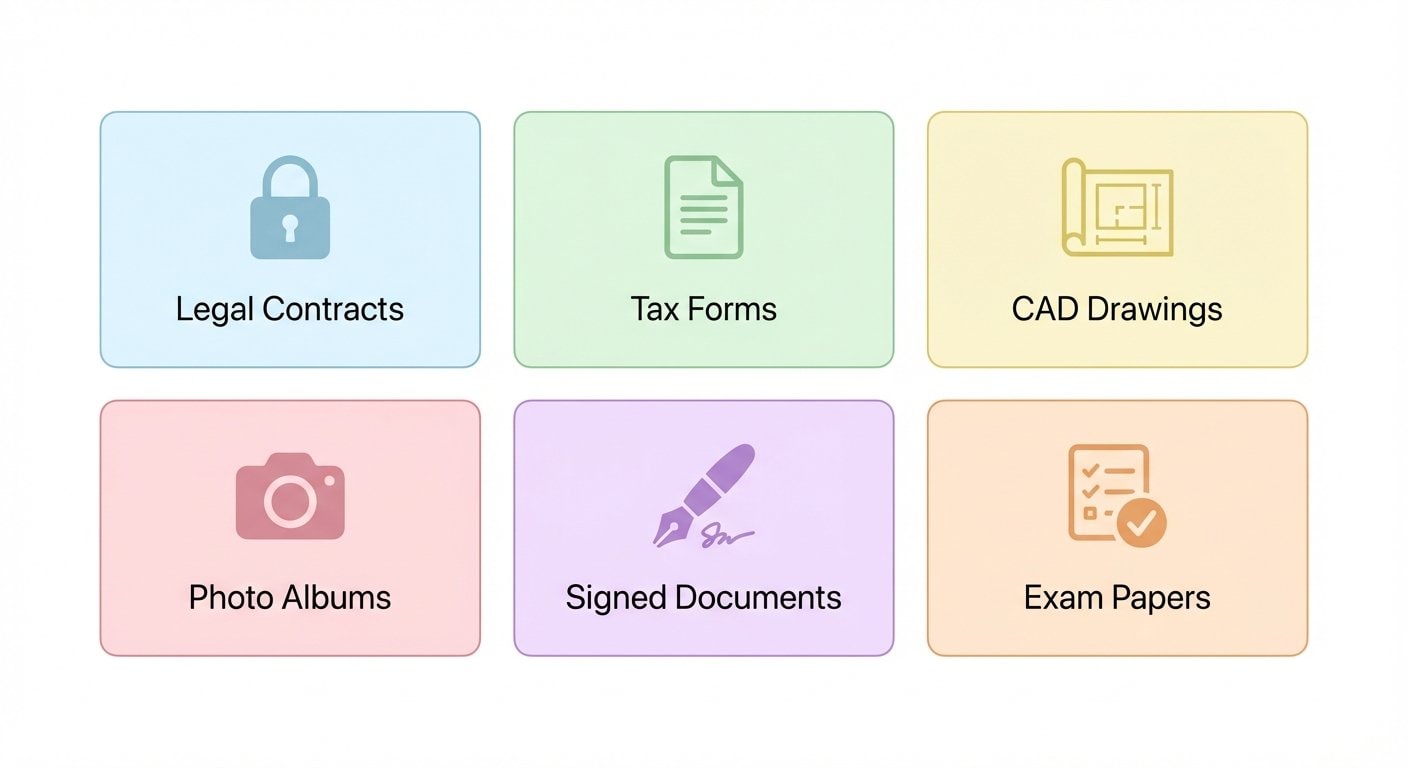
Five Real-World Scenarios to Help You Choose
Scenario 1: Sending a Completed Contract/Form
You've filled out a contract using PDF form fields and now need to send it to the other party for records. You don't want them modifying the filled-in data (e.g., changing the amount from $100,000 to $10,000).
Recommended: Flatten → Use Flatten PDF
Converting form fields to fixed text is sufficient. The recipient can view, copy, and search the content, but cannot alter values through form fields. For typical business scenarios, this level of protection is adequate.
Scenario 2: Sending Redacted Documents Externally
The document contains sensitive information like ID numbers and bank account details. You've drawn black rectangles over them and are about to send it out.
Recommended: Rasterize → Use Rasterize PDF
Covering with Black Rectangles Alone Is Not Secure
Simply overlaying black rectangles on a PDF leaves the underlying text data fully intact. An attacker only needs to Ctrl+A select all or use a command-line tool to extract everything "hidden" beneath the cover. You must rasterize to permanently destroy the underlying text data.
Flattening is completely insufficient here — it does not destroy the underlying text stream.
Scenario 3: Delivering Final Design Files to a Client
A designer has gone through multiple revision rounds, and the PDF is full of comments, revision marks, and annotations. Now it's time to send the final version to the client without showing the revision history.
Recommended: Flatten → Use Flatten PDF
Once annotations and comments are merged into the page, they disappear. The client sees a clean final version. Meanwhile, text and vector graphics remain intact — the client can still select text and zoom into graphics without loss.
Scenario 4: Tender Documents / Legal Evidence Preservation
Bid documents or legal files need to be tamper-proof during transmission — not even a single character can be altered.
Recommended: Rasterize + Encrypt → First Rasterize, then use PDF Encryption to set a password
Rasterization makes the document physically uneditable (there are no text objects to modify), and encryption adds another layer of protection. If you also need to trace leak sources, you can use Add Watermark to embed tracking numbers before rasterizing.
Scenario 5: Internal Approval Workflows
Approval documents circulate between departments with forms that need to be signed at each level. After one stage is completed, the filled content needs to be locked before passing it to the next stage.
Recommended: Flatten → Use Flatten PDF
This locks the current stage's entries without affecting text readability or searchability. Reviewers at the next stage can easily reference previously filled information.
Can You Use Both?
Yes — and in some scenarios, it's actually the best practice.
Recommended order: Flatten first, then Rasterize.
- Use Flatten PDF to burn form fields and annotations into the page
- Use Rasterize PDF to convert the entire document into pixel images
- If needed, use PDF Encryption to set an open password
This workflow is suitable for documents with the highest security requirements — such as legal files containing sensitive data, redacted medical reports, and similar materials.
A Note on the Order
If you're going to rasterize anyway, you can technically skip the flattening step — rasterization itself converts everything (including form fields and annotations) into pixels. The advantage of flattening first is an extra layer of assurance, ensuring that interactive elements are already burned in before rasterization takes place.
Frequently Asked Questions
Q: Can a flattened file be "un-flattened"? A: No. Flattening is irreversible — once form fields and annotations are merged into the page, they cannot be recovered. Always keep a copy of the original file before processing.
Q: Can OCR recover text after rasterization? A: Technically, yes. A rasterized PDF is essentially a series of images, and OCR can recognize text from images. However, OCR is not 100% accurate and cannot restore the original vector structure. If your goal is to prevent text extraction, rasterization is effective enough for the vast majority of scenarios.
Q: Does flattening affect file size? A: Usually not noticeably. Flattening simply merges the interactive layer into the content layer, keeping the data volume roughly the same. In some cases, the file may actually shrink slightly because the form fields' interactive metadata is removed.
Q: What DPI should I choose for rasterization? A: For digital circulation, 150–200 DPI is sufficient. For print archiving, use 300 DPI. Higher DPI means larger files but sharper output. See the Complete Guide to PDF Rasterization for details.
Q: Should I encrypt before or after flattening/rasterizing? A: Flatten/rasterize first, encrypt last. Encryption is the outermost wrapper — if you encrypt first and then try to process, you'll need to decrypt before you can do anything, and after decryption the document is back to its editable state.