
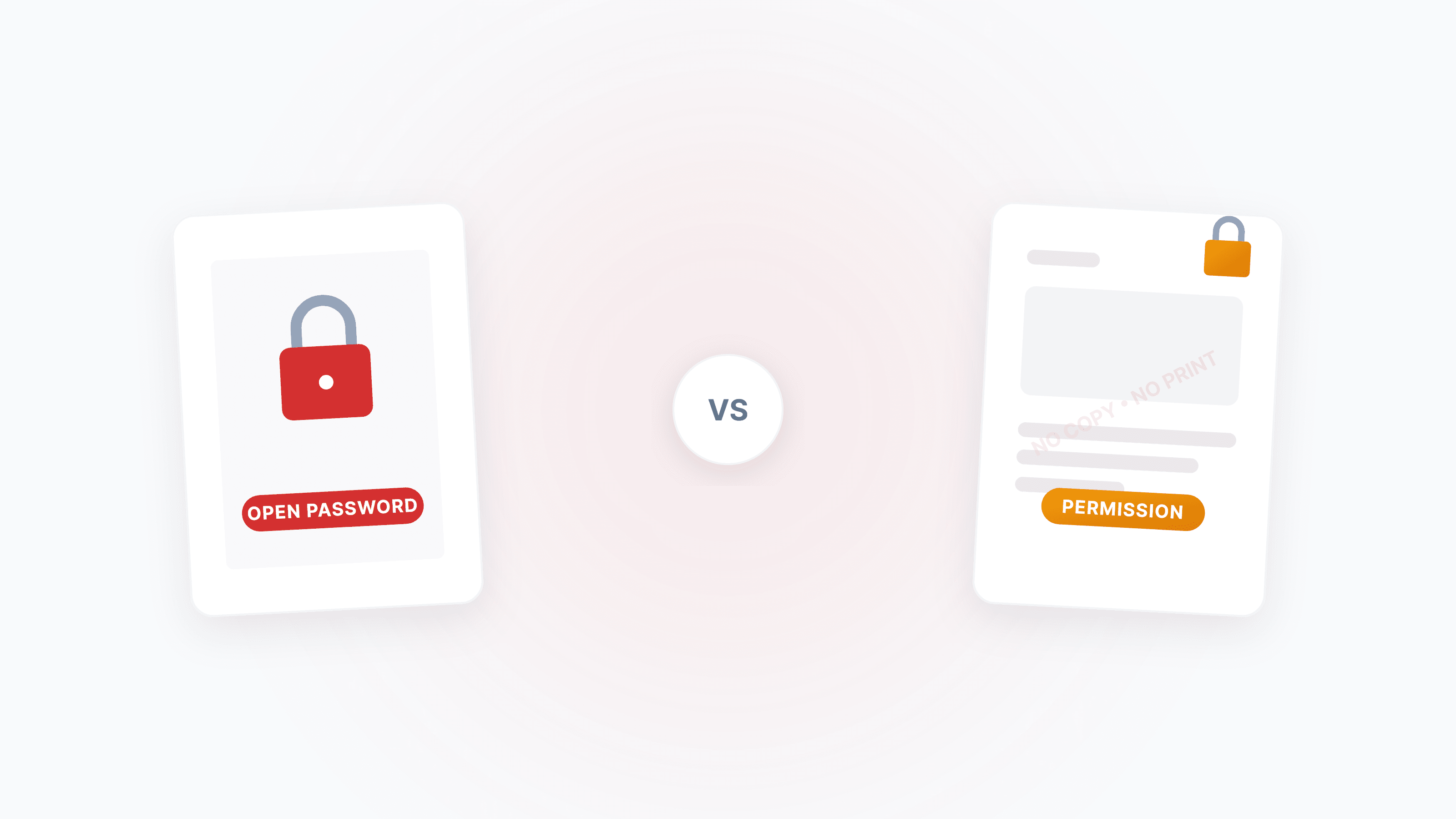
PDF protection is the first line of defense for document security, whether you need to prevent unauthorized opening, block text copying, or restrict printing. Use Protect PDF to set passwords and permissions in one click, and use Unlock PDF to remove restrictions when the password is known.
What do you want to do? (10-second decision)
- Set a password so others cannot open the PDF → Set an "open password"
- Let others view but not copy/print/edit → Set "permission restrictions"
- Remove editing/printing restrictions from a PDF → Use Unlock PDF
- Forgot the password and cannot open your own PDF → See the "Common Questions" section
- Not sure about the difference between the two passwords → Keep reading
Two Passwords, Two Completely Different Purposes
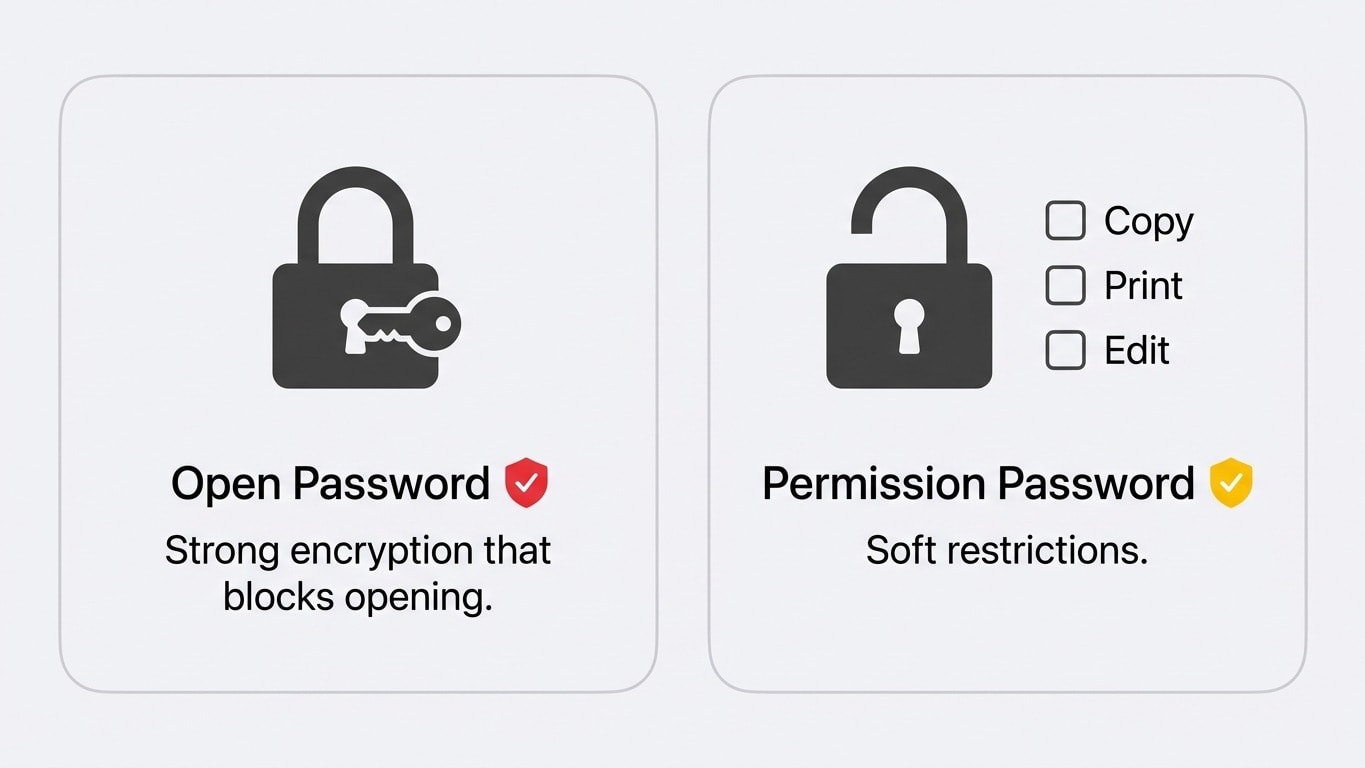
The PDF standard defines two different password types. Many people confuse them, but understanding the difference is critical:
| Comparison | Open Password (User Password) | Permission Password (Owner Password) |
|---|---|---|
| Purpose | Cannot open the file without the password | File can be opened and viewed, but specific actions are restricted |
| Typical scenario | A hard lock for sensitive files sent to non-designated recipients | A soft restriction for "viewable but not copyable" documents |
| Security strength | Strong: file content is encrypted | Weak: depends on viewers honoring permission flags |
| Can it be bypassed | Cannot decrypt without the password | Some tools can ignore permission flags |
| In our tools | A password prompt appears after upload; processing continues only after correct input | Restrictions are removed automatically, no extra action required |
A permission password is not real encryption
A permission password only sets a "gentleman's agreement" flag inside the PDF. Mainstream PDF readers (Adobe Acrobat, Preview) will honor these restrictions, but technically, a permission password does not encrypt file content. So do not rely on permission passwords alone to protect confidential information. Use them together with an open password.
Protect a PDF: Choose the Right Strategy by Scenario
Scenario 1: Full Lockdown — Only people with the password can open it
Best for highly confidential files such as contracts, payroll slips, and medical reports.
In Protect PDF, set an open password. The file content will be encrypted with AES-256, and anyone without the password will only see an inaccessible file.
Password strength recommendations
- Use at least 12 characters with uppercase/lowercase letters, numbers, and symbols
- Avoid easily guessed information such as birthdays or phone numbers
- Send the password via a secure channel (for example, in person or encrypted messaging), and do not put it in the same email as the PDF
Scenario 2: Viewable but restricted — Disable copy, print, and edit
Best for bid documents, proposal submissions, and internal review drafts.
In Protect PDF, enable permission restrictions:
- Disable text copying — Prevent selecting and copying text with Ctrl+C
- Disable printing — Prevent output to paper or another PDF
- Disable editing — Prevent changes to document content and annotations
Scenario 3: Layered protection — Password + permissions + watermark
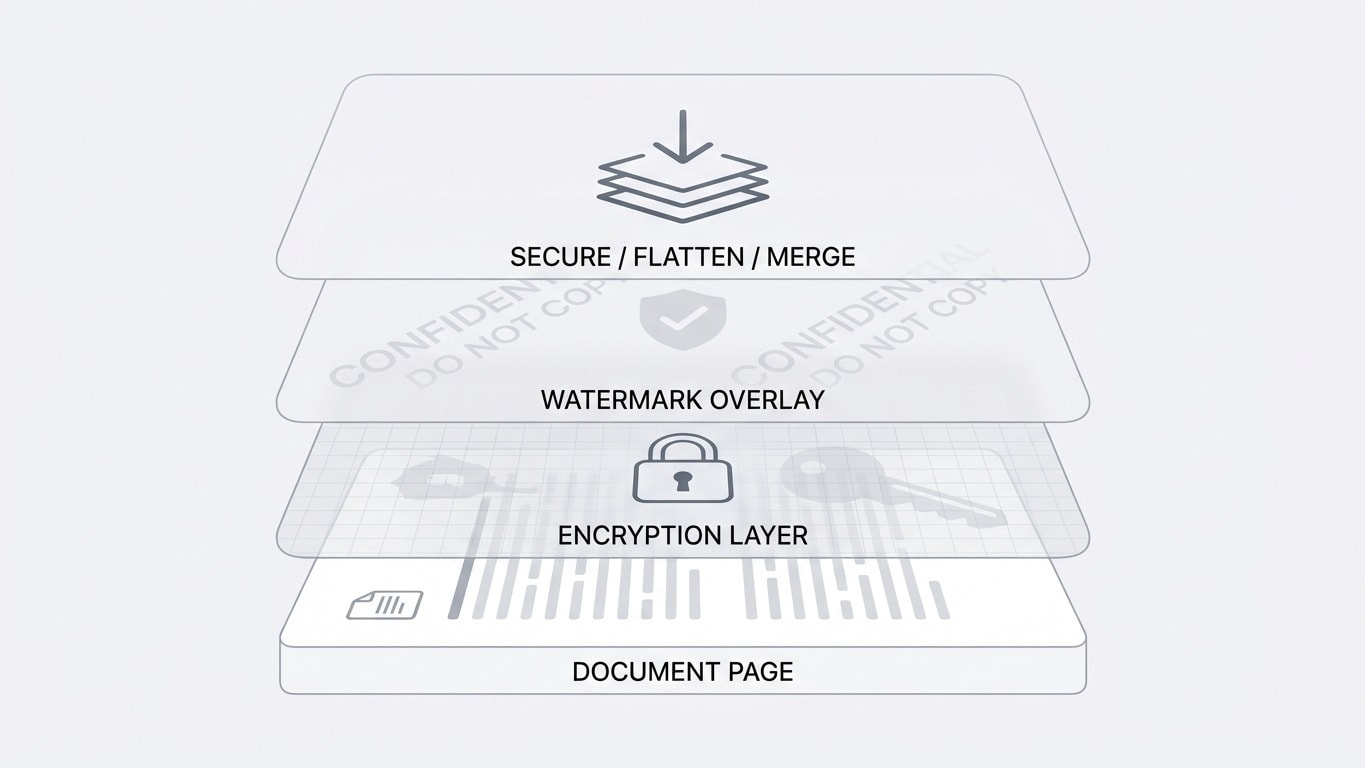
For the highest-security cases (such as bids and legal files), use this layered approach:
- Protect PDF — Set both an open password and permission restrictions
- Add Watermark — Stamp "For Bid Use Only" or your company mark
- Flatten PDF — Make watermarks and form elements permanent so they cannot be removed
Unlock PDF: Remove Restrictions Legally
Unlock PDF helps you remove passwords and permission restrictions from PDFs.
Permission restrictions (editing/copying/printing disabled)
If your PDF can be opened but cannot be edited or copied, it likely has only a permission password. After uploading to Unlock PDF, the tool will automatically remove these restrictions with no password required.
Open password (cannot open at all)
If your PDF requires a password to open, the tool will show a password input prompt after upload. You can continue unlocking only after entering the correct password.
What if you forgot the password?
If you completely do not know the open password, we cannot help "crack" or "bypass" it. That is exactly what the PDF standard is designed to prevent. We recommend:
- Contact the file sender to get the password
- Check your email history to see whether the password was shared
- Look up your password manager
Common Questions After Protection
Can a protected PDF still be merged/compressed/converted?
Yes. In all Dpdf tools, when you upload a protected PDF, a password prompt appears automatically. After entering the correct password, you can continue with operations such as Merge, Compress, or PDF to Word. Files with only permission passwords are handled seamlessly after restrictions are removed automatically.
Will encryption make the file much larger?
Almost never. PDF encryption is stream-based, and the file-size impact is usually under 1%.
Are encryption and digital signatures the same thing?
No. Encryption controls who can open and operate the file; digital signatures prove whether the file has been tampered with. They can be used together, but neither replaces the other.
Correct order for signing and protection operations
Operations such as encryption, watermarking, and flattening will invalidate an existing digital signature. The correct order is: finish all processing first, then sign last.
Permission password vs open password: which one should you set?
| Your need | Recommended setup |
|---|---|
| Prevent all unauthorized viewing | Open password (required) |
| Allow viewing but block copy/print | Permission password + watermark |
| Highly confidential + anti-copying | Open password + permission password + watermark + flattening |
| Archive-only storage | Open password only |
Related Tools at a Glance
Protect PDF
Set an open password and/or permission restrictions to disable copy/print/edit.
Unlock PDF
Remove known-password protection and permission restrictions to restore full editing capability.
Add Watermark
Use with protection: stamp branding or confidentiality marks.
Flatten PDF
Flatten watermarks and form elements to prevent further modification.
PDF to Word
Need to edit after unlocking? Convert directly to editable Word.
Compress PDF
Need to share a protected file? Compress it first to reduce file size.