
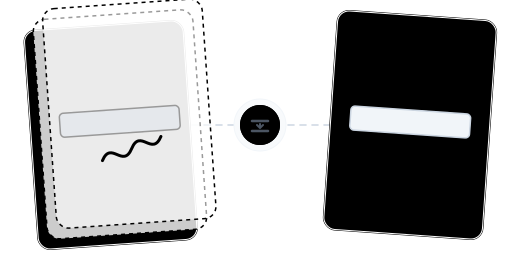
Beyond Flattening: Guaranteed Display Consistency
Standard Flatten Mode

Deep Rasterization Protection

Flexible Dual-Mode Switching

Chain Multiple Operations

Files Deleted After Processing

Runs in Your Browser

Flatten a PDF in Just 3 Steps

Upload Your PDF
Click "Choose Files" or drag and drop your PDF.

Automatic Flattening
The system automatically detects and flattens all editable elements.

Download Your Flattened PDF
Download your PDF with all interactive elements flattened to static content — for free.
PDF Flattening FAQ
What's the difference between standard flatten and rasterize?
Standard flatten merges interactive elements into the page but keeps text searchable and selectable. Rasterize converts each page to an image — text becomes completely non-selectable, non-copyable, non-editable. Standard mode produces smaller files; rasterize provides more thorough protection.
Can I edit forms after flattening?
No. Both modes convert editable elements to static content — ensuring data cannot be tampered with.
Will the file size change?
Standard flatten typically decreases file size slightly (interactive metadata removed). Rasterize may increase file size (text becomes high-resolution images).
What are the free plan limits?
Free users can process PDFs up to 100 MB. Upgrade to Pro for larger files.
Is flattening safe?
Your files are safe. 256-bit encrypted transfer, EU-based servers, GDPR compliant, and permanently deleted after processing.
Related Guides
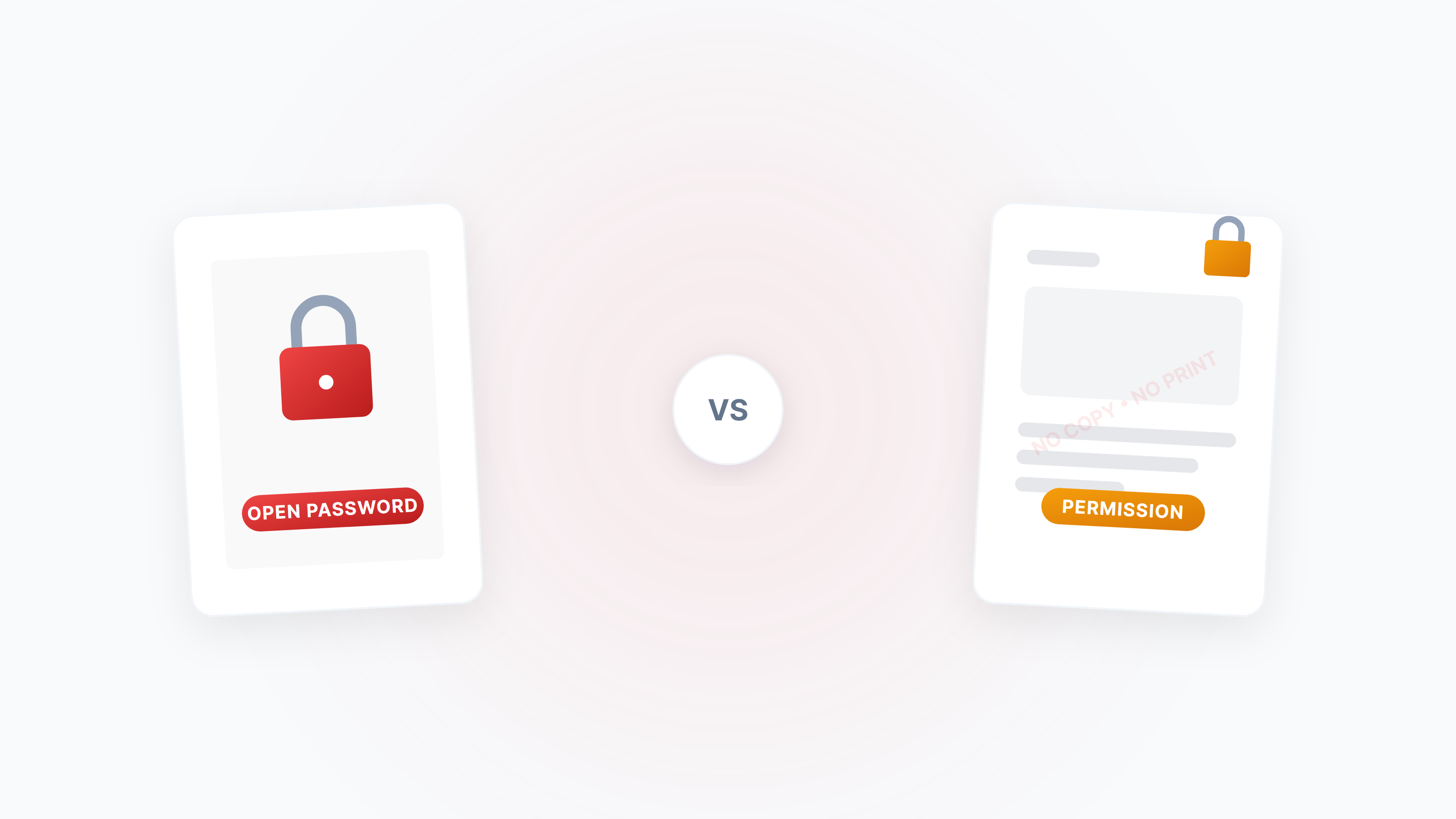
The Complete Guide to PDF Protection and Unlocking: Passwords, Permissions, and Security Strategies
A systematic guide to the two PDF password types (open password vs permission password), how to disable copying/printing/editing, and how to legally unlock restricted PDFs.
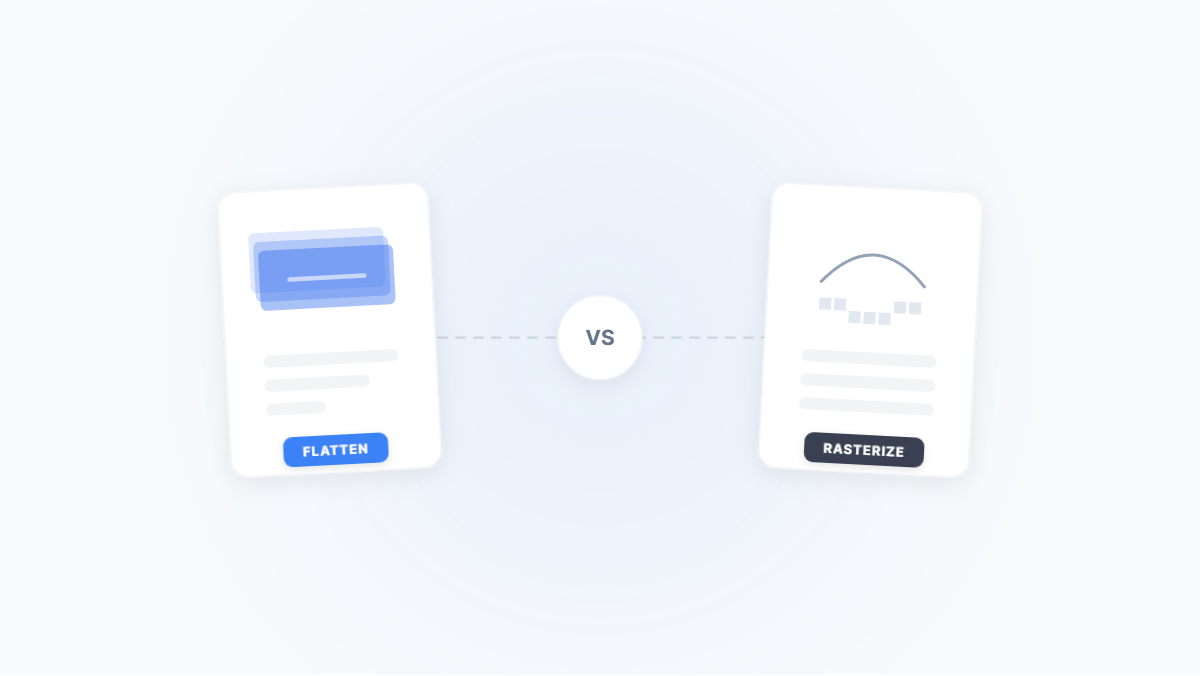
Flatten PDF vs. Rasterize PDF: Two Ways to Lock Down a Document — What's the Difference?
Both flattening and rasterizing can lock PDF content, but one preserves text while the other turns everything into an image. This article uses real-world scenarios to break down their differences, trade-offs, and when to use each.
PDF Password Types Explained: Open Password vs. Permission Password — Security Differences & Practical Guide
What's the difference between a PDF open password and a permission password? Open passwords use AES-256 to encrypt content and can't be bypassed; permission passwords are merely a 'gentleman's agreement' and can be removed instantly. This article breaks down the underlying mechanisms and best practices for both.