
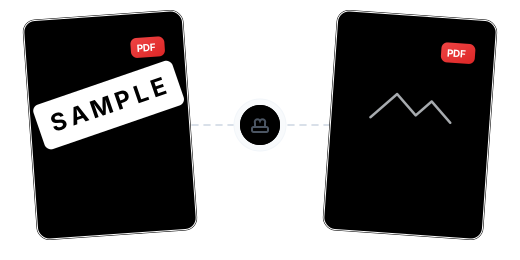
Beyond Watermarks: Fine-Tuned Brand Identity
Text & Image Dual Watermarks

10 Position Modes & Parameter Fine-Tuning

Apply to All or Specific Pages

Chain Multiple Operations

Your Data, Protected

Works on Every Device

Add a Watermark to PDF in Just 3 Steps

Upload Your PDF
Click "Choose Files" or drag and drop your PDF into the secure workspace.

Design Your Watermark
Choose text or image watermark. Enter content or upload an image, then adjust position, angle, opacity, and size.

Download Your Watermarked PDF
Preview the result, then the system completes processing in seconds — download your PDF with custom watermarks.
PDF Watermark FAQ
What watermark types are supported?
Both custom text watermarks and image watermarks. Text watermarks accept any content. Image watermarks support PNG/JPG files up to 5 MB.
Can I adjust position and angle?
Yes. Choose from 10 position modes: full-page tiled (position 1) or any of 9 anchor points in a 3×3 grid (positions 2–10). Angle supports 0°/45°/90°/180°/270° rotation. Opacity and size are freely adjustable.
Can I add watermarks to only some pages?
Yes. By default, watermarks are applied to all pages. You can enter a page range (e.g. 1-5,8,11-13) to apply watermarks only to specific pages.
What are the free plan limits?
Free users can process PDFs up to 100 MB. Upgrade to Pro for files up to 2 GB.
Is watermarking safe?
Your files are safe. All data is transferred via 256-bit encryption, processed on EU-based servers under GDPR compliance, and permanently deleted after processing.
Related Guides
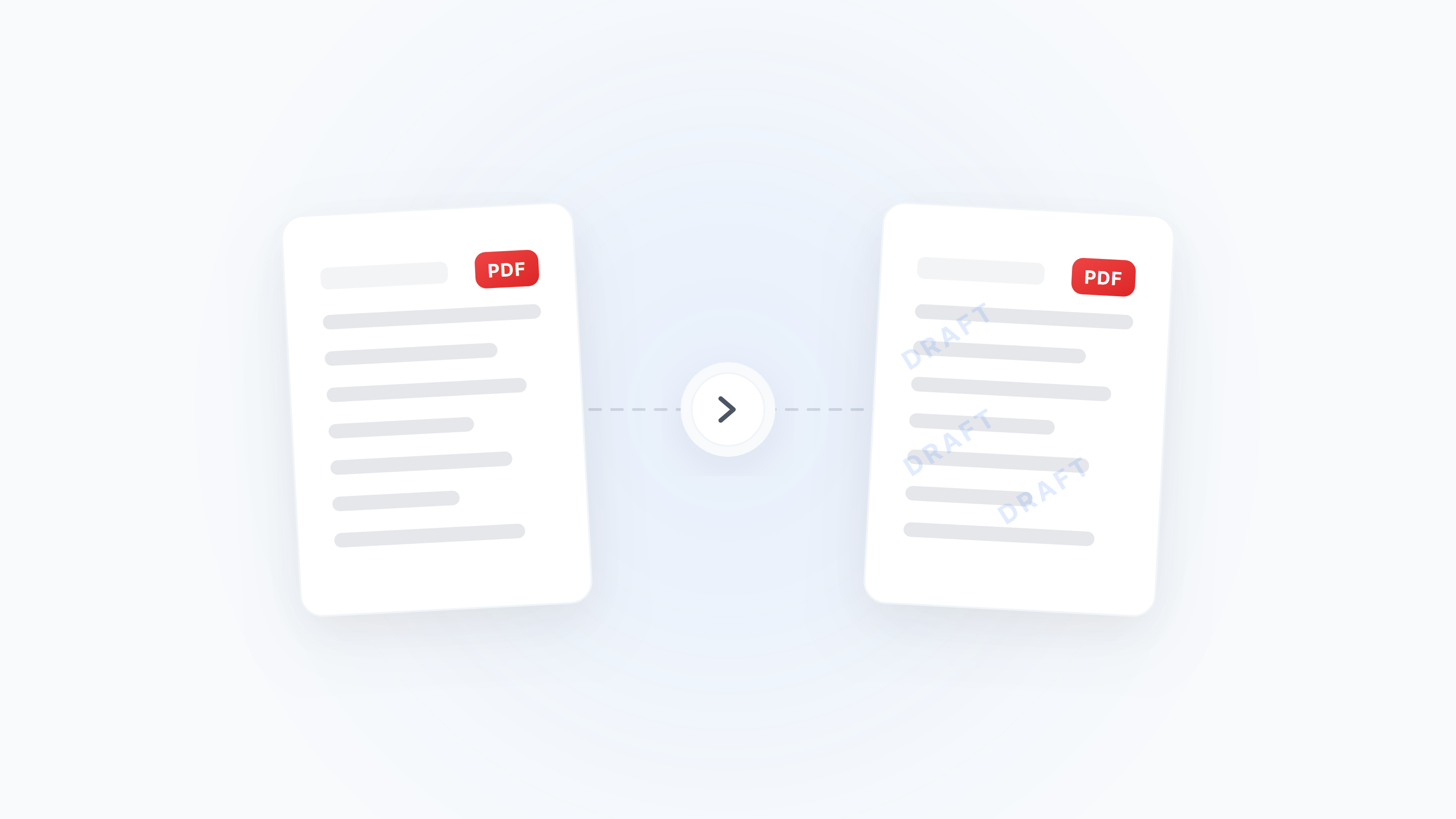
Complete Guide to Adding and Removing PDF Watermarks: From Brand Marking to Copyright Protection
Learn how to add text/image watermarks to PDFs, adjust opacity and position, and understand when watermark removal is safe. Covers business branding, copyright protection, anti-tampering, and more.
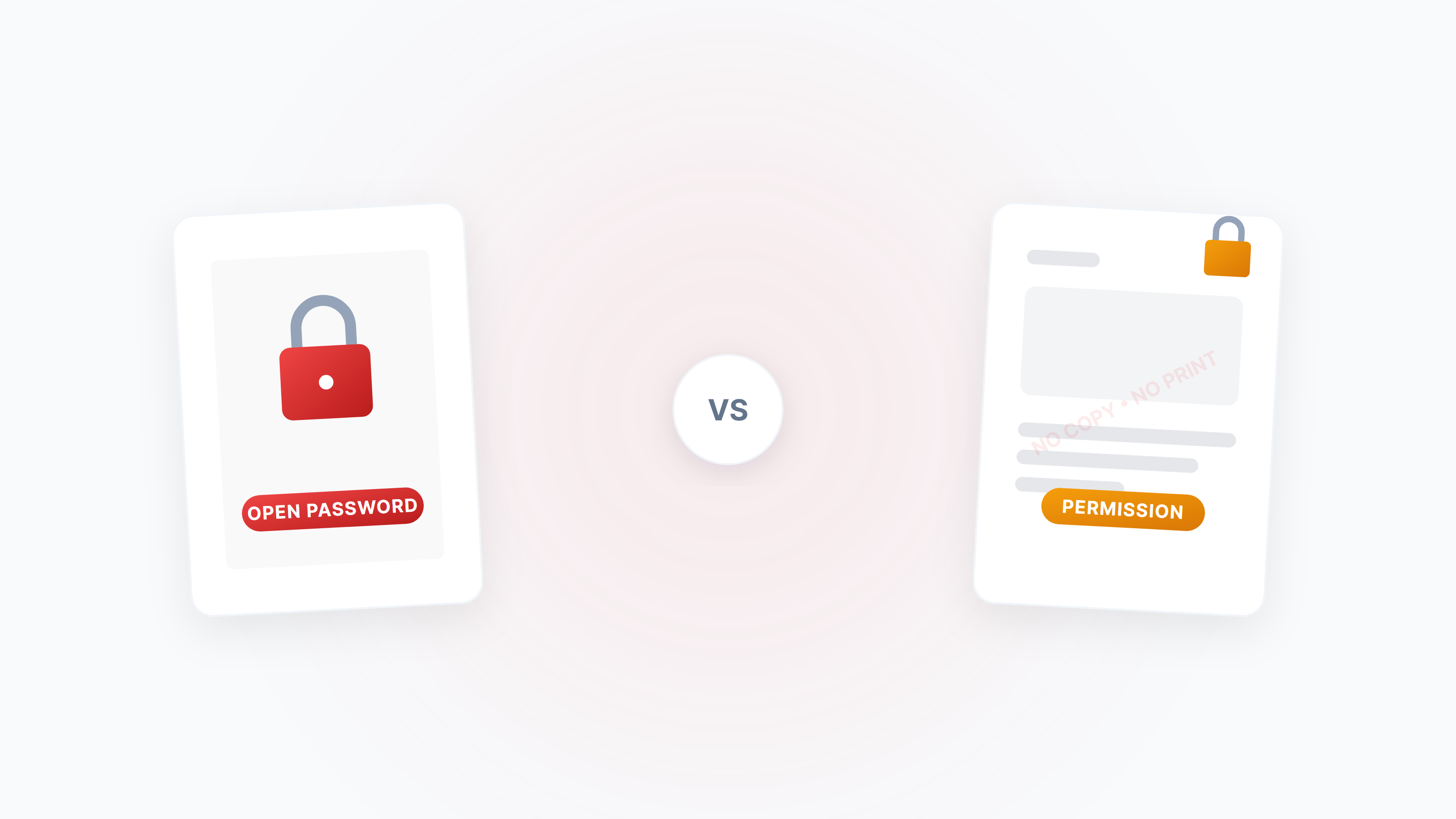
The Complete Guide to PDF Protection and Unlocking: Passwords, Permissions, and Security Strategies
A systematic guide to the two PDF password types (open password vs permission password), how to disable copying/printing/editing, and how to legally unlock restricted PDFs.
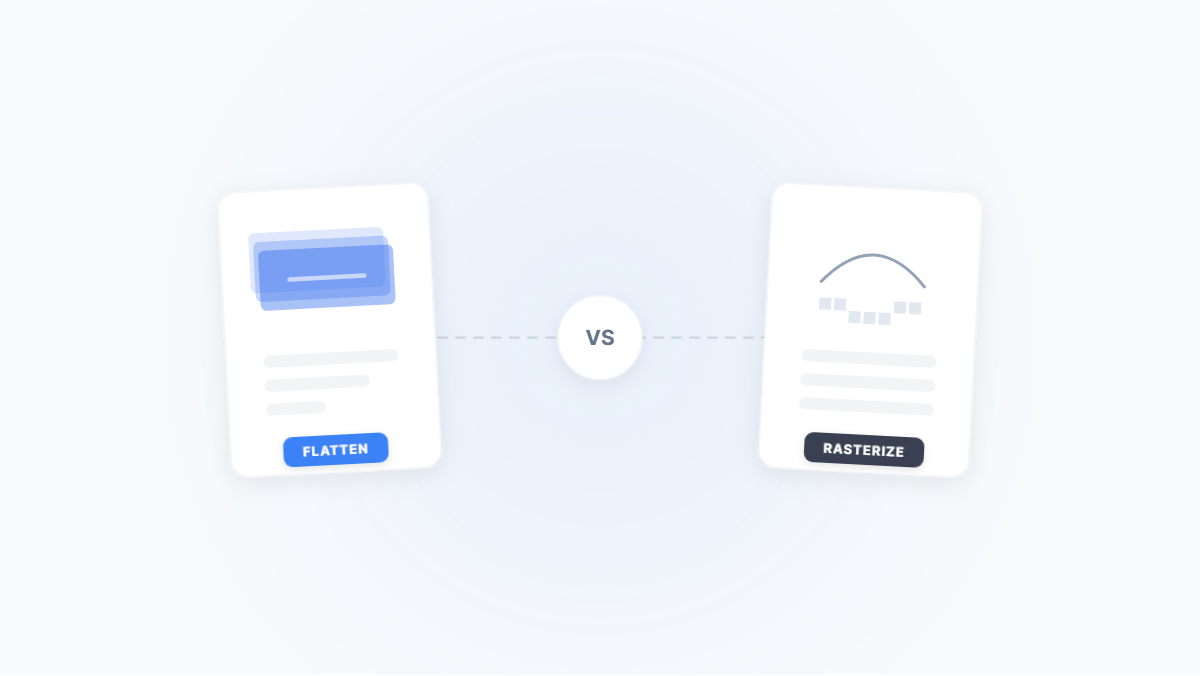
Flatten PDF vs. Rasterize PDF: Two Ways to Lock Down a Document — What's the Difference?
Both flattening and rasterizing can lock PDF content, but one preserves text while the other turns everything into an image. This article uses real-world scenarios to break down their differences, trade-offs, and when to use each.