
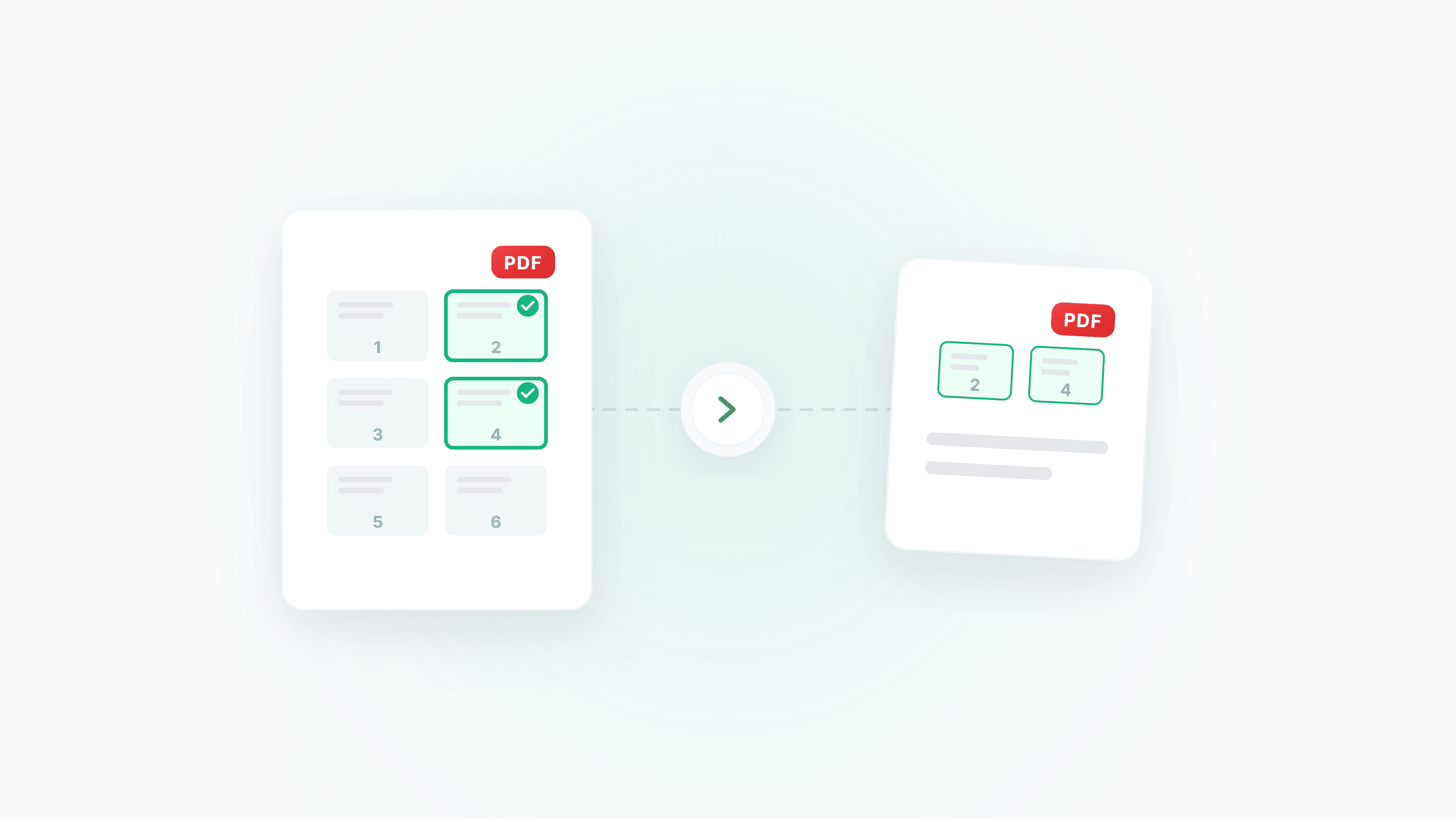
Only need pages 3, 17, and 42 from a 100-page PDF? Or want to remove blank pages and the cover from a document? Use Extract Pages and Delete Pages to control every page precisely, and use Organize Pages to drag and reorder page sequence.
What do you want to do?
- Pick a few pages from a long document → Use Extract Pages
- Remove blank pages/covers/unwanted pages → Use Delete Pages
- Adjust page order → Use Organize Pages
- Split into multiple PDFs at fixed intervals → Use Split PDF
Extract vs Delete vs Split: Which One Should You Use?
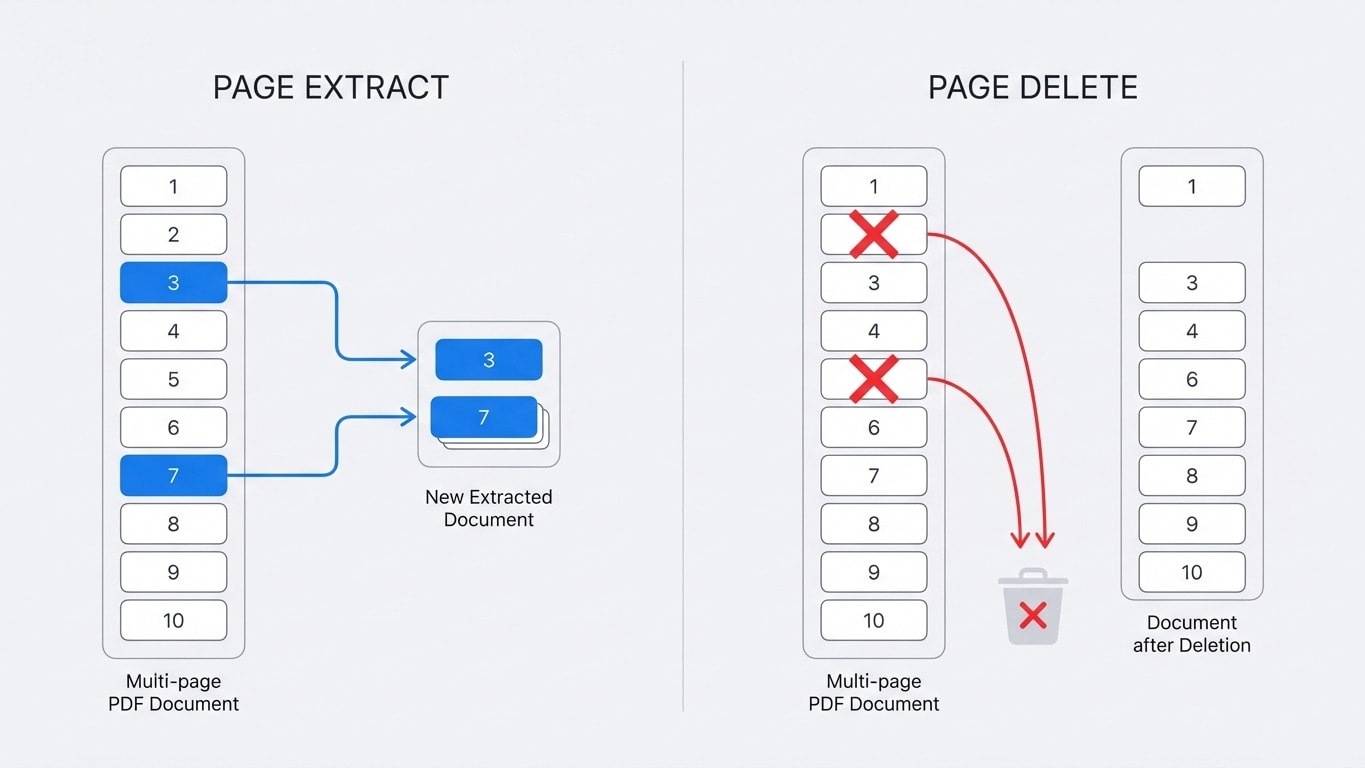
These three actions are often confused, but each solves a different problem:
| Action | Result you want | Typical use case | Recommended tool |
|---|---|---|---|
| Extract | Pick out specific pages from a large document and create a new PDF | Pull out contract signature pages, extract a chapter | Extract Pages |
| Delete | Remove unwanted pages from a document | Delete blank pages, remove cover/ad pages | Delete Pages |
| Split | Cut one document into multiple independent PDFs | Split by chapter, every N pages | Split PDF |
| Organize | Keep all pages but reorder them | Adjust page order, insert blank pages | Organize Pages |
A practical rule of thumb
- If wanted pages are fewer than unwanted pages → use Extract (select what you need)
- If wanted pages are more than unwanted pages → use Delete (remove what you don't need)
- If you need multiple output files → use Split
Scenario 1: Extract Contract Signature Pages
For contracts/agreements, you often only need signature pages for archiving. No need to open the whole file. Just:
- Upload to Extract Pages
- Find signature pages in thumbnails and click to select
- Export as a new PDF
The extracted PDF contains only selected pages, greatly reducing file size and making it easier to archive and send.
Scenario 2: Delete Blank Pages in Scanned Documents
During scanning, duplex scans often generate blank pages. These pages add no value, increase file size, and hurt reading experience.
- Upload to Delete Pages
- Locate blank pages in thumbnail preview
- Click to mark them for deletion
- Process and download a clean PDF
Deletion is non-destructive to the original file
Deleting pages creates a new PDF, and your original file is not modified. If you make a mistake, just upload the original file again.
Scenario 3: Extract Chapters from a Long Document
From a 200-page technical manual, you only need one chapter (for example, pages 45-72):
- Upload to Extract Pages
- Hold Shift in thumbnails and select pages 45-72 (continuous selection)
- Export as an independent PDF
If you need multiple non-contiguous chapters, you can select multiple page groups and they will be merged into one new PDF in order.
Scenario 4: Reorder Pages
After merging multiple documents, the page order is wrong? Or your colleague’s report should show conclusions before data?
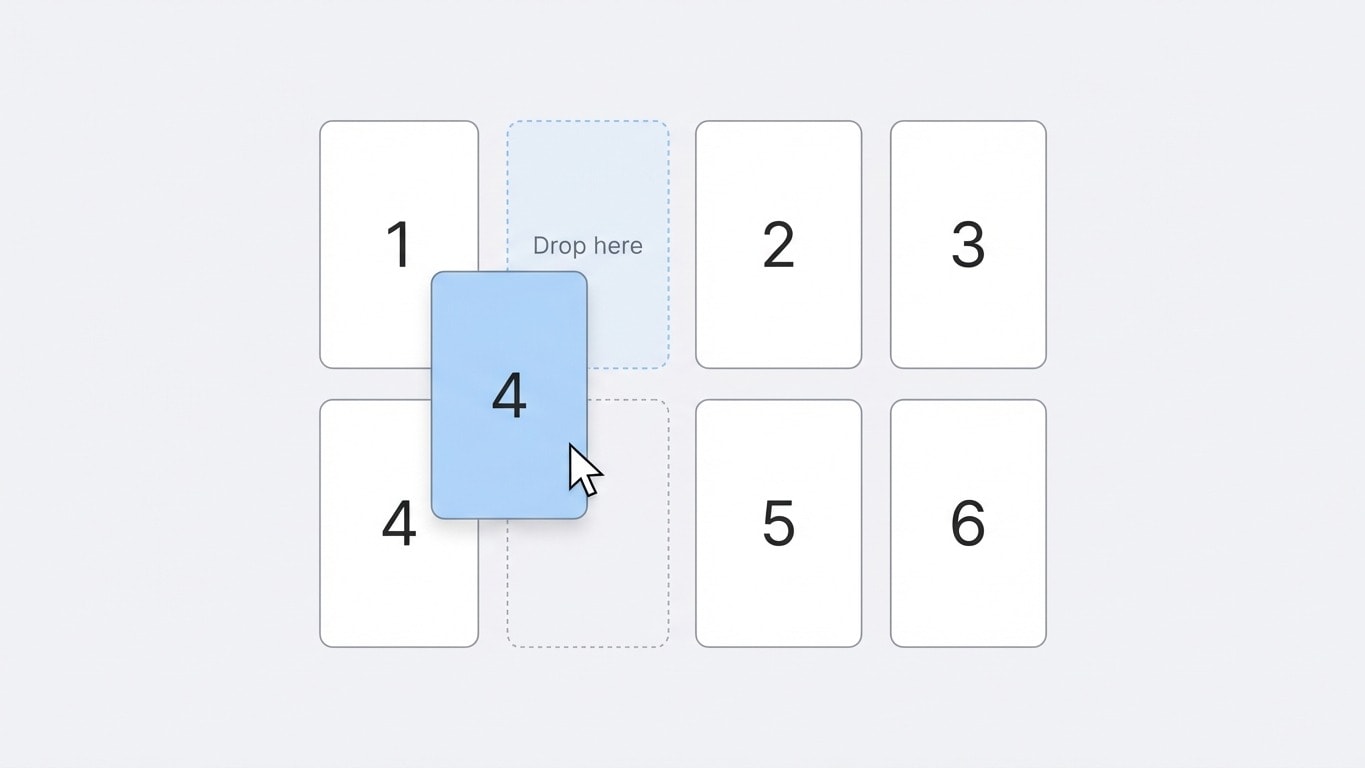
Organize Pages provides drag-and-drop editing:
- Upload a PDF and view all pages as thumbnails
- Drag thumbnails directly to adjust order
- You can also rotate pages with wrong orientation and duplicate pages that need to appear more than once
- Export when you're satisfied
General Steps
Whether you extract or delete pages, the workflow is very similar:
- Upload PDF — Drag in the file or click to select
- Visual operation — All pages are shown as thumbnails
- Extract: click to select pages you want to keep
- Delete: click to select pages you want to remove
- Organize: drag to reorder
- Process and download — Generate a new PDF with one click
All operations are lossless: text, images, and layout quality remain unchanged.
Combine with Other Tools
Extracting/deleting pages is often one step in a larger workflow:
| Workflow | Steps |
|---|---|
| Extract signature pages and compress before sending | Extract → Compress |
| Delete blank pages then merge | Delete → Merge |
| Extract chapters then convert to Word for editing | Extract → Convert to Word |
| Reorder pages then add watermark for archiving | Organize → Add Watermark |
After processing, the system will recommend relevant next-step tools so you can continue with one click without re-uploading files.
Quick Access to Related Tools
Extract Pages
Select specific pages from a PDF and generate a new PDF.
Delete Pages
Remove unwanted pages and keep useful content.
Organize Pages
Drag to reorder pages, rotate pages, and duplicate pages.
Split PDF
Cut one PDF into multiple independent files by rules.
Merge PDF
Merge multiple organized PDFs back into one file.
Compress PDF
Still too large after extracting/deleting? Compress it.