
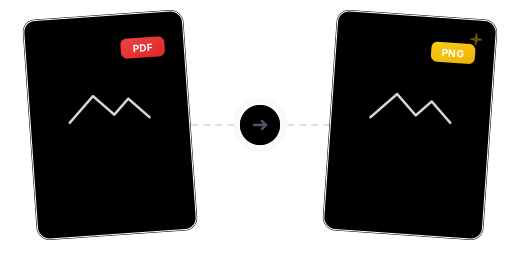
Beyond Conversion: Lossless Quality with Transparency
Lossless Quality & Transparency

Three DPI Levels

Convert & Extract Dual Modes

Keep Working After Conversion

Private and Secure

Browser-Based, Any Device

Convert PDF to PNG in Just 3 Steps

Upload Your PDF
Click "Choose Files" or drag and drop your PDF into the secure workspace.

Select Mode & Resolution
Choose 'Convert All Pages' or 'Extract Images', then set DPI (100/200/300). Output format is locked to PNG.

Convert & Download
Processing completes in seconds — download individual PNG files or a ZIP archive.
PDF to PNG Conversion FAQ
Why choose PNG over JPG?
PNG uses lossless compression — ideal for text screenshots, charts, and transparency needs with zero quality loss. JPG is smaller but has compression artifacts — better suited for photos.
How does DPI affect output images?
Higher DPI means sharper images but larger files. 100 DPI is great for web; 200 DPI balances quality and size; 300 DPI delivers print-quality resolution.
Do converted PNGs support transparent backgrounds?
PNG natively supports alpha transparency. If the PDF page contains transparent elements, the converted PNG will preserve that transparency.
What are the free plan limits?
Free users can process PDFs up to 100 MB with no watermarks. Upgrade to Pro for files up to 2 GB.
Is the conversion safe?
Your files are safe. 256-bit encrypted transfer, EU-based servers, GDPR compliant, and permanently deleted after processing.
Related Guides
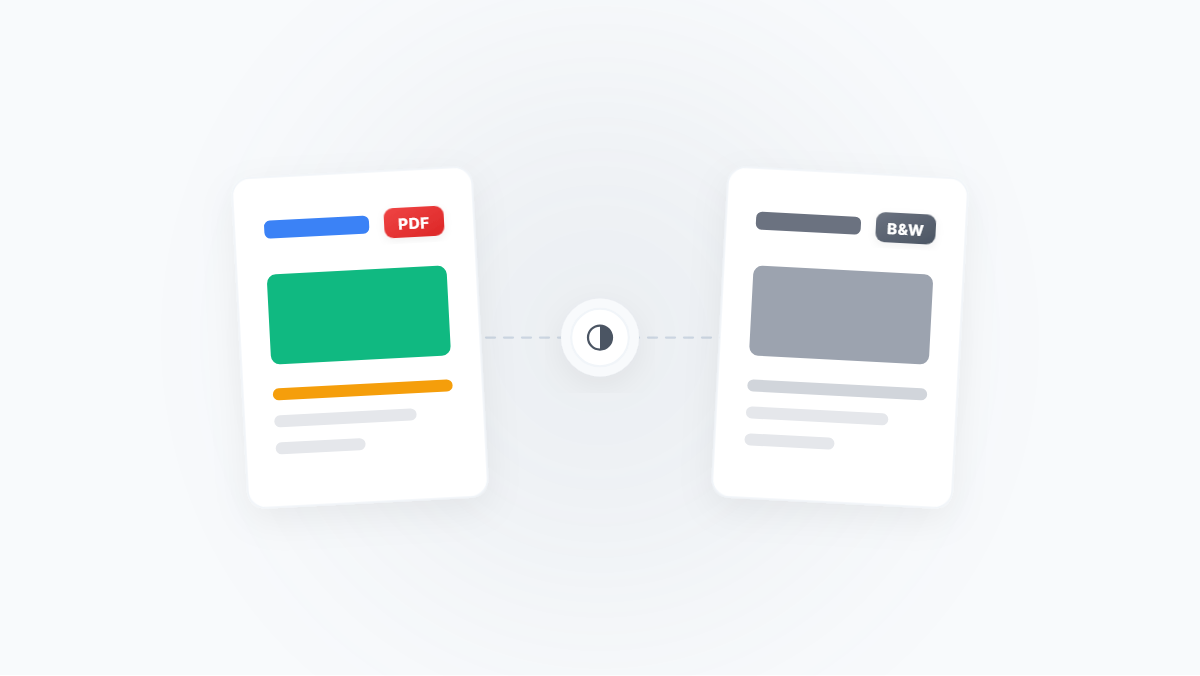
Convert Color PDF to Black & White/Grayscale: The Best Solution for Ink-Saving Printing and Maximum Compression
A complete guide to converting color PDFs to black & white or grayscale mode, covering ink-saving printing, maximum compression, OCR optimization, and more — with a clear breakdown of black & white vs. grayscale and step-by-step workflows.
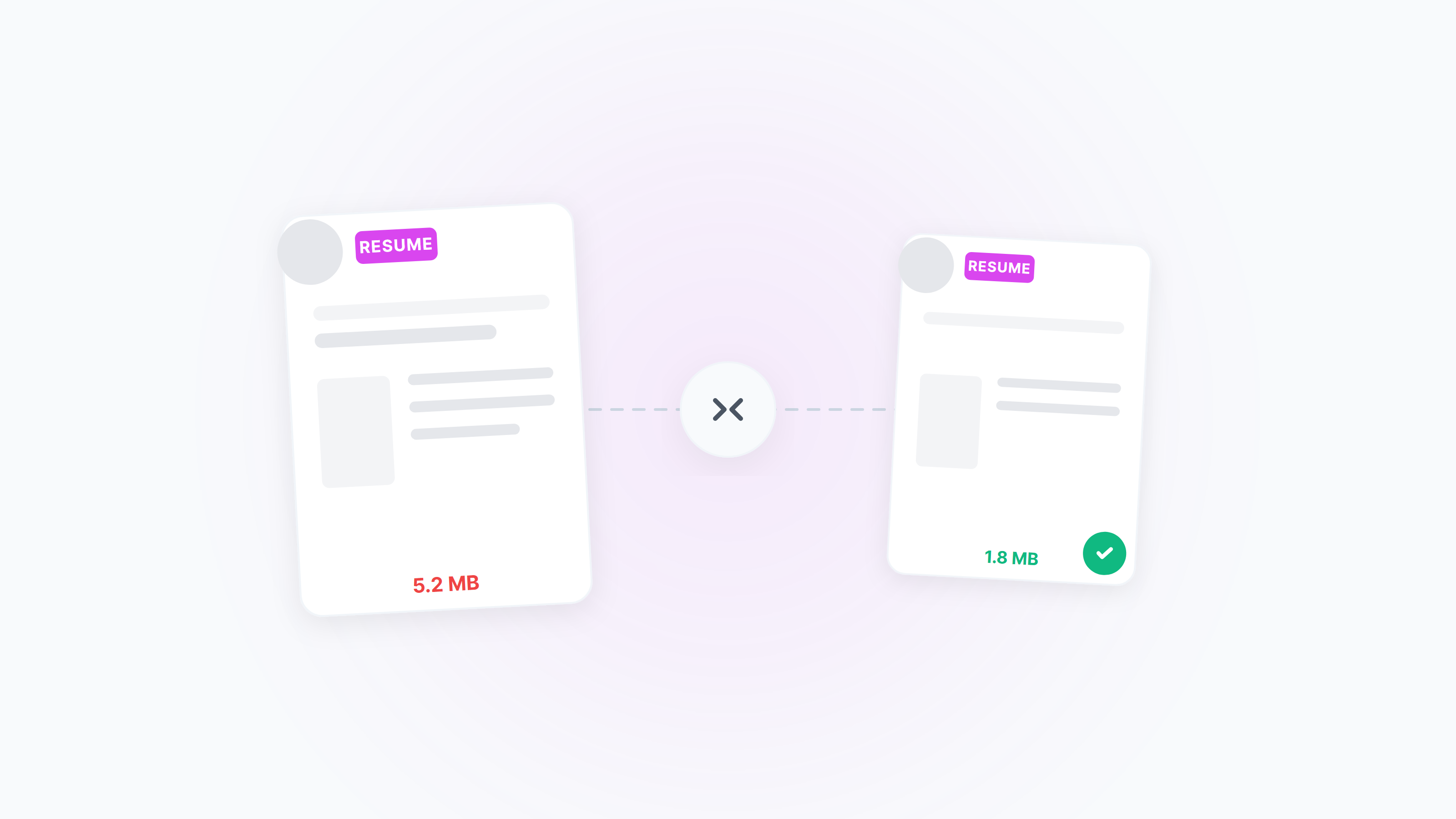
Compress Resume PDF to 2MB — Clear and ATS‑Friendly
Meet the common “≤2MB” resume limit without losing clarity. Practical online settings plus native Windows/macOS ideas, with tips for black‑and‑white, unified page size, and image optimization.
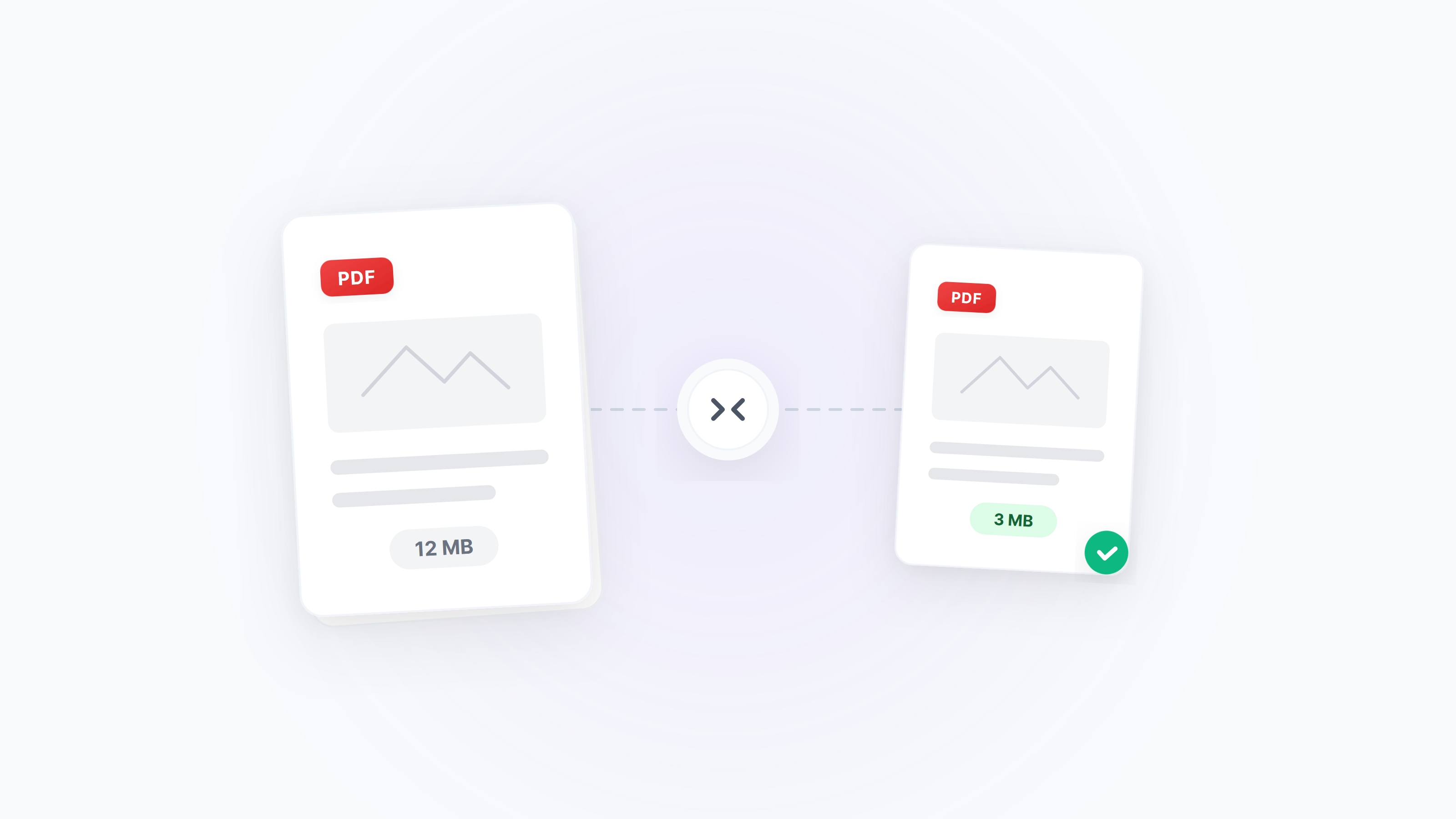
Complete Guide to PDF Compression
Choose the best compression solution based on PDF document type and usage scenario