
Have you ever run into situations like these: printing a 200-page training manual and burning through your color ink in a week? A submission that requires "black and white scanned copies" but you only have the color version? A 500MB color-scanned contract that needs to be emailed but keeps hitting the attachment size limit?
Converting a color PDF to black & white or grayscale sounds as simple as "removing the color" — but choosing the right mode and pairing it with the right compression strategy makes all the difference. File size can drop from 500MB to 10MB, and ink consumption can be reduced by over 90%.
Quick Access
If you already know what you need, go ahead and upload your file to PDF Black & White/Grayscale Converter. The rest of this article will help you decide whether to choose black & white or grayscale, and how to combine it with compression for the best results.
What's the Difference Between Black & White and Grayscale?
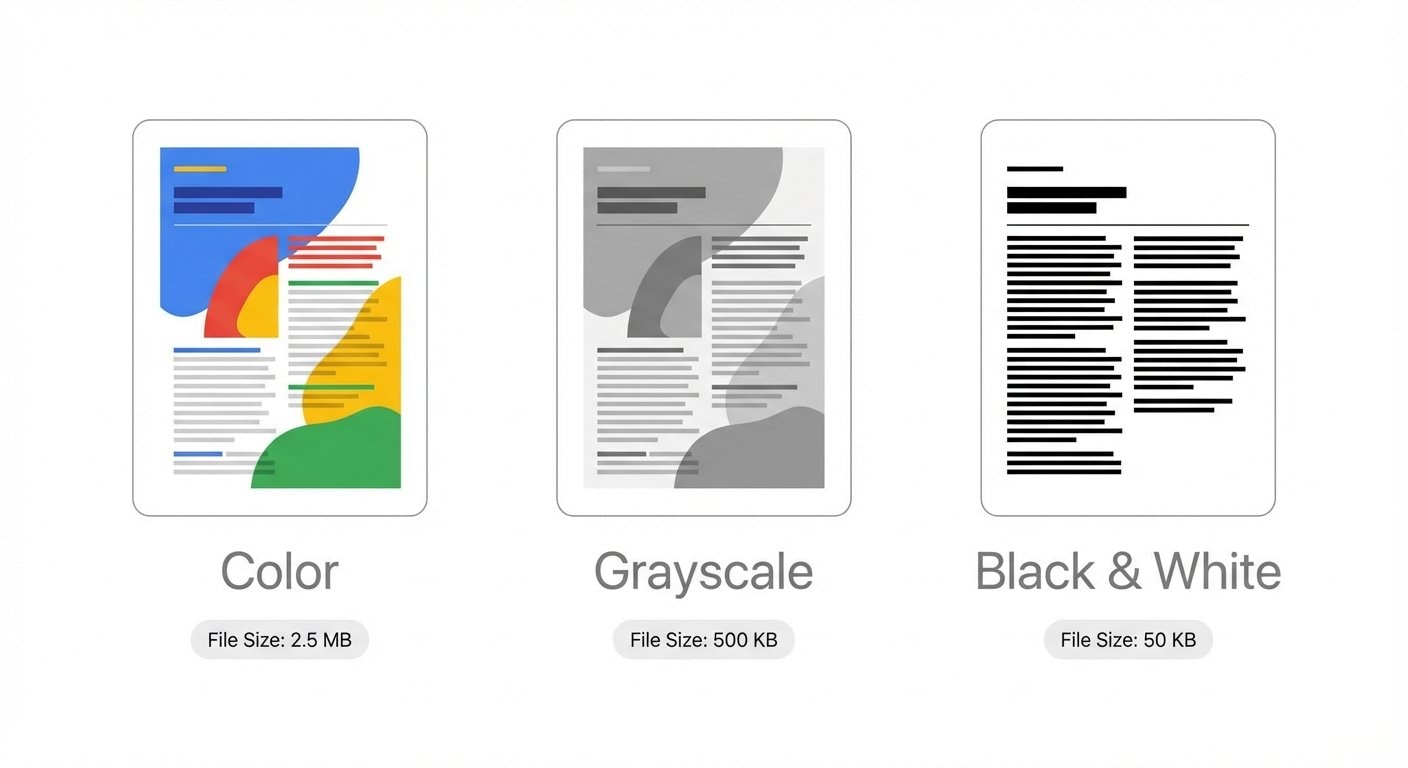
Many people use "black and white" and "grayscale" interchangeably, but they are technically very different and suited for different use cases.
Pure Black & White (1-bit)
Each pixel has only two states: black or white — no in-between. Think of the text on a newspaper page: there's either ink or there isn't.
- Pixel depth: 1 bit (each pixel requires only 1 bit of storage)
- Best for: Text-only documents, line drawings, tables, signatures
- Not suitable for: Photos, gradients, illustrations with shadows
- Compression advantage: Compatible with the JBIG2 algorithm for extremely high compression ratios
Grayscale (8-bit)
Each pixel has 256 levels of gray, with 254 shades of transition between pure white and pure black. Think of a black-and-white photograph — it preserves light, shadow, and detail.
- Pixel depth: 8 bits (each pixel requires 8 bits of storage)
- Best for: Documents containing photos, illustrations with shadows/gradients, medical imaging
- Not suitable for: Scenarios requiring maximum compression
- Compression advantage: Saves roughly 2/3 of storage compared to color (24-bit)
How to Choose? One Simple Rule
Document contains only text and line art → choose pure black & white for the smallest file size. Document contains photos or gradients → choose grayscale to preserve tonal detail.
Four Real-World Scenarios: Why You Need Black & White/Grayscale Conversion
Scenario 1: Ink-Saving Printing — The Most Common Need
Color printing costs 5–10 times more than black and white. A set of color ink cartridges for a typical inkjet printer can cost a significant amount, and printing a few hundred pages of color documents will drain them quickly.
If your document doesn't need color (training materials, contracts, internal review documents), converting to grayscale or black & white before printing can:
- Reduce ink/toner consumption by 60–90%
- Allow printing with just the cheaper black cartridge
- Often speed up printing as well (no color mixing step)
How to do it: Upload to PDF Black & White/Grayscale Converter, select grayscale mode, download, and print.
Scenario 2: Maximum Compression — Convert to Black & White, Then Compress
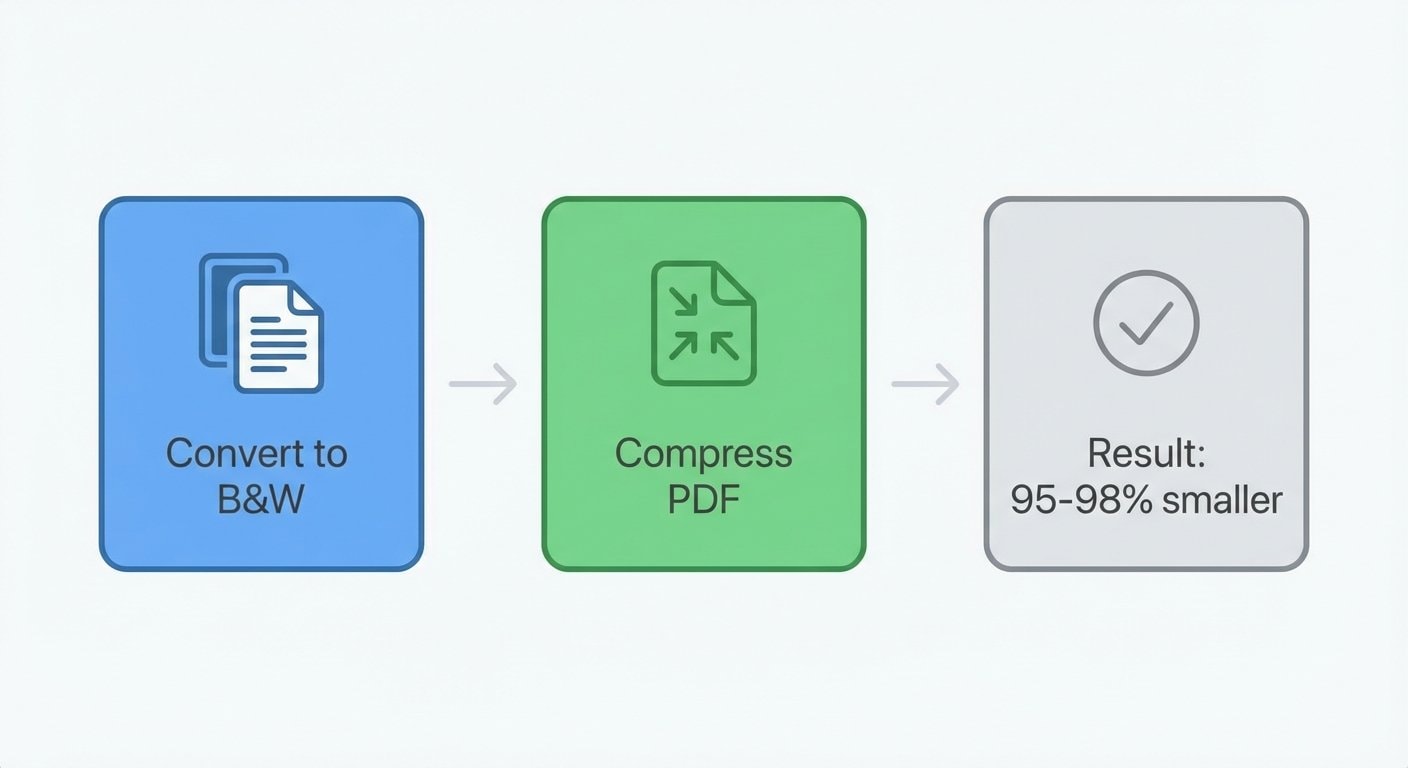
Here's a trick many people don't know: converting a color scan to pure black & white before compressing can shrink the file by 95–98%.
The principle is straightforward: a color pixel is 24-bit (8 bits each for red, green, and blue), grayscale is 8-bit, and pure black & white is just 1-bit. 1-bit images can leverage the specialized JBIG2 compression algorithm — this algorithm identifies recurring character shapes (like every "e" on the page), stores a single template plus position offsets for each occurrence, achieving compression ratios far beyond general-purpose algorithms.
A real-world example:
| Stage | File Size | Action |
|---|---|---|
| Original color scanned PDF | 480 MB | — |
| Converted to pure black & white | 380 MB | Black & White Conversion |
| JBIG2 compression | 12 MB | PDF Compression |
From 480MB down to 12MB — this isn't a theoretical estimate; it's a real-world result for text-heavy scanned documents.
JBIG2 Compression Only Works with Pure Black & White Images
If you choose grayscale mode, the JBIG2 algorithm cannot be applied, and compression ratios will be much lower (typically 50–70%). Only pure black & white (1-bit) images can trigger JBIG2's maximum compression. So if your document content is pure text, make sure to choose black & white — not grayscale.
Scenario 3: Improving OCR Accuracy
OCR (Optical Character Recognition) engines typically binarize (convert to black & white) an image as the very first processing step. If your scan has colored watermarks, patterns, or yellowed paper, this noise interferes with the OCR engine's text detection.
Pre-converting your document to black & white or grayscale can:
- Eliminate color background noise
- Increase contrast between text and background
- Help the OCR engine apply more accurate binarization thresholds
Recommended workflow: First use Black & White Conversion to clean up the document, then use OCR Text Recognition to extract text.
Scenario 4: Meeting Submission Format Requirements
Many organizations have strict format requirements for document submissions:
- Courts: Litigation materials must be "black and white scanned copies"
- Immigration offices: Application documents must be "black and white photocopies"
- Procurement: Tender documents must be "printed in black and white"
- Universities: Thesis submissions must be in "grayscale PDF"
The reasoning behind these requirements is usually to reduce storage and printing costs or to standardize archive formats. Whatever the reason, you need a quick way to convert color documents into the required format.
How to do it: PDF Black & White/Grayscale Converter supports both pure black & white and grayscale modes — just pick the one that matches the requirement.
Complete Workflow: From Color to Maximum Compression
Here are the recommended processing workflows for different document types:
Text-Only Scans (Contracts, Forms, Books)
- Black & white conversion → PDF Black & White/Grayscale Converter (select pure black & white mode)
- JBIG2 compression → PDF Compression
- Expected compression: 95–98%
Documents with Photos (Reports, Manuals, Magazines)
- Grayscale conversion → PDF Black & White/Grayscale Converter (select grayscale mode)
- Image compression → PDF Compression
- Expected compression: 60–80%
Vector-Based PDFs (CAD Drawings, Flowcharts)
- Rasterize → PDF Rasterization (convert vectors to bitmaps)
- Black & white conversion → PDF Black & White/Grayscale Converter
- JBIG2 compression → PDF Compression
- Expected compression: 85–95%
Best Practice: Order of Operations Matters
Always follow this sequence: Rasterize → Black & White/Grayscale Conversion → Compress. Converting the color mode first allows the compression algorithm to select the optimal encoding method. If you do it in reverse, the compressor can't take advantage of specialized encodings like JBIG2.
Frequently Asked Questions
Q: Can I restore color after converting to black & white? A: No. Once color information is discarded, it cannot be recovered. Always keep the original color file as a backup.
Q: Will converting to grayscale make prints look worse? A: No. Print clarity of a grayscale document depends on resolution (DPI), not color mode. A 300 DPI grayscale document produces perfectly acceptable print quality for business use.
Q: Will converting to black & white ruin photos? A: Yes. In pure black & white mode, the gray tones in photos are forced into stark black-or-white patches, causing significant loss of detail. If your document contains photos, choose grayscale mode instead.
Q: Can I process document photos taken with my phone? A: Yes. First convert the photos to PDF, then use the Black & White/Grayscale Converter to process them. If the photos have perspective distortion, consider using a scanner app to straighten them before converting.
Q: Will the text still be searchable after processing? A: Black & white/grayscale conversion does not affect existing text layers in a PDF. However, if your document is a scan (pure image), it will remain an image after conversion — you'll need to use OCR Text Recognition to add a searchable text layer.
PDF Black & White/Grayscale Converter
Convert color PDFs to pure black & white or grayscale — the essential first step for ink-saving printing and maximum compression.
PDF Compression
Smart PDF compression — black & white documents unlock JBIG2 for maximum file size reduction.
OCR Text Recognition
Add a searchable text layer to scanned documents — accuracy improves after black & white conversion.
PDF Rasterization
Convert vector PDFs to bitmaps — pair with black & white conversion for maximum CAD drawing compression.