
Need to send a PDF that absolutely cannot be modified? Or worried that contracts, medical reports, or bid documents might be quietly tampered with during circulation?
PDF security protection follows two paths: Rasterization turns documents into "images," physically eliminating editability; Digital signatures stamp documents with a "digital seal" using cryptography, instantly detecting any alteration.
Which problem are you solving?
- Make the document uneditable / prevent text extraction → Focus on the "Rasterization" section, then use Rasterize PDF for one-click processing.
- Ensure the document hasn't been altered → Focus on the "Digital Signatures" section to learn how to verify document integrity.
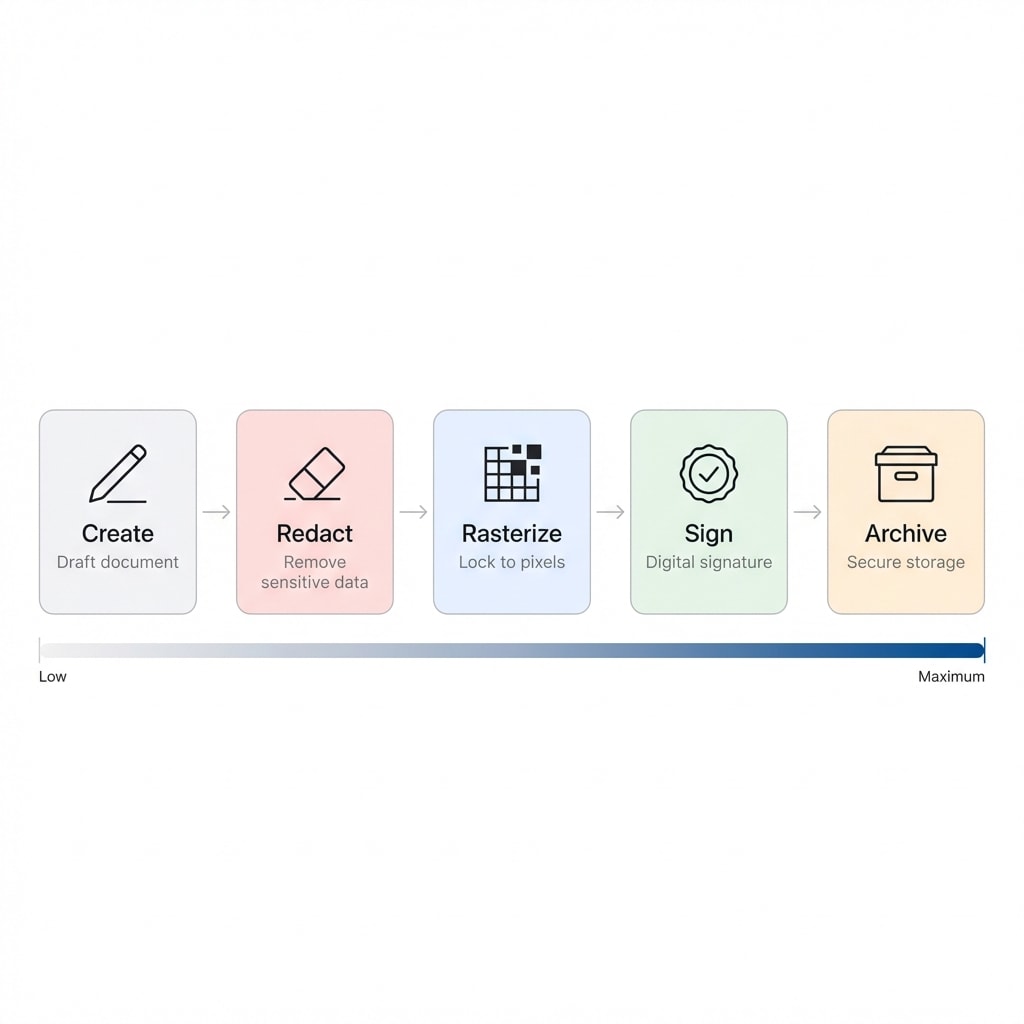
- Both → Rasterize first to lock content, then sign to seal it — read the full solution below.
What Is PDF Rasterization?
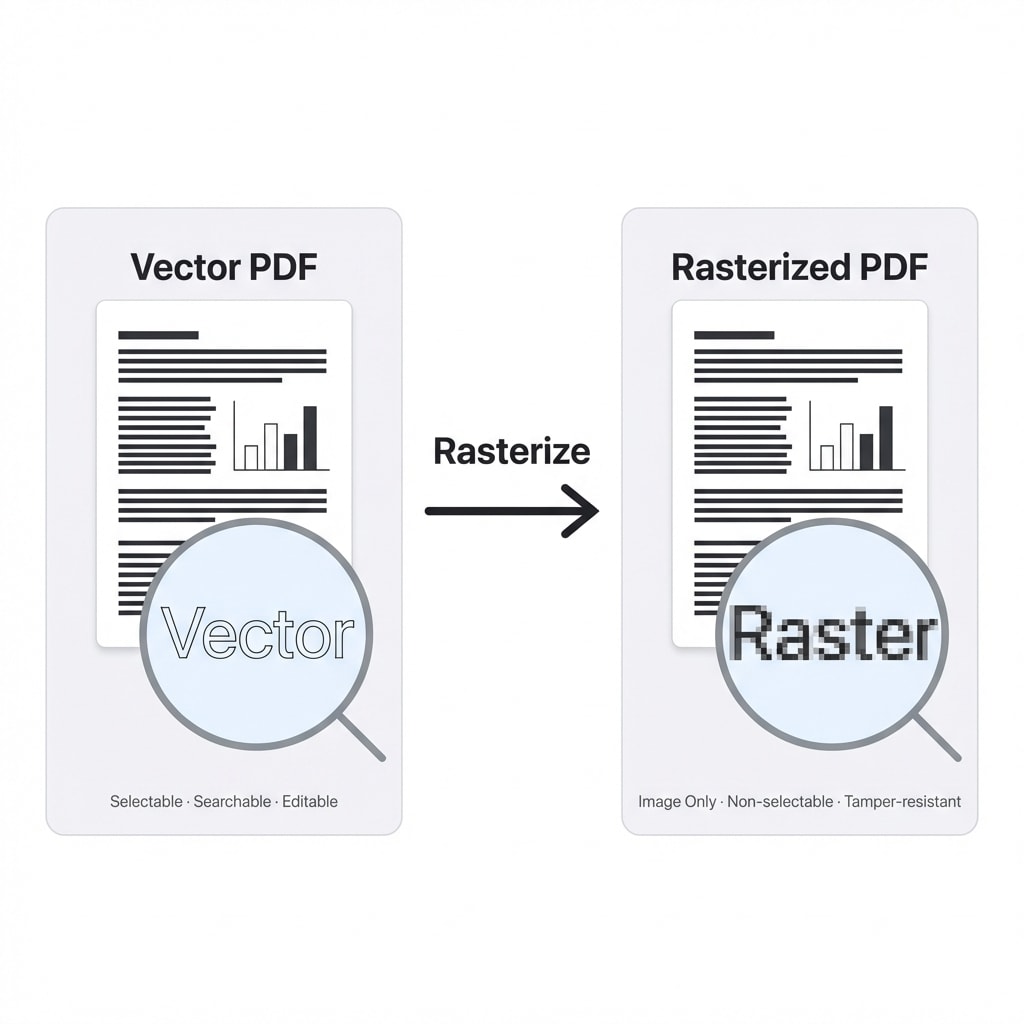
A PDF document is essentially a vector container: text, shapes, and images are defined as mathematical instructions. This means content can be selected, searched, copied — and also edited and tampered with.
Rasterization converts these vector instructions entirely into a pixel array — like printing a document and scanning it back, but with precision you control. After conversion, previously selectable characters become bitmaps composed of RGB color values, impossible to select, copy, or edit.
Rasterization vs. Flattening: Not the Same Thing
Many people confuse these two concepts, but their security levels are completely different:
| Feature | Rasterize | Flatten |
|---|---|---|
| Processing | All content converted to pixel images | Merges annotations/forms into content stream |
| Text selectable? | ❌ No | ✅ Usually still yes |
| Vector data retained? | ❌ Completely discarded | ⚠️ Underlying vectors often remain |
| Metadata retained? | ❌ Thoroughly cleared | ⚠️ May persist |
| Security level | 🔒 Highest, equivalent to physical printing | 🔓 Medium, increases editing difficulty but not absolute |
One-line distinction
Flattening is "sticking a note onto the page" — the content structure remains. Rasterization is "photographing the entire document" — only pixels remain, no structure.
Need flattening instead of rasterization? Try Flatten PDF, which only merges annotations and form fields while preserving text selectability.
How to Choose Resolution?
The DPI (dots per inch) of rasterization determines the balance between clarity and security:
| DPI Range | Use Case | Visual Quality |
|---|---|---|
| 72 – 96 | Web preview, low-bandwidth transfer | Lower, jagged when zoomed |
| 150 – 200 | Office circulation, routine approvals | Moderate, sufficient for mainstream screens |
| 300 | Legal evidence, print archiving | Very high, near original quality |
Practical advice: For most scenarios, 150–200 DPI is sufficient — clear enough yet secure. Choose 300 DPI for printing or archival purposes.
Three Real Problems Rasterization Solves
Problem 1: "Fake Redaction" of Sensitive Information
This is a recurring security incident: someone draws a black rectangle over an ID number or bank account in a PDF, but the underlying text stream remains intact — an attacker only needs to Ctrl+A to see everything.
The correct redaction workflow:
- Mark: Identify sensitive information such as ID numbers, phone numbers, bank accounts
- Remove: Completely delete the text data from the marked areas in the content stream
- Rasterize: Use Rasterize PDF to rasterize the entire document — this is the final line of defense, completely destroying any remaining text fragments and all metadata
Visual masking ≠ secure redaction
Simply overlaying black boxes on a PDF leaves the underlying text extractable. You must delete the text data first, then rasterize — both steps are essential.
Problem 2: Cross-Platform Rendering Inconsistency
The same vector PDF may look different on Windows, macOS, and mobile devices — different PDF rendering engines handle transparency blending, font hinting, and color management differently.
Rasterization completely solves this: once the document is locked into a fixed pixel grid, it displays identically regardless of device. Typical scenarios include medical reports, engineering drawings, and other documents requiring extreme display accuracy.
Problem 3: Font Licensing Risks
Commercial font embedding licenses specify whether distribution is permitted. When you share a PDF with embedded "no-embed" fonts, there's an infringement risk. After rasterization, fonts transform from "executable software code" into "non-interactive pixel shapes," no longer constituting font software distribution.
Digital Signatures: Ensuring Documents Haven't Been Altered
If rasterization is a physical-level lockdown, digital signatures are a logical-level seal.
How It Works
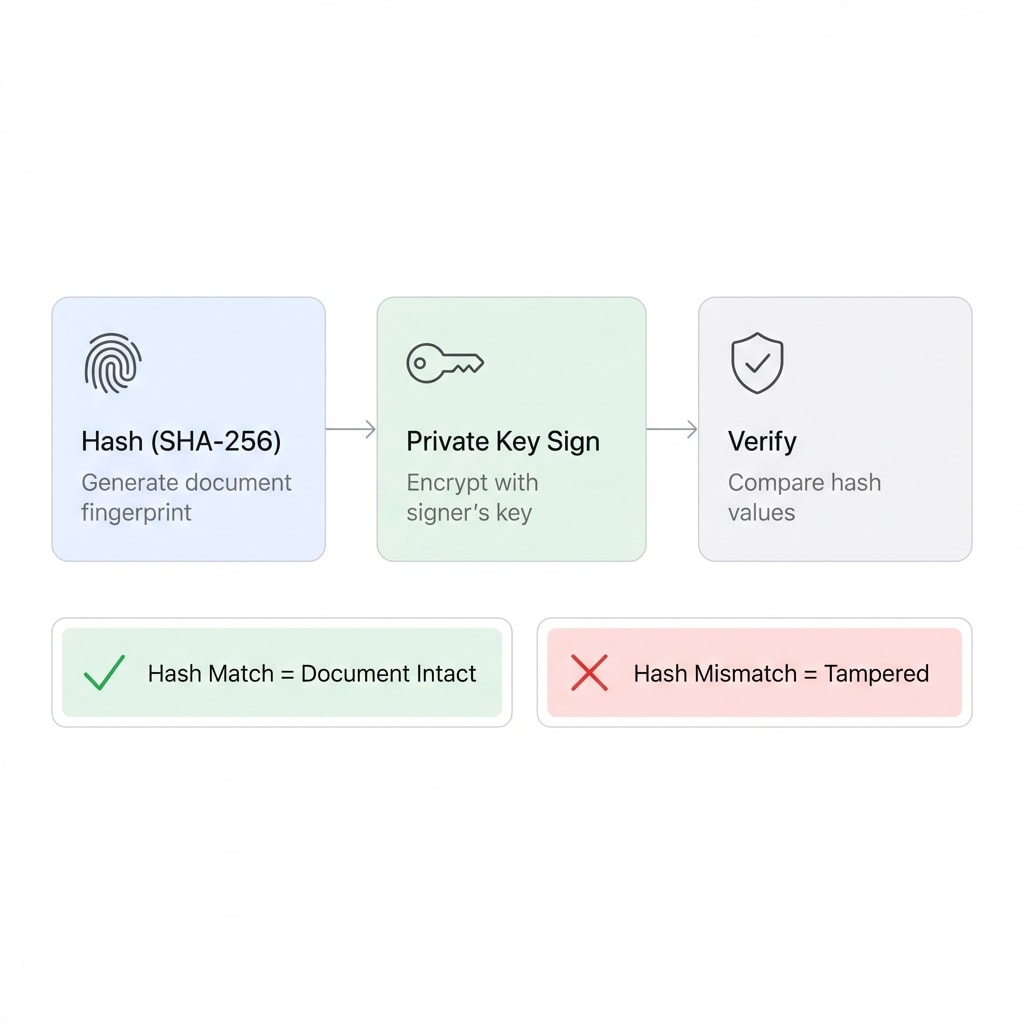
Digital signatures are based on Public Key Infrastructure (PKI), with a core process of:
- Generate fingerprint: Use a hash function to compute a unique digital fingerprint of the document
- Sign with private key: The signer encrypts the fingerprint with their private key
- Verify by comparison: The recipient decrypts the fingerprint with the signer's public key, then recomputes the document hash — if they match, the document is unaltered
Any modification — even changing a single byte — causes a hash mismatch, triggering a tampering alert.
Digital signatures simultaneously provide three guarantees:
| Security Property | Meaning |
|---|---|
| Authenticity | Confirms the signer's identity |
| Data Integrity | Ensures the document hasn't been altered since signing |
| Non-repudiation | The signer cannot deny having authorized the document |
Quick Reference: Which Solution Fits Your Document?
| Your Scenario | Recommended Solution | Steps |
|---|---|---|
| Sending redacted sensitive information | Rasterization | Delete sensitive data → Rasterize |
| Contract archival, must prevent tampering | Rasterization + Digital Signature | Rasterize → Sign |
| Block unauthorized document access | Encryption | Encrypt PDF to set an open password |
| Cross-platform display must be consistent | Rasterization | Rasterize (150–200 DPI) |
| Contains commercial fonts, safe distribution needed | Rasterization | Rasterize (300 DPI) |
The Complete Document Security Solution
The strongest protection doesn't rely on a single technique — it combines multiple approaches:
Dpdf Security Toolchain
- Use Rasterize PDF to convert documents to pure images, eliminating editability
- Use Flatten PDF to lock forms and annotations (if you only need to lock forms without converting to images)
- Use Encrypt PDF to set an open password, blocking unauthorized access
- Use Add Watermark to embed traceable watermarks, preventing unauthorized distribution
How-To: Rasterize a PDF
- Upload your document to Rasterize PDF
- Select resolution (recommended 150–200 DPI; choose 300 DPI for print archiving)
- Download the rasterized PDF — all text in the document has been converted to image pixels and can no longer be selected, copied, or edited
Tip: If you need searchable text after rasterization, you can use OCR to add a transparent text layer to the rasterized document — but this reintroduces extractable content, so decide based on your security requirements.
FAQ
Q: Will the file size increase after rasterization? A: Usually yes. Vector PDF file size depends on content complexity; rasterized size depends on page count × resolution. A 300 DPI color A4 page is approximately 2–5 MB. If the file is too large, rasterize first then optimize with Compress PDF.
Q: Can a rasterized PDF still be OCR'd? A: Yes. A rasterized PDF is essentially image pages, and OCR works normally on it. But if your goal is to prevent text extraction, don't apply OCR to the rasterized document.
Q: Can permission passwords (disable editing/copying) protect a document? A: Essentially no. Permission passwords are a "gentleman's agreement" that can be easily bypassed, and non-compliant readers can simply ignore them. For truly preventing content extraction, rasterization is the only reliable physical method; for preventing unauthorized access, use Encrypt PDF to set an open password. See the difference between PDF password types for details.
Q: Should I rasterize or encrypt first? A: Rasterize first, then encrypt. Rasterization eliminates the editable structure; encryption prevents unauthorized access. If the order is reversed, the document content remains in editable vector format after decryption.
Q: Can AI restore a rasterized document? A: It depends on the resolution. High-resolution rasterization at 300 DPI or above may allow AI-OCR to recover text content (but cannot restore the original vector structure). Low-resolution rasterization below 150 DPI effectively resists OCR recovery, but the reading experience also degrades.
Rasterize PDF
Convert PDF to pure image pages, completely eliminating editable content.
Flatten PDF
Lock forms and annotations while preserving text selectability.
Encrypt PDF
Set an open password to block unauthorized access.
Add Watermark
Embed text/image watermarks for document traceability.
Unlock PDF
Remove permission restrictions or unlock with a known password.
Compress PDF
File too large after rasterization? Compress to optimize size.