
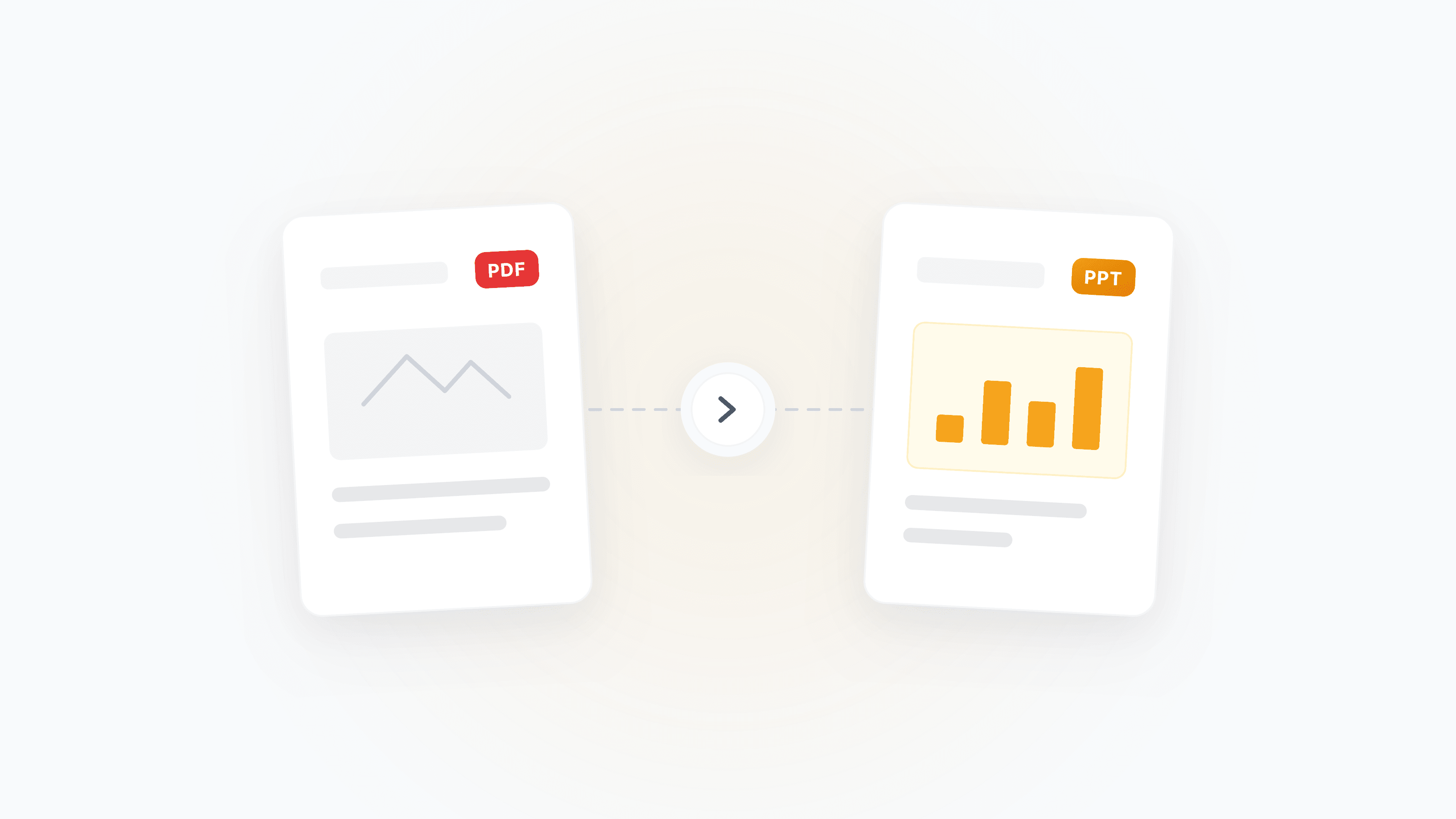
You have a PDF of a presentation — maybe a colleague shared it, a client sent it over, or you downloaded slides from a conference. Now you need to edit, rearrange, or reuse those slides in PowerPoint. The fastest path:
- Upload the PDF
- Enable OCR if it's a scanned/photo-based PDF
- Download the editable
.pptx
Quick check: what kind of PDF do you have?
- Text-selectable (you can highlight words): direct conversion works great — layout and text are preserved as-is.
- Scanned or photo-based (text can't be selected): enable OCR when prompted — text in images will be recognized and placed on editable slides.
- Mixed (some pages are scans, some are native): OCR handles both — native pages pass through, scanned pages get recognized.
Convert in 3 steps
- Open PDF to PowerPoint
- Upload your PDF (up to 50 MB, multi-page supported)
- If the system detects scanned pages, confirm OCR — then download your
.pptx
Each PDF page maps to one PowerPoint slide. Text, images, and visual layout are preserved as faithfully as possible.
Which output fits your goal?
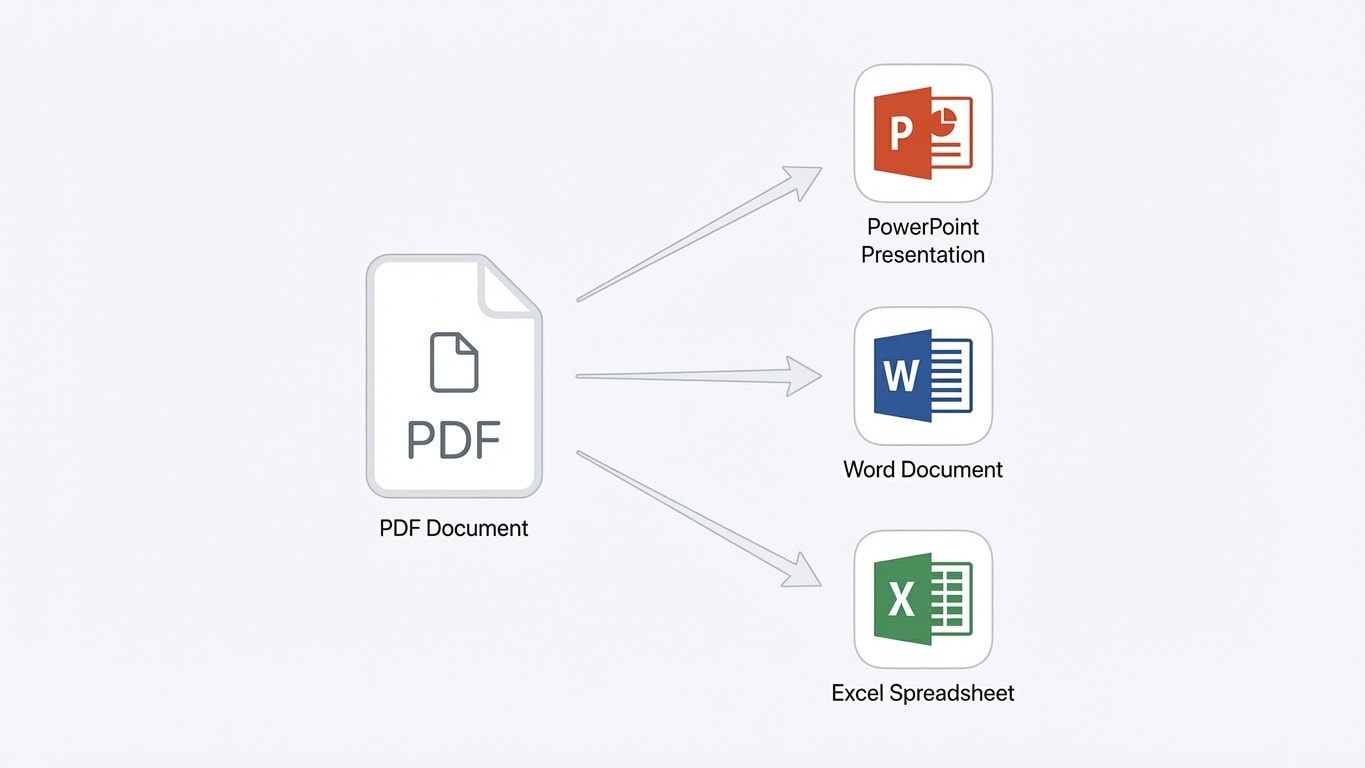
Not every "I need to edit this PDF" scenario calls for PowerPoint. Pick the right target:
| Your goal | Best output | Recommended tool |
|---|---|---|
| Edit slides, add animations, present | PowerPoint (.pptx) | PDF to PPT |
| Edit paragraphs, reformat text | Word (.docx) | PDF to Word |
| Extract tables and data | Excel (.xlsx) | PDF to Excel |
| Just need the text (for AI, translation, etc.) | Plain text | PDF to Text |
| Keep the look, make it searchable | Searchable PDF | OCR PDF |
Handling scanned presentations
Scanned PDFs (photos of projected slides, printed handouts scanned back in, or screenshot-based PDFs) need OCR to become editable. A few tips to maximize accuracy:
Before converting: improve source quality
- Resolution matters: 300 DPI scans produce much better results than phone photos. If you can rescan, do it.
- Straighten skewed pages: tilted scans confuse text-line detection. Use Organize PDF Pages to rotate pages to the correct orientation.
- Crop out borders: black edges, desk backgrounds, and shadows add noise. Crop PDF before converting.
- Boost contrast for faded text: Black & White / Grayscale helps when text is light on a colored background.
A cleaner source always beats post-processing
If you have access to the original .pptx file, use that directly. If you only have a PDF, improving scan quality before conversion is the single most impactful step.
OCR language selection
When OCR is triggered, select the correct language(s). Wrong language selection is the #1 cause of recognition errors — e.g., selecting only English for slides with Chinese text.
What to expect: layout after conversion
PDF-to-PPT conversion reconstructs each page as a slide. Here's what works well and what may need manual touch-up:
Usually preserved accurately:
- Text content and basic formatting (font size, bold, italic)
- Image positions and sizes
- Simple layouts (title + bullet points, single-column)
May need manual adjustment:
- Complex multi-column layouts or overlapping elements
- Custom fonts (substituted with system fonts if unavailable)
- Animations and transitions (PDFs don't store these — you'll need to re-add them)
- Embedded videos or interactive elements (static in PDF, static in output)
Realistic expectations
PDF is a final-output format — it stores appearance, not structure. The conversion reverse-engineers slide structure from visual layout, which works well for typical presentations but won't perfectly recreate every design choice. Plan for 5–10 minutes of cleanup on complex decks.
Common scenarios
Conference or lecture slides shared as PDF
Often these are native PDFs exported from PowerPoint or Keynote — text is selectable, layout is clean. Direct conversion gives excellent results. After converting, you can:
- Add your own notes or annotations
- Extract specific slides for your own deck
- Rearrange slide order in PowerPoint
Client or vendor pitch decks
Business presentations often have branded layouts with logos, charts, and custom colors. Conversion preserves the visual structure, but you may need to:
- Re-apply brand fonts if they were embedded in the PDF but aren't on your system
- Recreate charts if they were flattened to images in the PDF
Scanned training materials or printed handouts
These require OCR. The recommended workflow:
- Organize pages (fix rotation, remove blanks)
- Crop away borders and background
- Convert to PPT with OCR enabled
- Review and fix any recognition errors in PowerPoint
Large PDF with only a few slides needed
Don't convert the entire file if you only need pages 5–12:
- Split / Extract Pages to keep only the pages you need
- Convert to PPT — faster, cleaner output
After conversion: common next steps
Once you have an editable .pptx, you might need to go back to PDF for sharing or archiving:
- Edit → re-export: modify slides in PowerPoint, then PPT to PDF for a clean deliverable
- Reduce file size: large slide decks with images? Compress PDF after converting back
- Add protection: prevent unauthorized editing with Protect PDF
- Add watermark: brand your slides with Add Watermark before distribution
FAQ
My slides have too many OCR errors. What should I do?
Three things to check:
- Language: make sure you selected the right OCR language(s).
- Source quality: blurry scans or phone photos limit accuracy. Rescan at 300 DPI if possible.
- Preprocessing: Crop borders and convert to B&W to improve contrast before converting.
The fonts in my PPTX look different from the original PDF.
PDFs can embed fonts that aren't installed on your system. PowerPoint will substitute with available system fonts. To fix this, install the original fonts or manually reassign them in PowerPoint's font replacement dialog.
Can I convert password-protected PDFs?
If the PDF has a user password (open password), you'll need to enter it when uploading. If it only has permission restrictions (no-copy/no-print), those are handled automatically — just upload and convert.
How is this different from PDF to Word?
PDF to PPT creates one slide per page, optimized for presentation editing (slide-by-slide structure, speaker notes area). PDF to Word creates a flowing document optimized for paragraph editing. Choose based on how you'll use the output.
The file is too large to upload. What can I do?
The upload limit is 50 MB. If your PDF exceeds this:
- Compress PDF first to reduce size
- Or Split into smaller sections and convert each part
Related tools
PDF to PowerPoint
Convert PDF pages to editable PowerPoint slides with layout preserved.
PPT to PDF
Convert PowerPoint presentations back to PDF for sharing.
OCR PDF
Make scanned PDFs searchable before converting.
Split / Extract Pages
Extract specific pages before converting to reduce cleanup.
Compress PDF
Shrink large PDFs before uploading or after converting back.
PDF to Word
Choose Word when you need paragraph-level editing instead of slides.