
Need to turn a PDF into images? Open PDF to Images, upload your file, choose format and clarity, then download.
But there are two completely different needs behind "PDF to images" - which one do you need?
10-Second Check: Do You Need "Convert" or "Extract"?
- Turn every page into an image (screenshot-like result) -> choose "Convert All Pages" mode
- Only need original embedded images in the PDF (photos, illustrations) -> choose "Extract Images" mode
- Not sure? The default "Convert All Pages" works for most scenarios.
Two Modes, One Entry Point
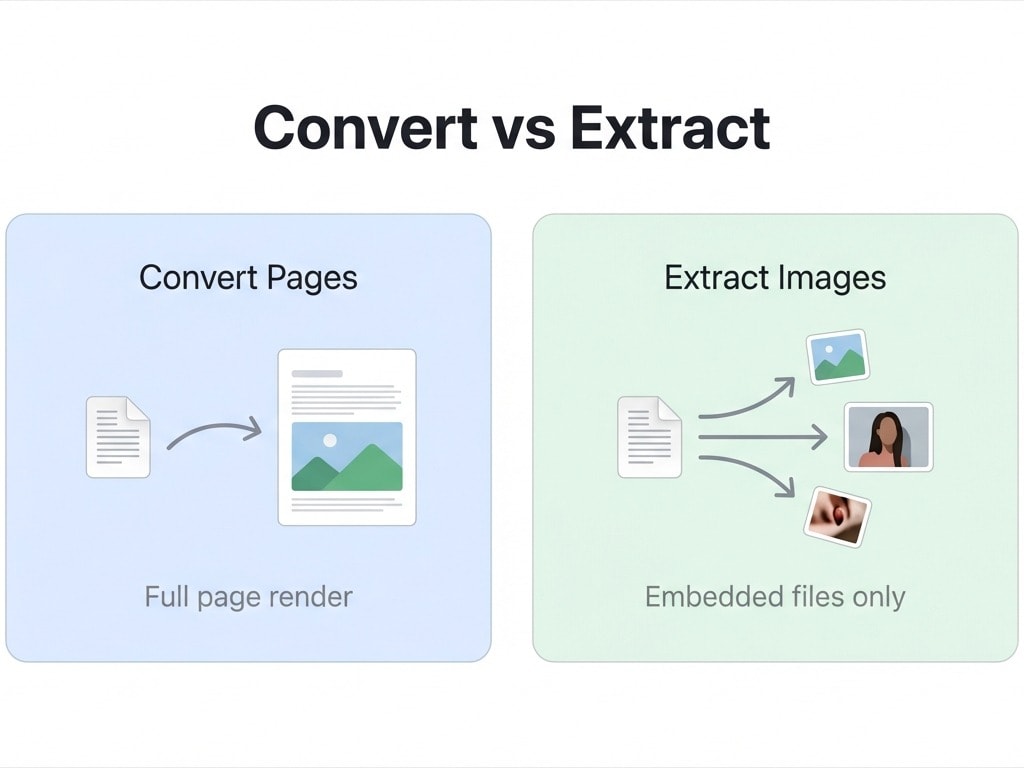
PDF to Images offers two export modes:
Convert All Pages (Default)
Render each PDF page into one complete image. Text, tables, graphics, backgrounds - everything visible on the page is captured into the output image.
Best for: social sharing, embedding in PPT/web pages, poster printing, archival snapshots.
Extract Embedded Images
Export only the original embedded image files inside the PDF (photos, illustrations, logos, etc.) without rendering the page itself. The output keeps original image resolution and is not affected by DPI settings.
Best for: extracting product photos from manuals, exporting assets from design files.
Convert in 3 Steps
- Open PDF to Images and upload your PDF
- In the settings panel, choose:
- Mode: Convert All Pages / Extract Images
- Format: JPG (smaller size) or PNG (lossless, supports transparency)
- DPI: 100 (preview) / 200 (good for most use) / 300 (high-quality print)
- Click Start, then download the image package when finished
JPG or PNG? One Table Explains It
| Comparison | JPG | PNG |
|---|---|---|
| Compression | Lossy | Lossless |
| File size | Small (at the same DPI, typically about 1/3 to 1/5 of PNG) | Large |
| Transparent background | Not supported | Supported |
| Best use cases | Photo-heavy PDFs, social sharing, email attachments | Text/line-heavy PDFs, transparency needed, further editing |
| Repeated editing | Quality degrades on each save | No quality loss |
Rule of Thumb
Not sure which to choose? Pick JPG for photo-heavy files, PNG for text-heavy files. If you need transparency in PPT or web pages, you must choose PNG.
If you only need JPG or only PNG, you can also use dedicated tools directly: PDF to JPG or PDF to PNG, with simpler settings.
How to Choose DPI? It Depends on Your Use Case
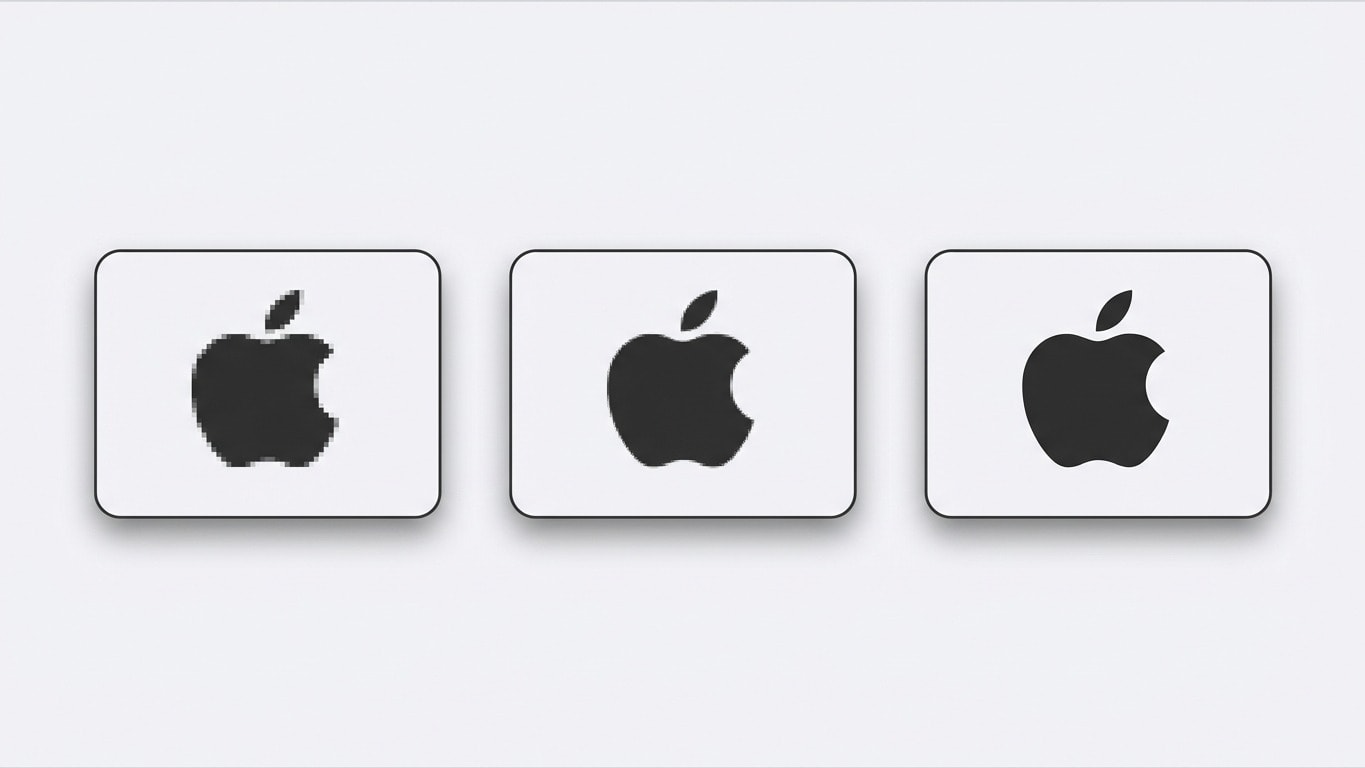
DPI (dots per inch) determines exported image clarity and file size.
| DPI | Resolution (A4 page) | Size reference | Best for |
|---|---|---|---|
| 100 | ~827 × 1169 px | Smallest | Web thumbnails, quick preview |
| 200 | ~1654 × 2339 px | Medium | Screen reading, PPT embedding, social sharing (recommended) |
| 300 | ~2481 × 3508 px | Larger | High-quality print, archiving, design assets |
Higher DPI Is Not Always Better
A 300 DPI image is roughly 9x the size of a 100 DPI image. If you're only sharing via WeChat/email or embedding on the web, 200 DPI is fully sufficient - no need to waste storage or transfer time.
Common Scenario Quick Reference
| Your need | Recommended settings | Notes |
|---|---|---|
| Send contract/report screenshots on WeChat | Convert mode + JPG + 200 DPI | Smaller files, faster loading, clear enough |
| Insert paper figures into Word/PPT | Convert mode + PNG + 300 DPI | Lossless scaling without blur |
| Extract product photos from a manual | Extract mode | Get original-resolution images directly |
| Long images for e-commerce detail pages | Convert mode + JPG + 200 DPI | Suitable for uploading to e-commerce platforms |
| Export assets from design files | Extract mode | Preserve original image quality |
| Print posters/stands | Convert mode + PNG + 300 DPI | High-quality printing without distortion |
You Can Also Convert Encrypted or Corrupted PDFs
Like other tools, PDF to Images includes an automatic preprocessing pipeline:
- Permission password (copy/print restricted): removed automatically, no manual steps
- User password (password required to open): a password dialog appears after upload; enter the correct password to continue
- Corrupted PDFs: the system automatically attempts repair, then continues conversion if successful
Practical Pairings Before and After Conversion
Before Conversion: Optimize the Source File
- Only need a few pages: use Split PDF first to extract required pages and reduce processing
- Wrong page orientation: use Rotate PDF first to fix direction
- Extra white margins: use Crop PDF first for tighter composition in exported images
After Conversion: Further Image Processing
- Images are too large: batch-compress them with your system's built-in image tools
- Need to merge back into one PDF: use Images to PDF to combine multiple images into one PDF
- Need watermark protection: use Add Watermark on the PDF first, then convert to images - the watermark will be rendered into the images
FAQ
What if exported images look blurry?
Check the DPI setting. The default 200 DPI looks clear on screens, but if you need printing or zoomed viewing, use 300 DPI. Also confirm the source PDF is not a low-resolution scan - source quality is the upper limit.
How many pages can I convert at once?
Free users can upload PDFs up to 100 MB, and Pro users up to 2 GB. There is no hard page-count limit, but more pages take longer to process.
Do exported images have watermarks?
No. Both free and paid users get watermark-free exported images.
Can I copy text after converting PDF to images?
No. After conversion, text becomes pixels and is no longer selectable or searchable. If you need editable text, use PDF to Word or PDF to Text.
Why does "Extract Images" mode fail to extract anything?
In some PDFs, what looks like an "image" is actually vector graphics or text layout effects, not embedded bitmap files. In that case, use "Convert All Pages" mode to render full pages into images.
Related Tools at a Glance
PDF to Images
Export each page as JPG/PNG with adjustable DPI.
PDF to JPG
Export directly to JPG format for smaller files.
PDF to PNG
Lossless PNG export with transparency support.
Images to PDF
Merge multiple images into one PDF.
Crop PDF
Remove white margins before conversion for tighter composition.
Split PDF
Convert only needed pages to reduce processing load.