

Incorrect page orientation is one of the most common PDF issues: upside-down scans, mixed portrait/landscape photos from phones, and inconsistent orientation after merging multiple files. With Rotate PDF, you can fix it in one click, whether you need to rotate specific pages or batch rotate all pages.
Which situation are you dealing with?
- The whole document is upside down or sideways → Select all pages and rotate 90° or 180°
- Only a few pages are wrong while others are fine → Select those pages in thumbnails and rotate only them
- A scanned file is upside down → Rotate 180° to make it upright
- A merged PDF has mixed orientations → Adjust page by page, then save
- Not sure which pages are wrong? Upload to Rotate PDF and preview every page as thumbnails
3 Common Reasons to Rotate a PDF
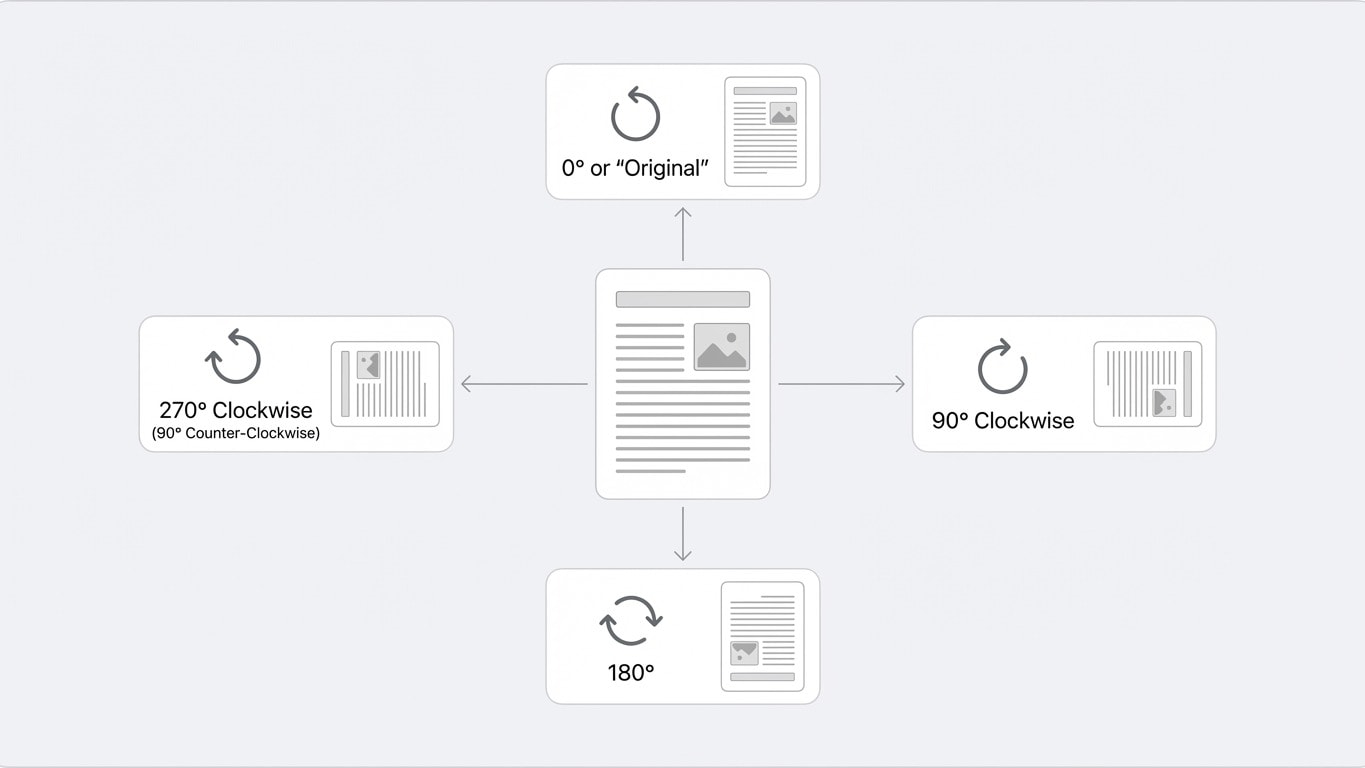
Use Case 1: Fix Scanned Page Orientation
PDFs created by scanners or phone cameras often have orientation problems, especially in batch scans where some pages may be upside down or rotated by 90°.
After uploading to Rotate PDF, you can see thumbnails for all pages. Click the rotate button on a single page to adjust page by page, or select all pages and rotate in bulk.
Use Case 2: Switch Between Landscape and Portrait
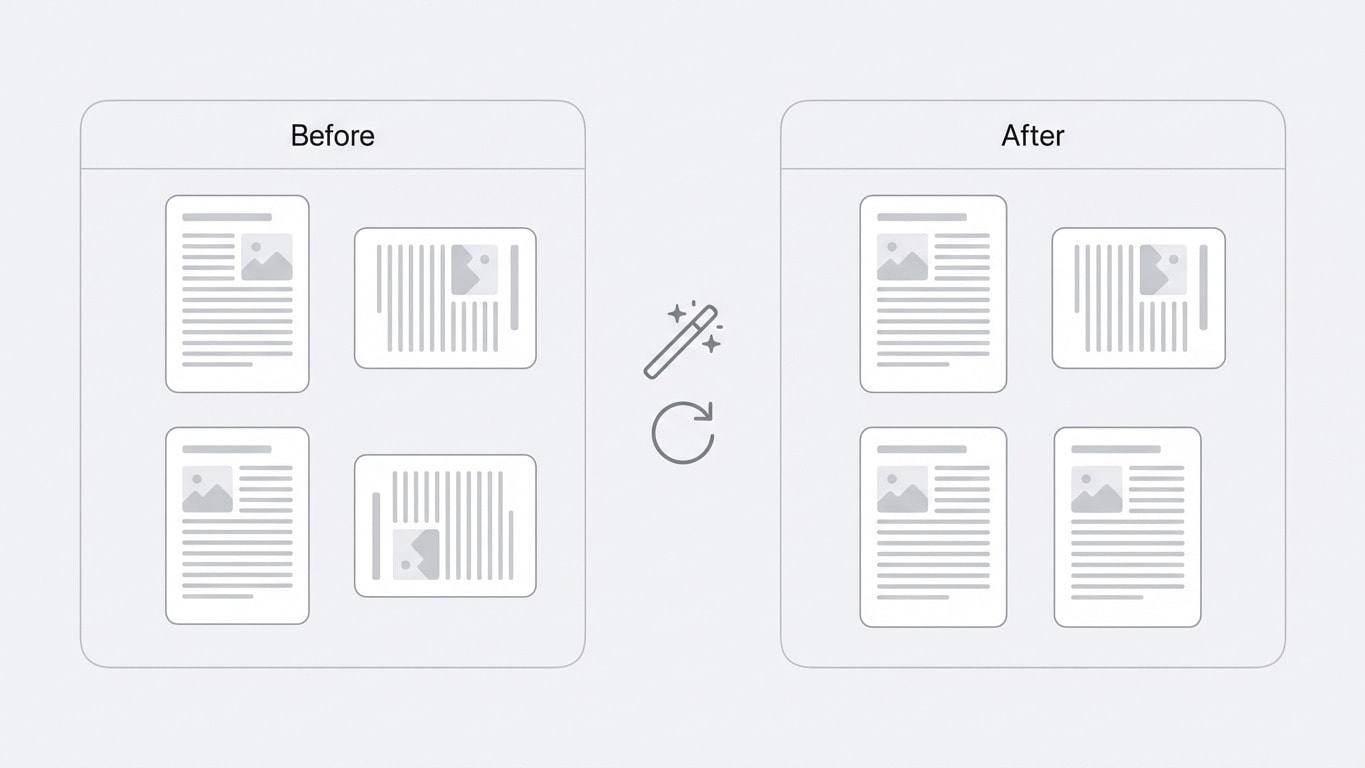
Some documents mix landscape and portrait pages, for example, a portrait report body with inserted wide tables or charts in landscape.
If you need to convert landscape pages to portrait (or vice versa), rotate by 90°. But note: rotation only changes page orientation and does not scale or reflow content. If content looks clipped after rotation, you may need Resize PDF as well.
Use Case 3: Standardize Orientation Before Merging
After combining PDFs collected from different sources, page orientation is often inconsistent. Recommended order:
- First use Rotate PDF to fix orientation in each document
- Then use Merge PDF to combine them into one file
You can also rotate directly in the merge tool
In the Merge PDF workspace, you can rotate individual pages too. If only a few pages need adjustment, there is no need to open a separate rotation tool.
Steps
- Upload PDF — Drag your file into the upload area of Rotate PDF
- Rotate pages — In thumbnail view, each page has a rotate button:
- Click once: rotate 90° clockwise
- Click repeatedly to rotate to 180° or 270°
- Use Select All to rotate all pages in one action
- Save and download — After confirming all page orientations are correct, process and download
Rotation is a non-destructive operation. It changes the PDF page rotation attribute (/Rotate) instead of re-rendering content. Original text, images, and layout quality remain intact.
Rotate vs. Related Actions: Don’t Mix Them Up
| What you want to do | Tool to use | Notes |
|---|---|---|
| Fix upside-down or sideways pages | Rotate PDF | Changes page display orientation |
| Adjust page size (A4→Letter) | Resize PDF | Changes physical page dimensions |
| Remove blank margins around pages | Crop PDF | Modifies visible page area |
| Delete unnecessary pages | Remove Pages | Removes specific pages |
| Reorder page sequence | Organize PDF | Drag and drop to reorder pages |
Frequently Asked Questions
Will text become blurry after rotation?
No. PDF rotation only updates page orientation metadata and does not re-encode content. Text, images, and vector elements keep their original quality.
Can I do this on mobile?
Yes. Rotate PDF works fully in mobile browsers, with touch-friendly interactions optimized for phones.
Can I continue with other processing after rotating?
Yes. After processing, the system recommends next-step tools like merge, compress, and convert. Continue in one click without re-uploading.
Related Tools
Rotate PDF
Rotate page orientation by page or in bulk (90°/180°/270°).
Merge PDF
Before merging multiple files, rotate pages to unify orientation first.
Organize PDF
Drag and drop to reorder pages, and use together with rotation.
Crop PDF
Need to remove white margins after rotation? Crop in one click.
Resize PDF
Page size mismatch after rotation? Resize to fit.
Compress PDF
Need to share files after fixing orientation? Compress first.