
PDF margins were designed for physical printing — but today you're far more likely to view documents on a 6-inch Kindle, an 11-inch iPad, or feed them into an enterprise OCR engine. Excess whitespace wastes screen real estate and interferes with machine recognition. Use Crop PDF to remove margins in one click and let content fill the screen.
Which problem are you trying to solve?
- PDF text too small on phone/Kindle → Cropping margins auto-enlarges text by 30%-50%
- No room for notes on academic PDFs → Reverse operation: expand margins to create annotation space
- White edges or color breaks on printed materials → Set up bleeds and crop marks
- Low OCR accuracy on scanned documents → Crop away edge shadows and binding-hole noise
- Just want to remove excess whitespace → Upload directly to Crop PDF and set your crop area
The "Five Boxes" of a PDF Page: What Does Cropping Actually Change?
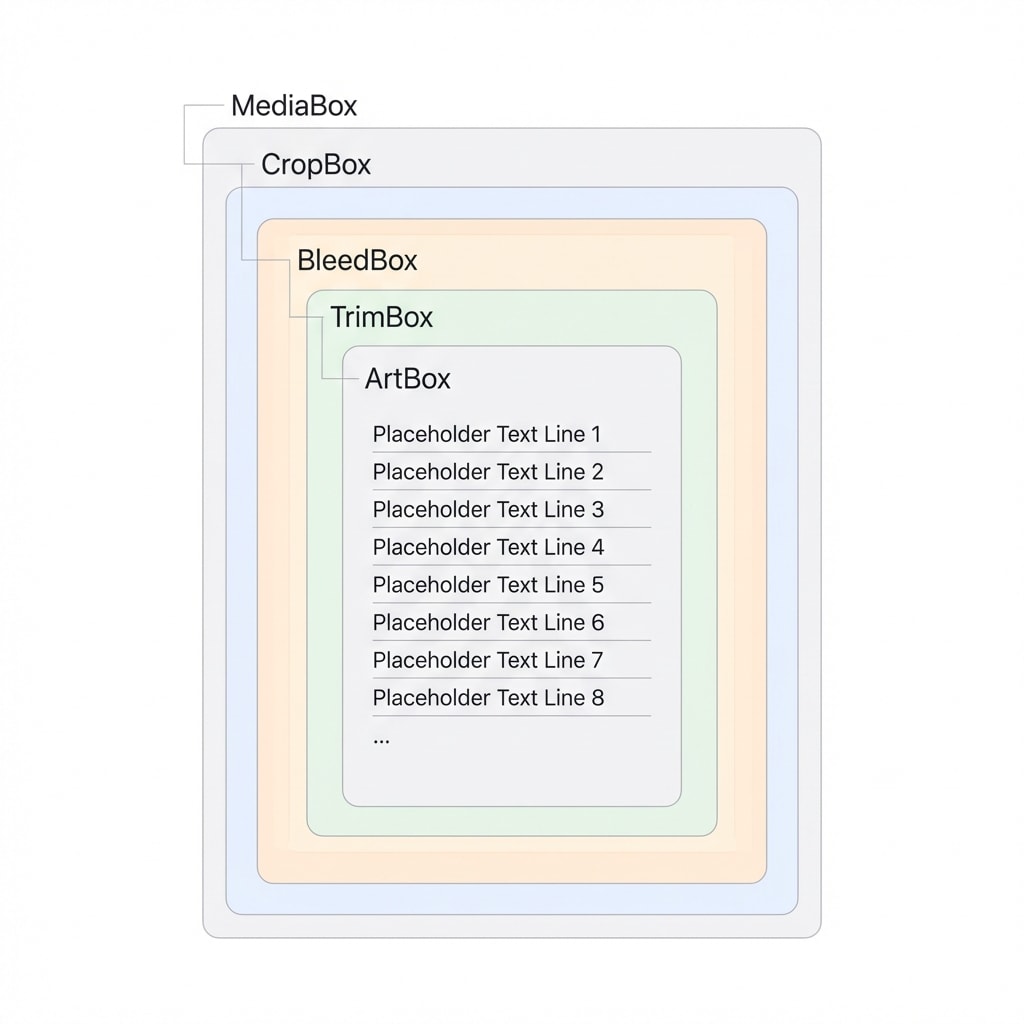
Unlike image cropping, PDF cropping typically doesn't delete data — it modifies metadata that defines the "visible window." The PDF standard defines five overlapping "boxes"; understanding them helps you avoid common pitfalls:
| Page Box | Full Name | What It Controls | When You'll Encounter It |
|---|---|---|---|
| Media Box | MediaBox | Maximum physical boundary of the page (e.g., A4 dimensions) | Rarely needs manual adjustment |
| Crop Box | CropBox | Visible area on screen and in print | This is what everyday margin removal changes |
| Bleed Box | BleedBox | How far colors extend beyond the trim edge for printing | Commercial printing, full-page background designs |
| Trim Box | TrimBox | Final dimensions of the finished product after cutting | Defines finished size for books/business cards |
| Art Box | ArtBox | The meaningful content region on the page | Automated data extraction, focal-point detection |
Cropping is non-destructive
Modifying the CropBox only hides the margin area — the original data is still in the file. This means you can always undo the crop. However, if the file contains sensitive information, be sure to use Flatten PDF after cropping; otherwise hidden content can still be extracted.
Scenario 1: Mobile Reading — Make PDFs Fill Small Screens
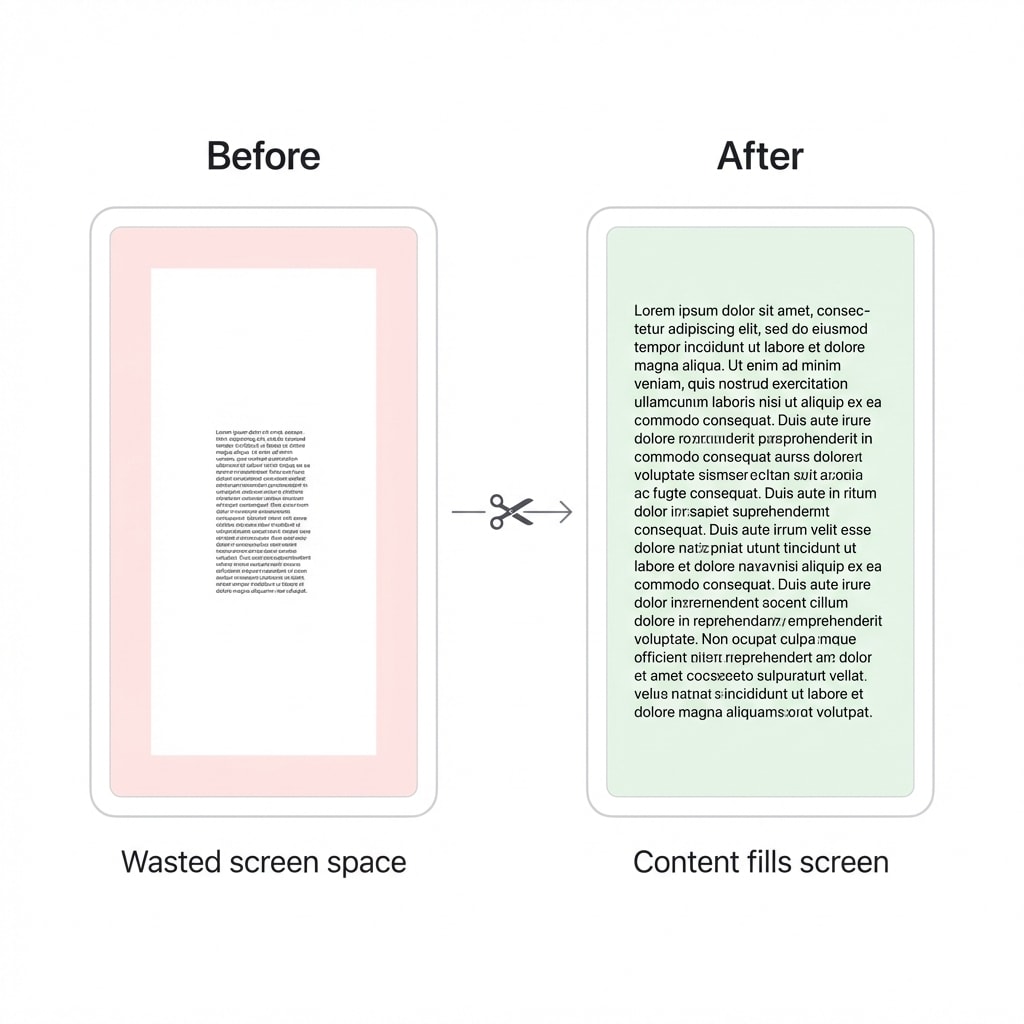
A4-formatted academic papers viewed on a 6-inch Kindle or smartphone result in text too small to read. Removing the surrounding whitespace lets the text area automatically fill the entire screen — a visual effect equivalent to enlarging the font by 30%-50%.
Cropping Strategies by Device
| Device Type | Screen Size | Recommended Action | Expected Result |
|---|---|---|---|
| Smartphone | 5.8" - 6.8" | Aggressive crop: remove all margins, headers, and footers | Near-reflow e-book reading experience |
| Small e-reader | 6" - 7" | Remove whitespace + repetitive headers | Font size increase of ~30%-50% |
| Standard tablet | 9" - 11" | Moderate crop, preserve core text block | More content visible per screen |
| Large tablet | 12.9"+ | Crop only asymmetric margins | Restore a print-book feel |
It's simple: upload your PDF to Crop PDF, set how much to trim from each side, and apply to all pages.
Multi-column papers need extra attention
For IEEE-style two-column papers, simple margin cropping may not be enough. If text in both columns is still too small after cropping, consider using Split PDF to separate pages, or use a dedicated reflow tool like K2pdfopt to convert two columns into one.
Scenario 2: Academic Annotation — Reverse Operation, Expand Margins
Many academic PDFs have very narrow original margins, leaving no room for marginal notes. In this case you need "reverse cropping" — expand the margins instead of removing them.
Why Expand Margins?
- Spatial anchoring: Notes written directly alongside the relevant paragraph are far more efficient than maintaining a separate notebook
- Cross-device sync: Expanded PDFs with handwritten annotations in GoodNotes or Notability export with correct spatial relationships
- Split-screen optimization: On an 11-inch iPad in split-screen mode, removing top/bottom clutter lets two-column papers display at a larger scale
Annotation workflow suggestion
First use Crop PDF to remove unwanted headers and footers, then use Resize PDF Pages to expand the page to a larger format (e.g., from A4 to A3) — the freed space becomes your annotation area.
Scenario 3: Commercial Printing — Bleeds and Crop Marks
Moving from screen back to paper, cropping is an entirely different story. If a design requires color extending to the very edge of the paper (borderless printing), the physical offset of 0.5-1mm in paper cutters means that without bleeds, you'll get white edges.
Three Things You Must Know for Print
- Bleed size: Add 3mm (0.125 inches) beyond the finished size so background colors/images extend outward
- Crop marks: Fine lines at the four corners of the PDF that guide the paper cutter to cut within the bleed area
- Safety zone: Important text and images must be at least 3mm from the trim line to avoid accidental cutting
| Print Term | Corresponding PDF Page Box | Physical Meaning |
|---|---|---|
| Finished size | TrimBox | The final size delivered to the customer |
| Bleed size | BleedBox | The print size including background extension area |
| Print marks area | MediaBox | The maximum carrier including trim lines and color bars |
Missing bleeds cannot be fixed after the fact
If you receive a PDF with absolutely no bleeds, forcing them by expanding the page box will cause background images to break at the edges. Designers must check "Use Document Bleed Settings" and enable crop marks when exporting PDFs from InDesign / Illustrator.
Scenario 4: OCR Preprocessing — Crop Noise, Boost Recognition Accuracy
Scanned document edges are often contaminated with: scanner lid black borders, binding-hole shadows, paper wear spots, and bleed-through text from adjacent pages. Without cropping, OCR engines will try to recognize these shadows as text, generating garbled characters that pollute full-text indexes.
Two Types of Edge Noise
- Non-text noise: Black borders, binding-hole shadows, edge spots — OCR misidentifies them as
#@&*garbled characters - Text noise: Bleed-through text from adjacent pages, text distortion from spine curvature — more insidious, directly affecting data extraction accuracy
Recommended scan processing workflow
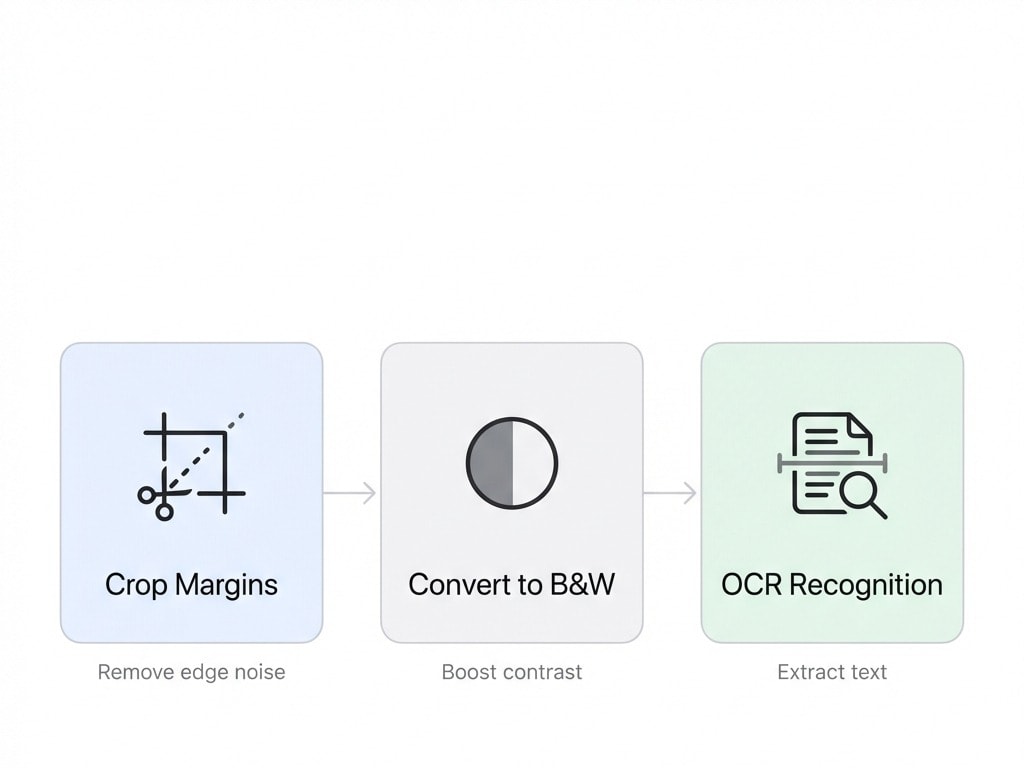
- Crop PDF — Remove edge shadows and binding holes
- Black & White — Improve text contrast
- OCR Recognition — Convert scans to searchable text
Research shows that applying crop preprocessing improves OCR accuracy by approximately 6.69% for modern documents and 4.49% for historical documents.
Scenario 5: Enterprise Automation — Invoice Processing and Batch Cropping
In enterprise ERP and financial systems, PDF cropping has been integrated into RPA (Robotic Process Automation) workflows. Traditional manual invoice processing costs between $15-40 per document; automation targets reducing this to under $1.
Core Logic of Automated Cropping
Modern automation engines use "anchor-based" dynamic cropping:
- Locate: Identify feature elements like "Total," "Invoice No.," or logos
- Frame: Define dynamic bounding boxes relative to anchors
- Crop & extract: Automatically remove decorative graphics and disclaimers, sending only key data regions to AI models
| Metric | Manual Processing | Automated Processing |
|---|---|---|
| Processing time per document | 15-20 minutes | 1-2 minutes |
| Error rate | 1 per 100 keystrokes | < 1 per 1,000 characters |
| Operating cost | Baseline | ~33% reduction |
For individual users or small teams, no need to build complex pipelines — batch upload multiple PDFs to Crop PDF and apply uniform cropping parameters.
Scenario 6: Post-Conversion Cropping for OFD Electronic Invoices
In China's government and business environments, OFD (Open Fixed-layout Document) format electronic invoices are ubiquitous. After converting OFD to PDF, conversion tools often pad the document with oversized whitespace, resulting in non-standard page dimensions.
Solution: After conversion, use Crop PDF to auto-align the invoice border, remove excess whitespace, and make it compatible with reimbursement system auto-splitting and print preview.
Developer Perspective: Python Library Selection
If you need to integrate PDF cropping into your application, here's a comparison of mainstream Python libraries:
| Library | Core Mechanism | Speed | Best For |
|---|---|---|---|
| PyPDF2 | Modifies /CropBox metadata | Very fast | Simple batch structural adjustments |
| pdfCropMargins | Ghostscript-based image boundary analysis | Medium | Precise margin removal for scanned documents |
| pdfminer.six | Extracts text coordinates to calculate minimum bounding box | Slow | Content-center analysis of complex documents |
| Stirling-PDF | Web API pipeline automation | Depends on config | Enterprise self-hosted deployment |
Notable advanced features of pdfCropMargins:
- Nth-order minimum filtering: Unifies all pages based on the page with the smallest crop amount, preventing one page's ink spots from ruining the crop of an entire book
- Text centering algorithm: Automatically balances the content center of gravity after cropping asymmetric margins
- Multi-engine fallback: Supports MuPDF, Ghostscript, and pdftoppm for handling encrypted or corrupted PDFs
Future Directions: AI-Driven Content-Aware Cropping
PDF cropping is evolving from "geometric cropping" to "content-aware cropping":
- Smart region-of-interest detection: Deep learning models identify core content areas and dynamically adjust layout based on the target screen
- Responsive PDFs: The same PDF shows full margins on a 4K display but automatically presents cropped core content on mobile
- Automatic redundancy removal: Auto-remove sidebar ads on mobile, segmenting content into visual blocks suited for vertical scrolling
Quick Summary: Choose Your Approach by Role
| Who You Are | Recommendation |
|---|---|
| Personal user / Mobile reader | Use Crop PDF to remove whitespace — "Apply to all pages" in one step |
| Academic researcher | Crop headers/footers first, then use Resize Pages to expand annotation space |
| Prepress designer | Strictly follow the 3mm bleed + crop marks spec; check TrimBox and BleedBox on export |
| Scan processing | Crop → Black & White → OCR three-step workflow |
| Developer | Build automation pipelines with pdfCropMargins or PyPDF2 |
Related Tools
Crop PDF
Remove whitespace in one click. Supports custom crop areas and batch application to all pages.
Resize PDF Pages
Expand or shrink PDF page dimensions — ideal for annotation space and print adaptation.
Flatten PDF
Flatten after cropping to permanently remove hidden content.
Black & White / Grayscale
Boost scan contrast. Pair with cropping to improve OCR accuracy.
OCR (Searchable PDF)
After cropping and denoising scans, OCR converts them to searchable text.
Split PDF
For multi-column papers or long documents, split by page before cropping for more flexibility.