
Want to convert a PDF to plain text and feed it to AI? Use PDF to Text for a one-step export — the tool automatically detects whether your PDF contains selectable text or is a scanned image, and prompts you to select a language for automatic OCR if it's a scan.
Which Type Is Your PDF? (10-Second Check)
- You can select text and Ctrl+F finds it → Native PDF — convert to text directly.
- You can't select text, only highlight a block → Scanned / image-based PDF — OCR triggers automatically during conversion.
- A password prompt appears when opening → Encrypted PDF — enter the correct password to proceed.
- Not sure? Just upload it — the tool will auto-detect and handle it.
Two Types of PDFs, One Entry Point
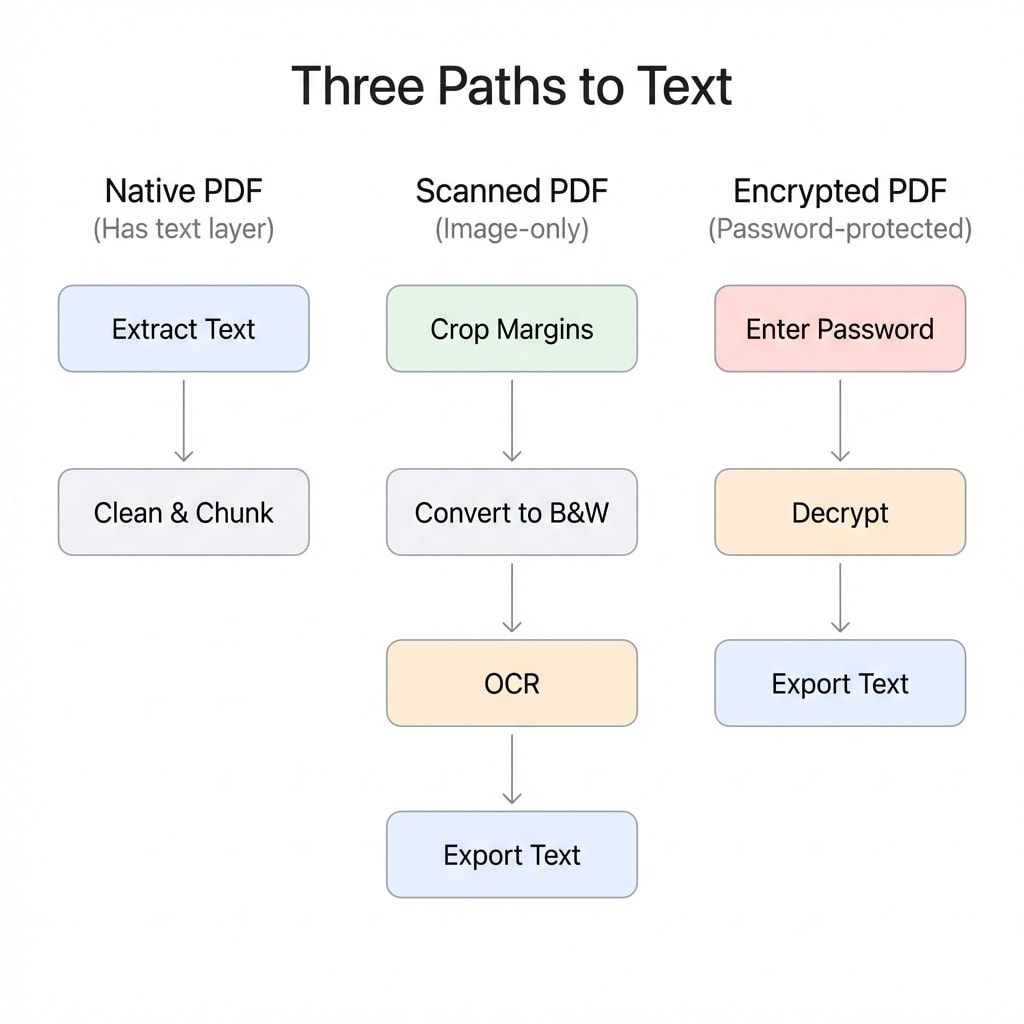
All PDFs can be processed directly with PDF to Text, but the underlying mechanism differs:
Native PDF (Text-Based)
These PDFs store text objects internally — each character has explicit Unicode encoding and positioning coordinates. The tool extracts the text layer directly, making it fast and highly accurate.
Most e-invoices, bank statements, academic papers (non-scanned), and government documents you download daily are native PDFs.
Scanned / Image-Based PDF
These PDFs store images internally — each page is essentially a photograph with no text layer. OCR (Optical Character Recognition) must first "read" the text from the images before it can be exported.
After uploading to PDF to Text, the tool automatically detects the scan and prompts you to select the document language (Chinese/English/Japanese, etc.), then completes OCR + export automatically.
OCR Accuracy Depends on Scan Quality
Scans with clear text and clean backgrounds typically yield very high recognition rates. Complex layouts (multi-column, nested tables, mixed handwritten annotations) may require manual fine-tuning of the export results.
Encrypted PDF
If your PDF requires a password to open (user password encryption), a password prompt appears after upload — enter the correct password to continue conversion. For PDFs with only editing/printing restrictions (owner password), the tool automatically removes the restrictions with no extra steps needed.
Optional Pre-Processing: Get Cleaner Text Output
In most cases, converting directly to text works fine. But if your PDF has the following issues, simple pre-processing can significantly improve results:
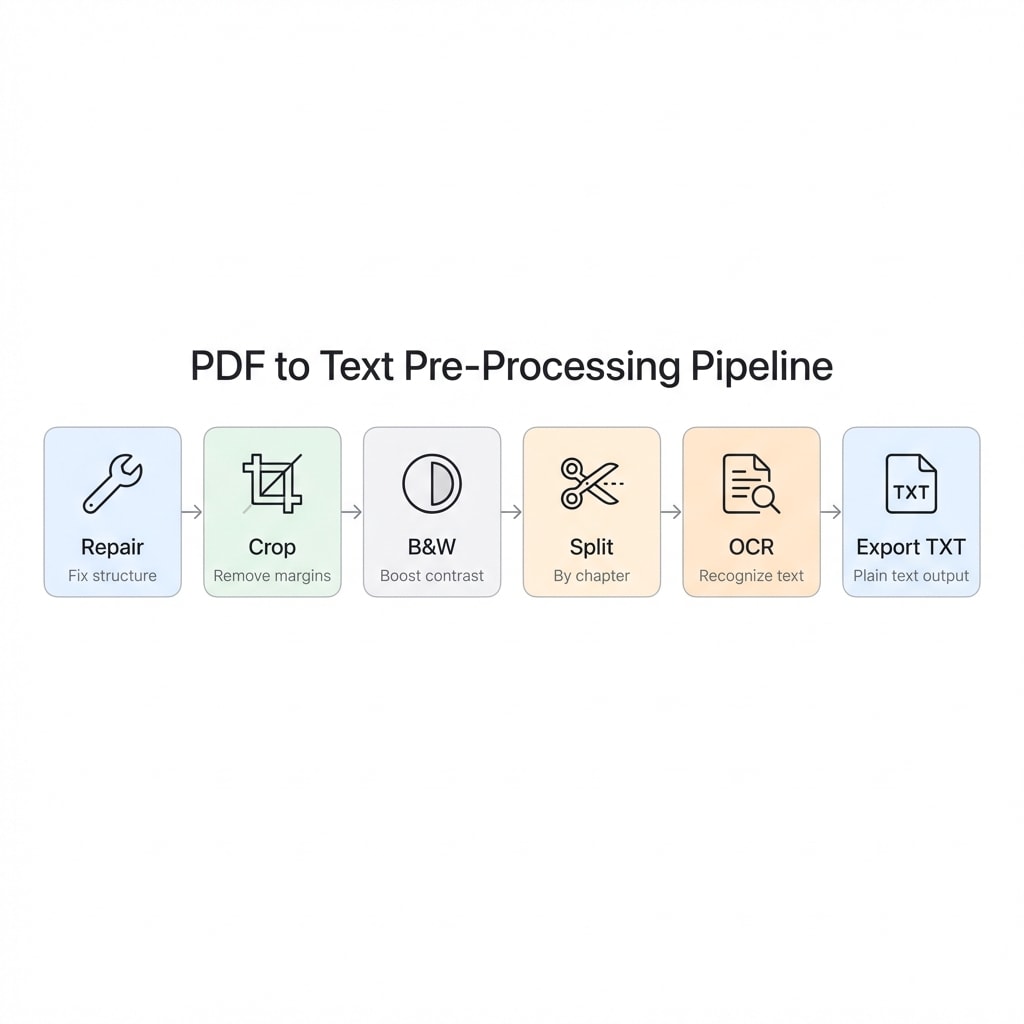
Crop Headers and Footers
Crop PDFRepeating headers, footers, and page numbers on every page will appear repeatedly in the exported TXT, interfering with AI's understanding of the body text. Cropping them out makes the extracted text much cleaner.
Convert to Black & White (Recommended for Scans)
Black & White / Grayscale ConversionFor photocopies, color scans, or documents with background patterns/stamps, converting to black & white increases contrast and improves OCR recognition accuracy.
Split Long Documents
Split PDFFor documents over 50 pages (such as annual reports or technical manuals), splitting by chapter before converting to text is recommended. This way, each TXT file corresponds to an independent topic — no manual chunking needed when feeding to AI, and you avoid exceeding the model's context window.
Tips for Feeding AI
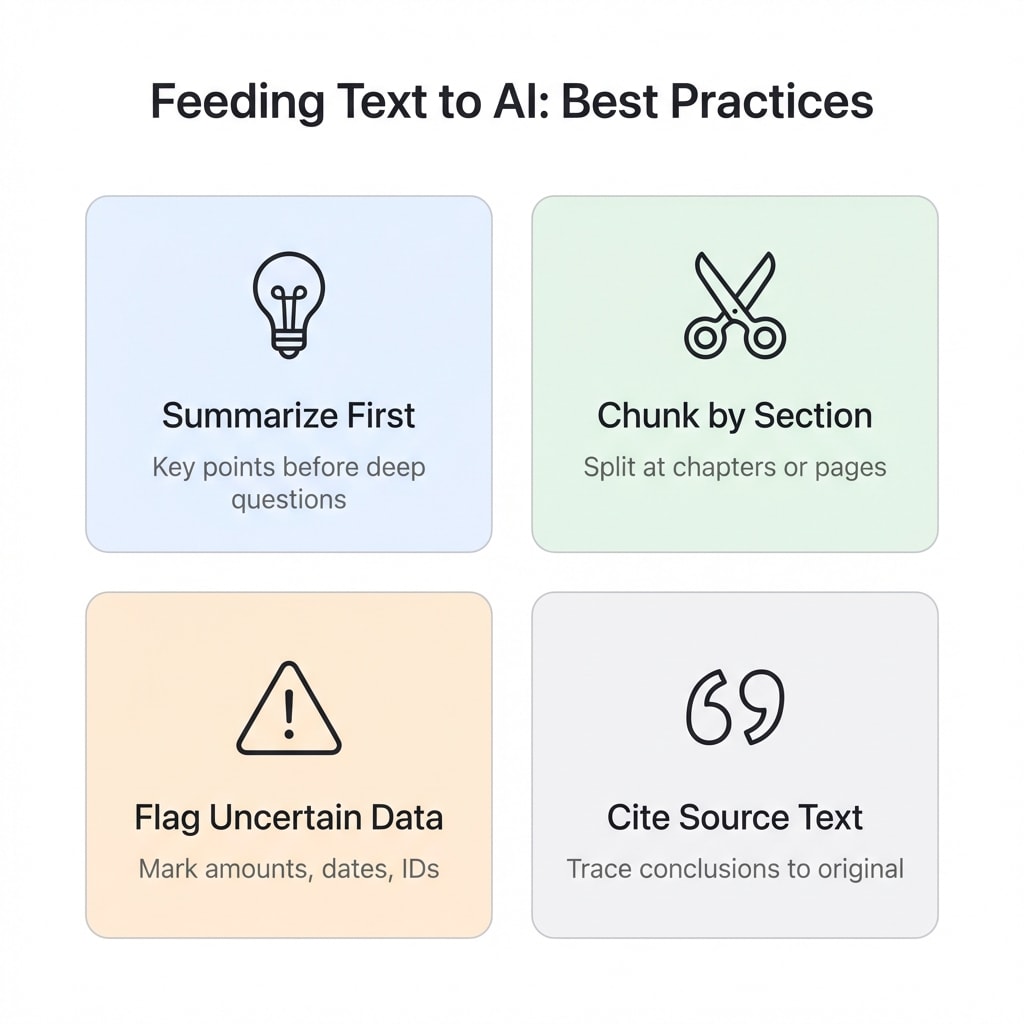
The exported TXT can be fed directly to ChatGPT / Claude / Gemini and other large language models. Here are some practical tips:
Summarize First, Then Dive Deep
Have the model output key takeaways first, then ask follow-up questions on specific points — this works better than asking everything at once. This strategy applies to virtually every scenario — contract review, paper analysis, and financial report interpretation all benefit.
Feed Long Documents in Chunks
For documents exceeding the model's context window, split by chapter or page and feed them chunk by chunk, including page ranges with each chunk for easy reference. If you've already used Split PDF to split by chapter in the previous step, this is ready to go.
Require Character-by-Character Verification for Key Data
For fields like contract amounts, ID numbers, and dates, explicitly instruct in your prompt to "copy verbatim and flag uncertainties." AI excels at understanding semantics but tends to hallucinate exact numbers — explicit instructions significantly reduce error rates.
A Ready-to-Use Prompt Template
Based on the text I provide, please output:
- 5 key takeaways (≤ 30 words each)
- A list of key numbers/dates/amounts (copied verbatim)
- Anything uncertain or potentially incorrect (marked as "needs verification")
- The original text excerpt supporting each conclusion
AI Output Does Not Replace Human Verification
Large language models may hallucinate numbers and proper nouns. For critical information involving legal, financial, or medical matters, always verify against the original text manually.
Quick Reference by Scenario
| Your Document Type | Recommended Workflow | Expected Result |
|---|---|---|
| E-invoices / Bank statements | Convert to text directly | Structured data is clear; AI can extract amounts and dates directly |
| Academic papers (digital) | Crop headers/footers → Convert to text | Remove repeated journal names and page numbers for cleaner body text |
| Scanned contracts / Paper archives | Convert to B&W → Convert to text (auto OCR) | Improved recognition rate, reduced interference from background patterns/stamps |
| 200-page annual reports / Technical manuals | Split → Convert each chapter to text → Feed in chunks | Each chapter fed independently for more precise AI understanding |
Related Tools
PDF to Text (TXT)
Export plain text, supports native PDFs and scans (auto OCR).
Crop PDF
Remove margins/headers/footers to reduce noise and repetitive content.
Black & White / Grayscale
Increase contrast and improve OCR recognition rate for scans.
Split PDF
Split by page or chapter — ideal for chunking long documents.
OCR Searchable PDF
Make scans searchable, or export text directly.
PDF to Word
Need an editable format? Convert to Word directly.