
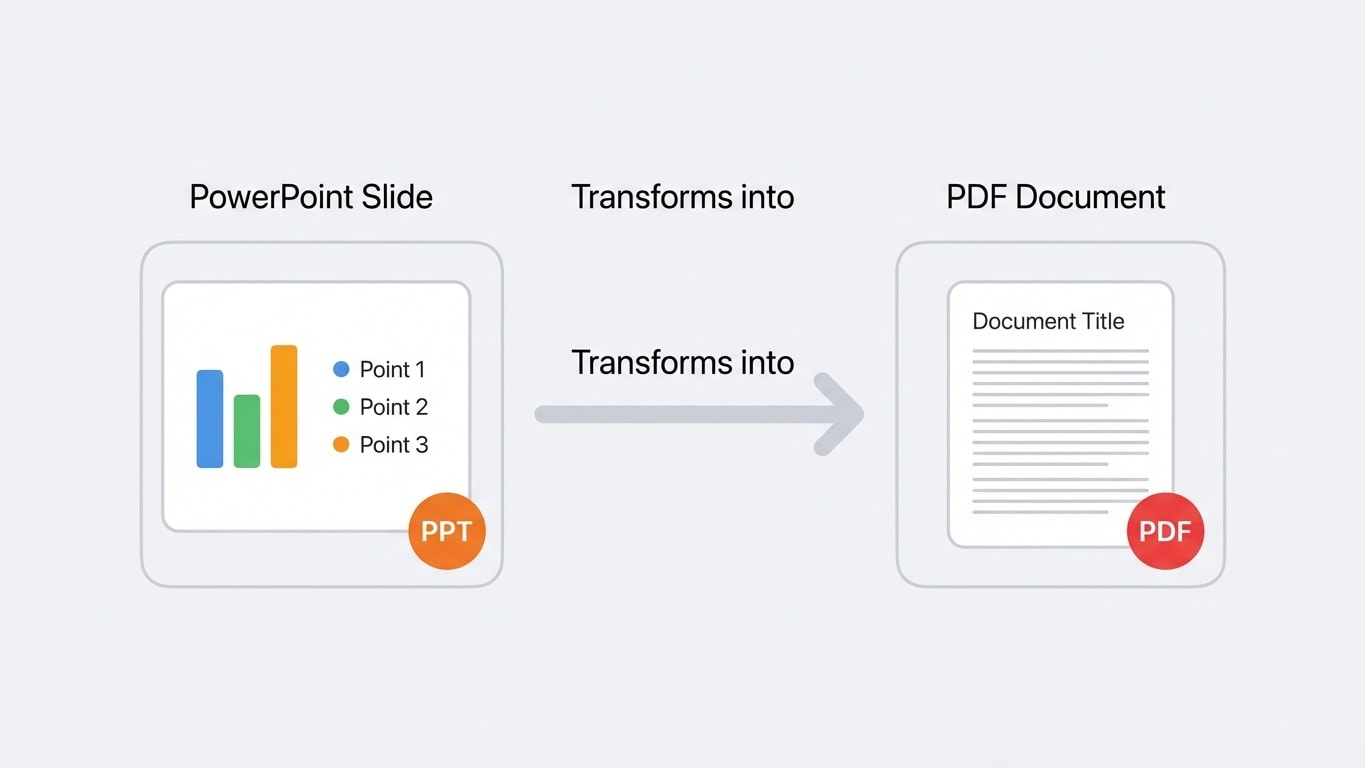
Converting PPT to PDF is one of the most common format conversions, whether for archiving a finalized deck, sending it to clients for review, or publishing it online for download. Just upload to PPT to PDF for one-click conversion, with layout and fonts kept as consistent as possible.
What do you want to do?
- Convert PPT to PDF to share with others → Upload directly to PPT to PDF
- Layout changed after converting to PDF → See the "Layout Differences and Fixes" section
- Convert PDF back to PPT → Use PDF to PPT
- Need to export notes pages too → See the "Exporting Notes Pages" section
Why convert PPT to PDF?
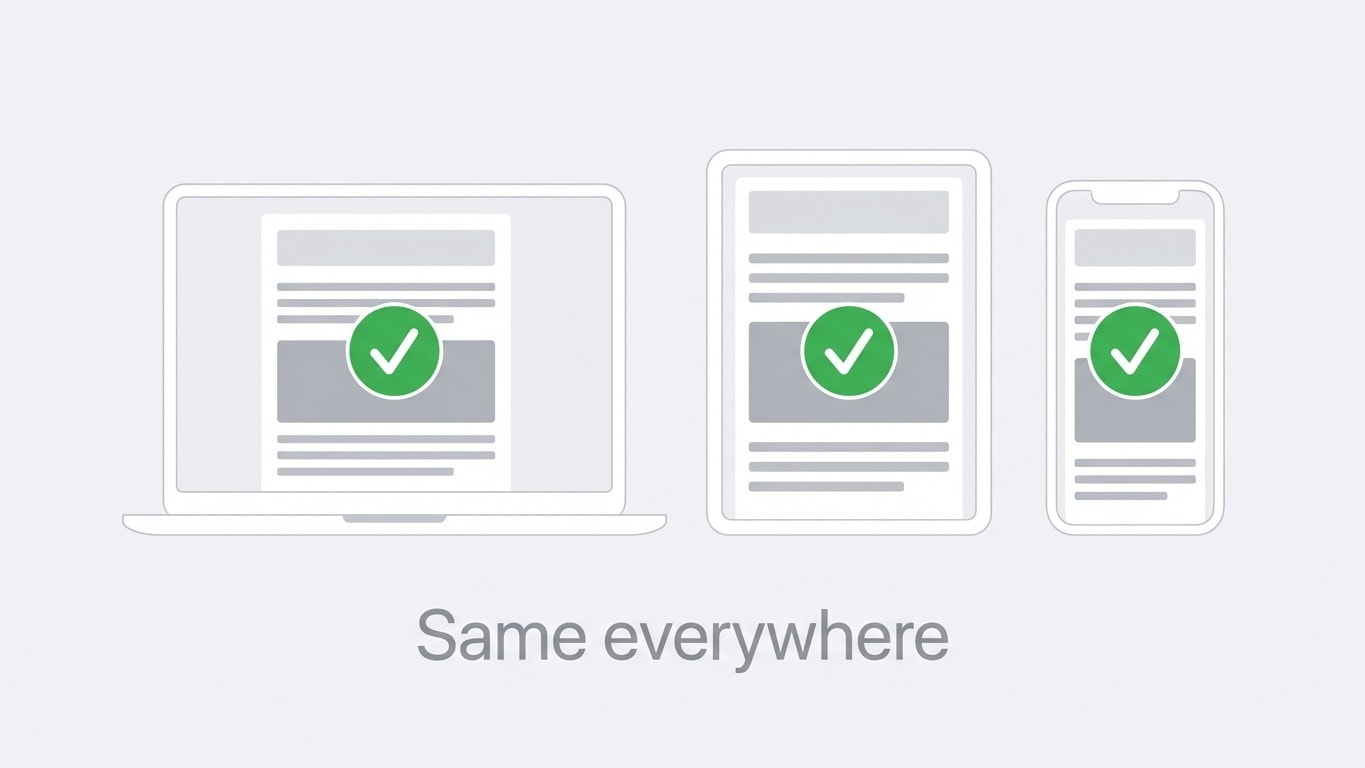
Cross-platform consistency
How a PPT file appears depends on the fonts installed on the viewing device and the PowerPoint version. A layout that looks perfect on your computer may show missing fonts on a client's Mac, or broken layout on a phone. PDF, however, packages all layout information inside the file, so it looks consistent on any device.
Prevent unauthorized edits
PPT files are editable by nature, meaning anyone can modify your content, replace data, or delete slides. After converting to PDF, the content is locked. For extra protection, you can use Protect PDF to set a password and permission restrictions.
Smaller files, easier sharing
Media-rich PPT files can easily reach dozens of MB. After conversion to PDF, embedded media is optimized, and file size is typically reduced by 30%-70%. If it is still too large, you can further reduce it with Compress PDF.
Conversion steps
- Upload your PPT file — Drag your
.pptxor.pptfile into PPT to PDF - Auto conversion — The system parses slide content and generates a PDF, with each slide mapped to one page
- Download PDF — Conversion completes in seconds, ready to use immediately
The whole process does not require PowerPoint to be installed. You can convert even if your computer has no office software.
ODP format is also supported
In addition to Microsoft PowerPoint formats (.pptx/.ppt), LibreOffice Impress .odp is also supported.
Layout differences and fixes
When converting PPT to PDF, most content can be restored with high fidelity. But differences may appear in the following cases:
| Element | Result after conversion | Solution |
|---|---|---|
| Special fonts | Fonts may be substituted if not embedded | Embed fonts in PPT before conversion (File → Options → Save → Embed fonts) |
| Animations and transitions | PDF does not support animation; only the final state is kept | This is a PDF format limitation and cannot be avoided |
| Video/audio | Not included in the PDF | Capture key frames as images and insert them |
| Shape gradients | Extremely complex gradients may differ slightly | Usually negligible and does not affect reading |
| Custom font sizes | Remain consistent | No action needed |
About animations
PDF is a static format and cannot preserve animation effects, slide transitions, or embedded media from PowerPoint. If your PPT relies on animation to convey information (such as step-by-step reveals), it is recommended to turn each animation step into a separate slide before converting to PDF.
Exporting Notes Pages
Speaker Notes in PPT are important content that many people overlook.
When exporting in PowerPoint, you can choose the "Notes Pages" layout: the upper half of each page shows the slide thumbnail, and the lower half shows the note text. If you convert with an online tool, only slide content is exported by default.
Need to export a PDF with notes?
In PowerPoint, use "File → Export → Create PDF" and choose the "Notes Pages" layout to export notes together. Online tools do not support this option yet.
PPT to PDF or PDF to PPT?
| Direction | Use case | Tool |
|---|---|---|
| PPT → PDF | Final sharing, printing, archiving, anti-tampering | PPT to PDF |
| PDF → PPT | You received a PDF presentation and need to edit the content | PDF to PPT |
Both directions are supported. If you receive a presentation in PDF format and need to edit it, use PDF to PPT to restore it to an editable PPTX file.
Recommended actions after conversion
| Need | Next step |
|---|---|
| File is too large to send by email | Compress PDF |
| Need to combine PDFs converted from multiple PPT files into one | Merge PDF |
| Need to prevent clients from forwarding and copying | Protect PDF |
| Need to add your company logo | Add Watermark |
| Archive finalized presentations for long-term storage | Convert to PDF/A for long-term archiving |
Related tools quick access
PPT to PDF
Convert PowerPoint slides to PDF while preserving layout and fonts.
PDF to PPT
Reverse conversion: restore PDF to editable PowerPoint.
Compress PDF
File too large after conversion? Compress it in one click.
Merge PDF
Merge multiple presentation PDFs into one complete document.
Protect PDF
Prevent presentation files from unauthorized editing or forwarding.
Word to PDF
Also need PDF conversion? Word files are supported too.