
Received a .dwg drawing you can't open? Use DWG to PDF to convert it online — no AutoCAD installation required. Just drag the file into your browser and get a universal PDF that works on any phone, tablet, or computer.
Quick guide: Which solution do you need?
- Have a DWG file and need to view or share it quickly → Use DWG to PDF directly — the fastest option.
- Have mixed file formats that all need to become PDFs → Use Universal File to PDF for multi-format support.
- PDF too large after conversion? → Jump to the "Post-Conversion Processing" section.
Why Convert DWG to PDF
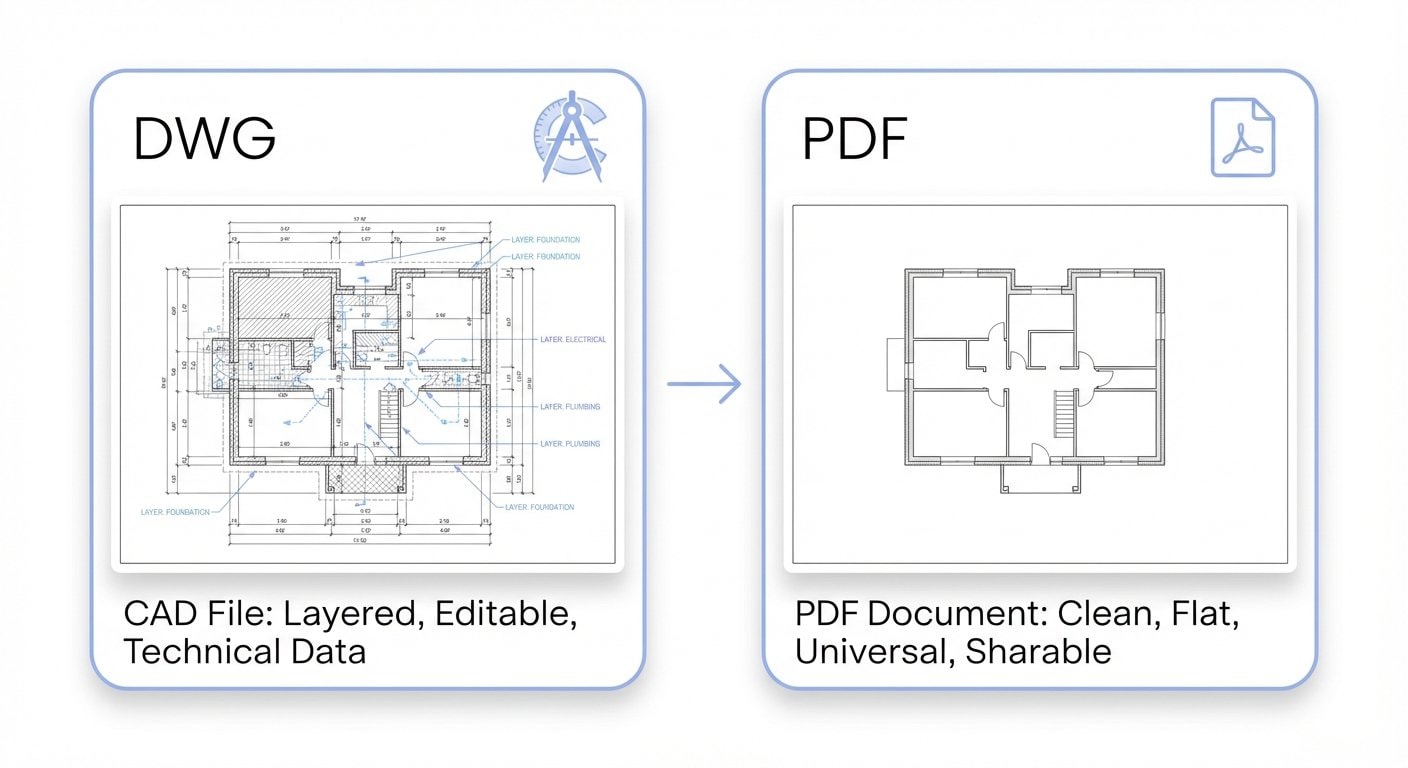
DWG (Drawing) is the native file format of Autodesk AutoCAD and has been the de facto standard in engineering drafting since AutoCAD launched in 1982. Architectural blueprints, mechanical part drawings, electrical wiring diagrams, piping system layouts — virtually all CAD drafting ends up as DWG files.
The problem: opening a DWG requires CAD software.
An AutoCAD license costs roughly $1,975/year, and even the free DWG TrueView viewer requires a separate download and only runs on Windows. When you need to send drawings to any of the following people, DWG becomes a barrier:
- Clients / building owners — reviewing drawings but unlikely to install CAD software
- Bid evaluation panels — requiring all documents in a unified PDF format
- On-site construction crews — viewing drawings on phones or tablets, where AutoCAD isn't an option
- Records management departments — archiving in a universally readable, long-term format
Converting DWG to PDF is the most straightforward solution. PDF is an ISO 32000 international standard — it opens on any device, preserves exact layout, and supports printing and annotations.
Online Conversion in 3 Steps
DWG to PDF lets you upload .dwg files and convert them to standard PDF — no sign-up or software installation needed.
Step 1: Upload Your DWG File
Open DWG to PDF, then drag your file into the upload area or click to browse. Common DWG version formats are supported.
Step 2: Wait for Automatic Conversion
The tool parses layers, line types, dimensions, and other data from the DWG file in the background and renders them into PDF pages. Conversion time depends on drawing complexity — a simple floor plan typically finishes in seconds.
Step 3: Download and Review
Once the conversion is complete, download the PDF and verify the following:
- Dimensions and annotations — are they clear and legible?
- Layer information — is it rendered correctly (if there are multiple layers)?
- Line types and hatching — are they accurate?
- Title block and border — are they complete?
You can also use the universal converter
If you have DWG, DXF, images, and other file types that all need to become PDFs, use File to PDF — it supports multiple formats in a single upload.
Common Scenarios and Practical Tips
Scenario 1: Bid Document Submission
Procurement and tendering processes typically require all technical documents submitted as PDFs, often with file size limits (commonly 50 MB or 100 MB).
Recommended workflow:
- Convert all drawings with DWG to PDF
- If file sizes are too large, shrink them with Compress PDF
- For black-and-white print copies, convert to grayscale with PDF to Black & White
Always double-check before submitting a bid
Review the converted PDF page by page to ensure dimensions, legends, and other critical information are intact. Special CAD fonts (such as SHX fonts) that aren't embedded may fall back to a default font after conversion.
Scenario 2: Sharing with Clients or the Job Site
Whether it's a client reviewing designs or a crew checking details on-site, what they need is a drawing they can clearly read — not an editable source file.
PDF shines in this context:
- Opens directly on phones and tablets — zoom in on any detail
- Layout is locked — no shifting or misalignment across different devices
- Annotations and markups can be added right in a PDF reader
Scenario 3: Printing and Archiving
After project completion, drawings usually need to be printed and archived. Printing directly from DWG can be finicky with printer drivers and settings, whereas PDF printing behavior is far more consistent and predictable.
Archiving tips:
- After conversion, verify the paper size matches the intended sheet size (A0, A1, A3, and other engineering formats)
- For long-term archival, consider using PDF/A format to guarantee future readability
- For black-and-white drawings, use Black & White conversion to cut printing costs
Post-Conversion Processing: Compression and Optimization
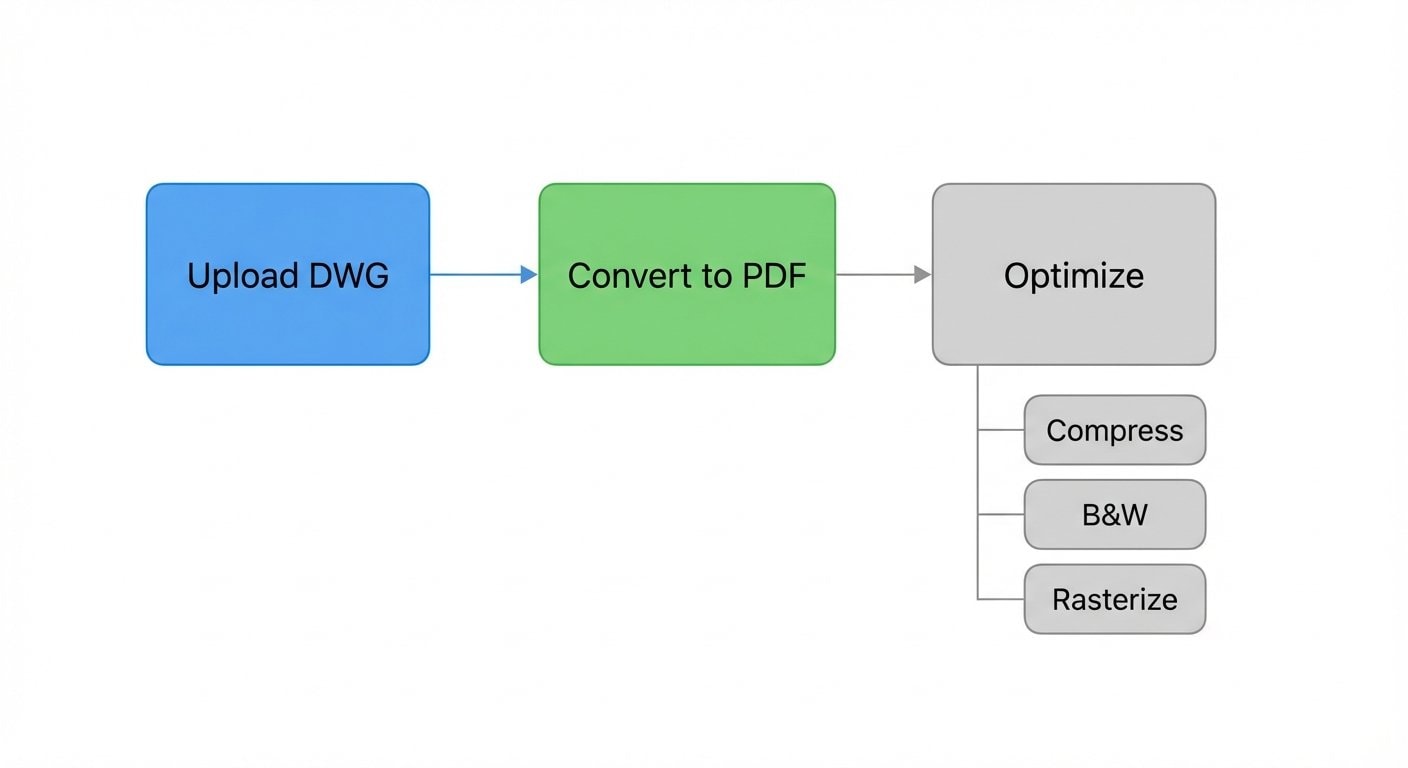
CAD drawings can produce surprisingly large PDFs. This happens because vector data in DWG files may be rasterized during conversion (especially drawings with heavy hatching, gradients, or embedded images), causing the PDF to balloon in size.
File Too Large? Compress It
Compress PDF can dramatically reduce file size while keeping the content readable. For engineering drawings, a medium compression level is usually sufficient — lines and text stay sharp, yet the file may shrink by 50%–80%.
Prevent Vector Data Leakage
If you don't want the PDF to retain editable vector paths (for example, to prevent competitors from extracting CAD data from a bid proposal), use Rasterize PDF to convert all pages into image-based PDF. After rasterization, vector data is no longer extractable — though the file size will increase. Simply follow up with Compress PDF to bring it back down.
Convert to Black & White
Color drawings are expensive to print, and many archival standards require grayscale versions. Use PDF to Black & White to convert color layers to grayscale, reducing ink usage and file size at the same time.
Frequently Asked Questions
What's the difference between DWG and DXF?
DWG is AutoCAD's native binary format containing full layer definitions, block references, layouts, and more. DXF (Drawing Exchange Format) is an ASCII or binary interchange format designed for data exchange between different CAD applications. Both can be converted to PDF.
What if dimension text is blurry after conversion?
This is typically caused by insufficient output resolution. If the tool offers a DPI setting, try selecting a higher value. For large-format drawings with fine annotations (A0/A1), aim for at least 300 DPI.
What if fonts display incorrectly after conversion?
DWG files may reference locally installed SHX or TrueType fonts. Online conversion tools may not include every font in their library, substituting a default instead. If font accuracy is critical, use "Print to PDF" from your local CAD software with all fonts embedded, then upload the resulting PDF for further processing.
How are multi-layout DWG files handled?
A single DWG file in AutoCAD can contain a Model Space and multiple Layout tabs. During conversion, each layout is typically output as a separate PDF page. If you only need specific layouts, organize them in your CAD software before converting.
Related Tools
DWG to PDF
Upload DWG files and convert them to standard PDF format online.
File to PDF
Convert multiple formats to PDF in one go — DWG, DXF, images, and more.
Compress PDF
Reduce PDF file size to meet email and upload limits.
Rasterize PDF
Convert vector PDFs to image-based format, preventing data extraction.
PDF to Black & White
Convert color drawings to grayscale to cut printing costs.