
Got a .caj file that won't open, can't be annotated, or isn't recognized by your reference manager? Upload it to CAJ to PDF for instant online conversion — no need to install CAJViewer, works on Mac / Linux / mobile.
Quick check: which approach fits your situation?
- Have a CAJ file and want to convert it quickly → Use online conversion directly — easiest option.
- Haven't downloaded the paper yet, want PDF directly → Try a Tampermonkey script to get native PDF from CNKI (see below).
- Garbled text / missing table of contents after conversion → Jump to the "Post-Conversion Fixes" section.
What Is CAJ? Why Convert It?
CAJ (China Academic Journal) is a proprietary academic document format developed by CNKI (China National Knowledge Infrastructure). Born in the late 1990s when internet bandwidth was scarce, it achieved high compression ratios and copyright control through layered compression and built-in DRM — genuinely useful in the dial-up era.
Today, however, the inconveniences are hard to ignore:
| Pain Point | Details |
|---|---|
| Platform-limited | CAJViewer primarily supports Windows; macOS / Linux / mobile experience is poor |
| Reference manager incompatibility | Zotero, Mendeley, and EndNote cannot import CAJ format directly |
| Text copy issues | Non-standard character encoding can cause garbled text when copying |
| Multi-device sync difficulties | DRM mechanisms restrict cross-device reading and annotation sync |
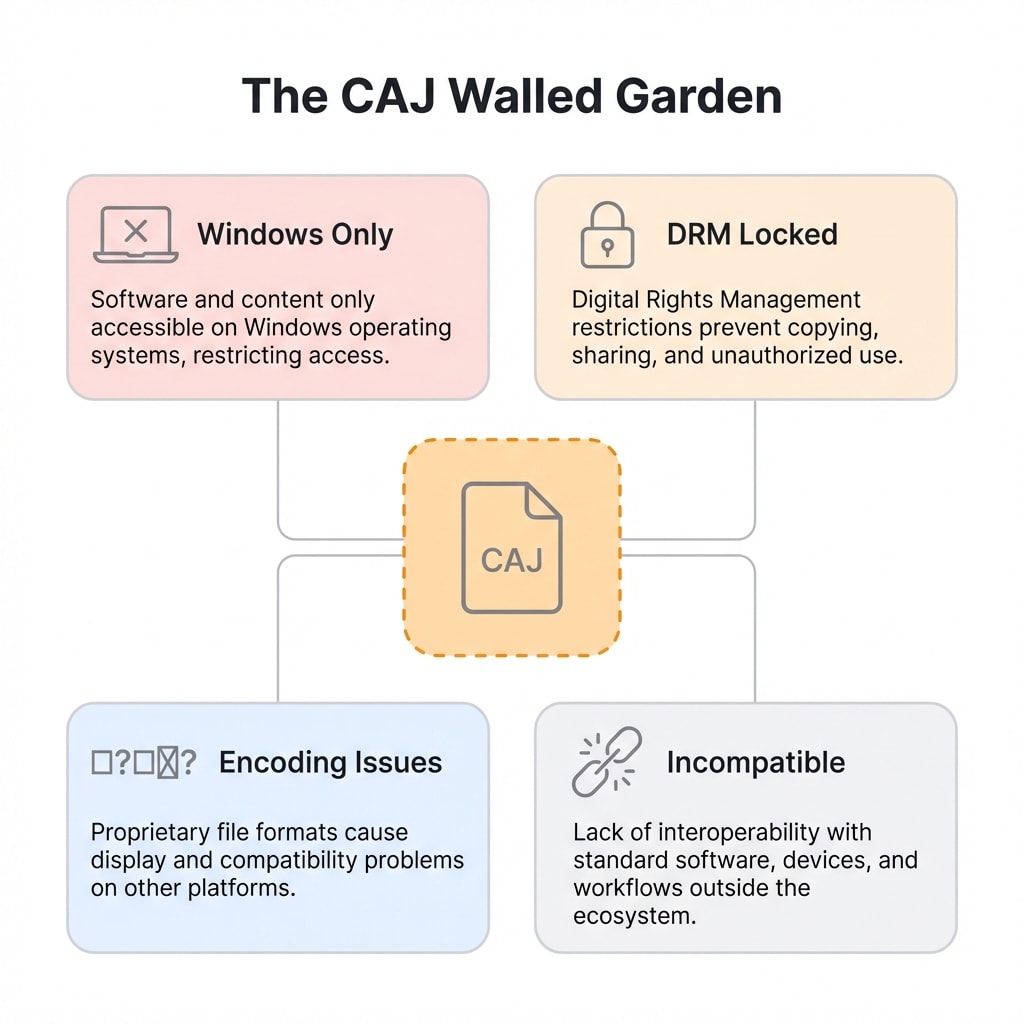
Converting CAJ to the universal PDF format is the most straightforward solution — as an ISO international standard, PDF can be opened on virtually any device and integrates seamlessly with reference management and annotation tools.
Online Conversion: 3 Steps
CAJ to PDF lets you upload .caj files and convert them to standard PDF directly.
Step 1: Upload Your CAJ File
Open CAJ to PDF and drag your file into the upload area.
Step 2: Wait for Automatic Conversion
The tool parses the CAJ file and repackages it as PDF in the background — no manual intervention needed.
Step 3: Download and Verify
After conversion, download the PDF and check:
- Flip through each page to confirm content is complete
- Use Ctrl+F to test whether text is searchable
- Check that charts and formulas display correctly
What can you do after conversion?
- Import into Zotero / Mendeley for reference management and automatic metadata extraction
- Use PDF to Word to export an editable version
- Use PDF to Text to extract plain text for AI summarization
- Use Compress PDF to reduce file size for email
Advanced Tip: Get PDF Directly from CNKI
If your paper hasn't been downloaded yet, there's a way to skip CAJ entirely and get native PDF.
Install the Tampermonkey browser extension and search for a CNKI PDF download script. The script modifies the download page logic to redirect to an interface that provides PDF downloads. The resulting PDF is officially packaged by CNKI, with high text layer accuracy and complete hyperlinks.
Note
Tampermonkey scripts depend on CNKI's interface structure and may break when CNKI updates. This only works for papers you haven't downloaded yet — if you already have a .caj file, use online conversion directly.
Virtual Printing: Fallback When Conversion Fails
In rare cases, CAJ files with extreme encryption or unusual formatting may resist all conversion tools. Virtual printing serves as a last resort:
- Open the file in CAJViewer (version 7.2 recommended for better print compatibility)
- Select Microsoft Print to PDF as the virtual printer
- Set high-quality DPI output and save
This method renders pages through the operating system's print engine, bypassing most format compatibility issues with precise layout. However, it will lose the original table of contents bookmarks, which need to be rebuilt manually (see below).
Post-Conversion Fixes
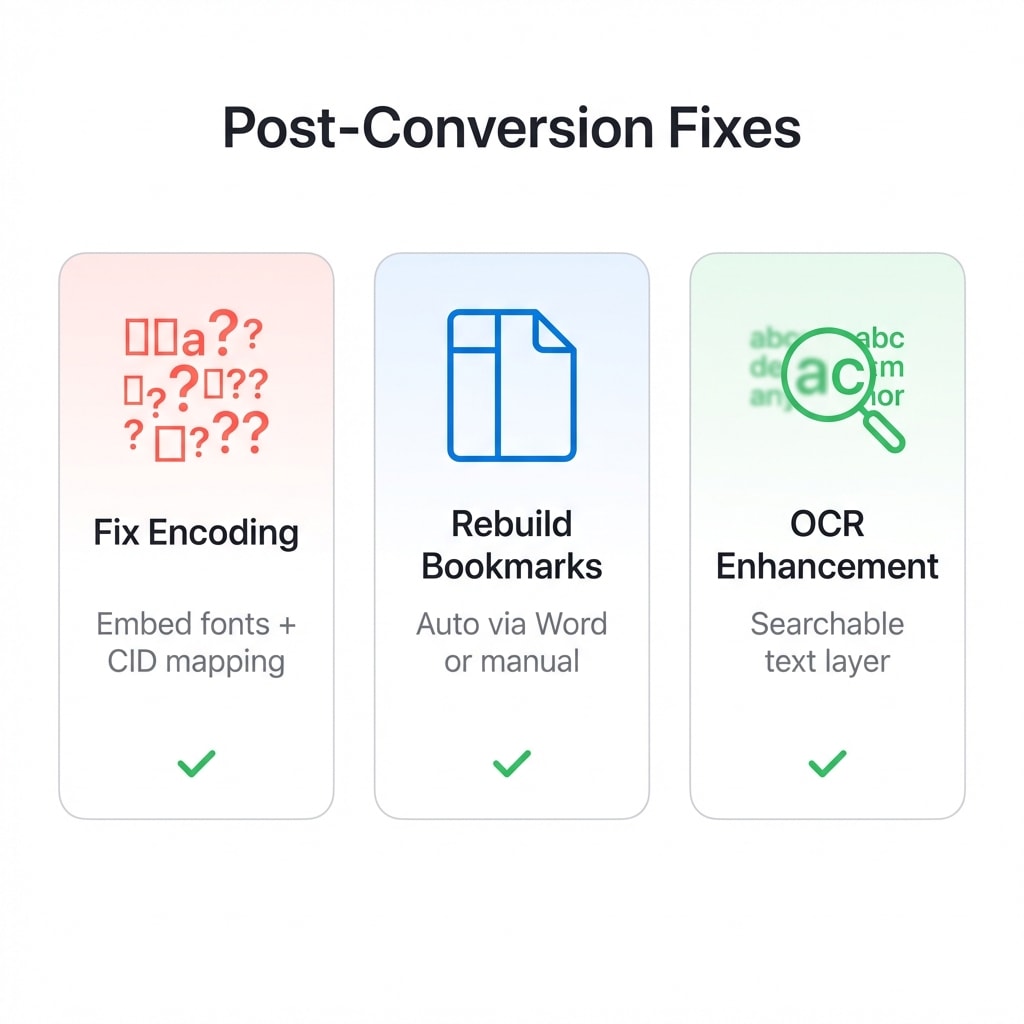
Most CAJ files convert smoothly, but due to CAJ's non-standard encoding and proprietary data structures, some files may need post-conversion fixes.
Garbled Text: Character Encoding Issues
CAJ stores characters using non-standard encoding tables. When the converted PDF renders with system fonts, character mapping offsets can cause square boxes or garbled text.
Possible fixes:
- For scanned CAJ documents, use OCR to re-recognize the text layer after conversion — this usually resolves most garbled text
- In a PDF editor, select "Embed All Fonts" and re-save
- For English font anomalies, try forcing CID (Character Identifier) font mapping
Missing Table of Contents
Some conversion methods (especially virtual printing) lose the original sidebar bookmarks, which is inconvenient for dissertations spanning hundreds of pages.
Rebuilding options:
- Via Word: Use PDF to Word to export → generate table of contents automatically in Word using heading styles → export back to PDF
- Manual: Use a PDF editor to manually add bookmark jumps for each chapter
Scanned Text Not Searchable
If the original CAJ consists of scanned page images, the converted PDF still won't have searchable text. Use OCR for full-text recognition to generate a searchable transparent text layer.
OCR accuracy depends on scan quality
Clean, high-contrast scans typically yield high recognition rates. Complex layouts (multi-column, nested tables, mixed handwritten annotations) may require manual adjustment.
Scenario Quick Reference
| Your Situation | Recommended Approach | Notes |
|---|---|---|
| Have a CAJ file, want to read it quickly | Online conversion | Zero installation, works on mobile |
| Haven't downloaded the paper yet | Tampermonkey script (see above) | Gets native PDF from CNKI with high text quality |
| Conversion failed / heavily encrypted file | Virtual printing (see above) | Falls back to OS rendering engine |
| Want to import into a reference manager | Convert to PDF, then import to Zotero / Mendeley | PDF is supported by all major reference managers |
| Need to edit the content | Convert to PDF → to Word | Export an editable version |
| Garbled text after conversion | OCR or embed fonts | See "Post-Conversion Fixes" section |
| Scanned paper, text not searchable | Convert to PDF → OCR | Generate searchable text layer |
| PDF too large to email | Convert to PDF → Compress | Reduce size to meet upload limits |
Related Tools
CAJ to PDF
Upload CAJ files and convert to standard PDF online.
PDF to Word
Export PDF to editable Word for citations and annotations.
PDF to Text
Extract plain text for AI summarization and search.
OCR
Make scanned PDFs searchable — supports Chinese, English, Japanese, and more.
Compress PDF
Reduce file size for easy emailing and uploading.
Merge PDF
Combine multiple papers into a single file for unified management.