
Sound familiar?
You download a 200-page industry report and try to read it on the subway using your phone — open the PDF, squint at ant-sized text, pinch-zoom in and out, swipe left and right, and give up after ten pages.
Or you own a Kindle and want to load up your favorite technical docs and academic papers. You transfer a file, only to discover that an A4 page crammed onto a 6-inch screen is borderline unreadable.
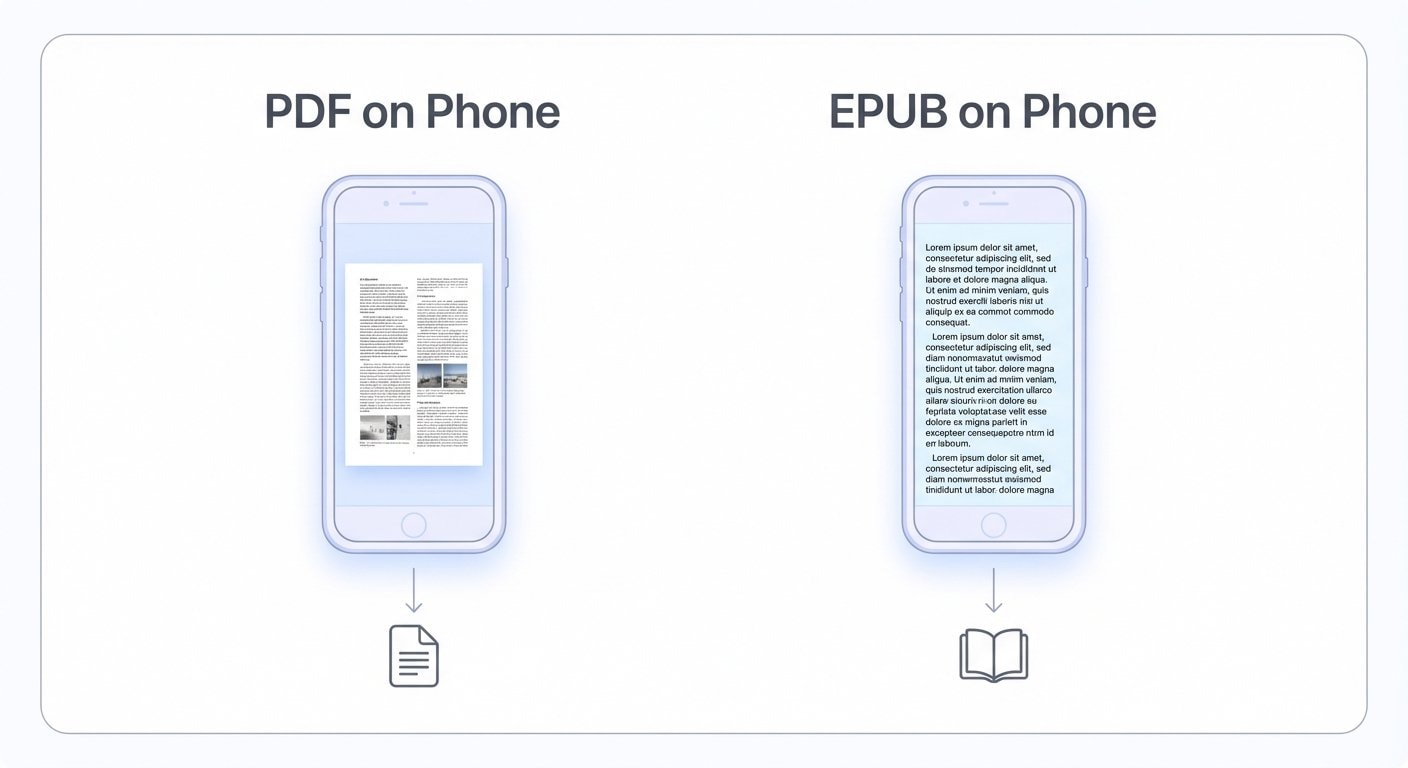
The root cause is simple: PDF is a fixed-layout format, while small screens need reflowable text.
EPUB was built for exactly this — content reflows automatically to fit the screen, just like a web page. Font size, line spacing, and margins are all adjustable, so whether you're reading on a 6-inch Kindle or a phone in portrait mode, the experience stays comfortable.
PDF vs EPUB: Fixed Layout vs Reflowable Text
The core difference between the two formats
PDF (fixed layout): Every element on every page has a fixed position. Great for printing and precision typography, but unable to adapt to different screen sizes.
EPUB (reflowable): Content flows like water to fill the screen. Font size is adjustable, paragraphs wrap automatically — ideal for reading devices of all sizes.
Here's a concrete example: a standard A4-sized PDF displayed on a Kindle Paperwhite (6-inch screen) renders at roughly 5–6 pt — well below the 10–12 pt you need for comfortable reading. Convert that same content to EPUB and it reflows to fit the screen, with the font size entirely up to you.
Which PDFs Convert Well to EPUB
Not every PDF produces a great EPUB. Conversion quality depends primarily on the structure and content type of the original PDF.
PDFs that convert well
- Text-heavy documents: Novels, reports, paper bodies, technical docs — these have clean structure and text that can be accurately extracted and reflowed
- Simple layouts: Single- or double-column text with clear paragraphs and hierarchy
- PDFs with bookmarks/TOC: Bookmark data can be carried over as EPUB navigation
PDFs that convert with mixed results
- Documents heavy on complex tables: Tables tend to break or lose formatting during reflow
- Lots of math formulas: Precise formula layout is hard to preserve in EPUB
- Dense image-text interleaving: Magazine-style layouts where images and text are tightly woven together
PDFs that need preprocessing
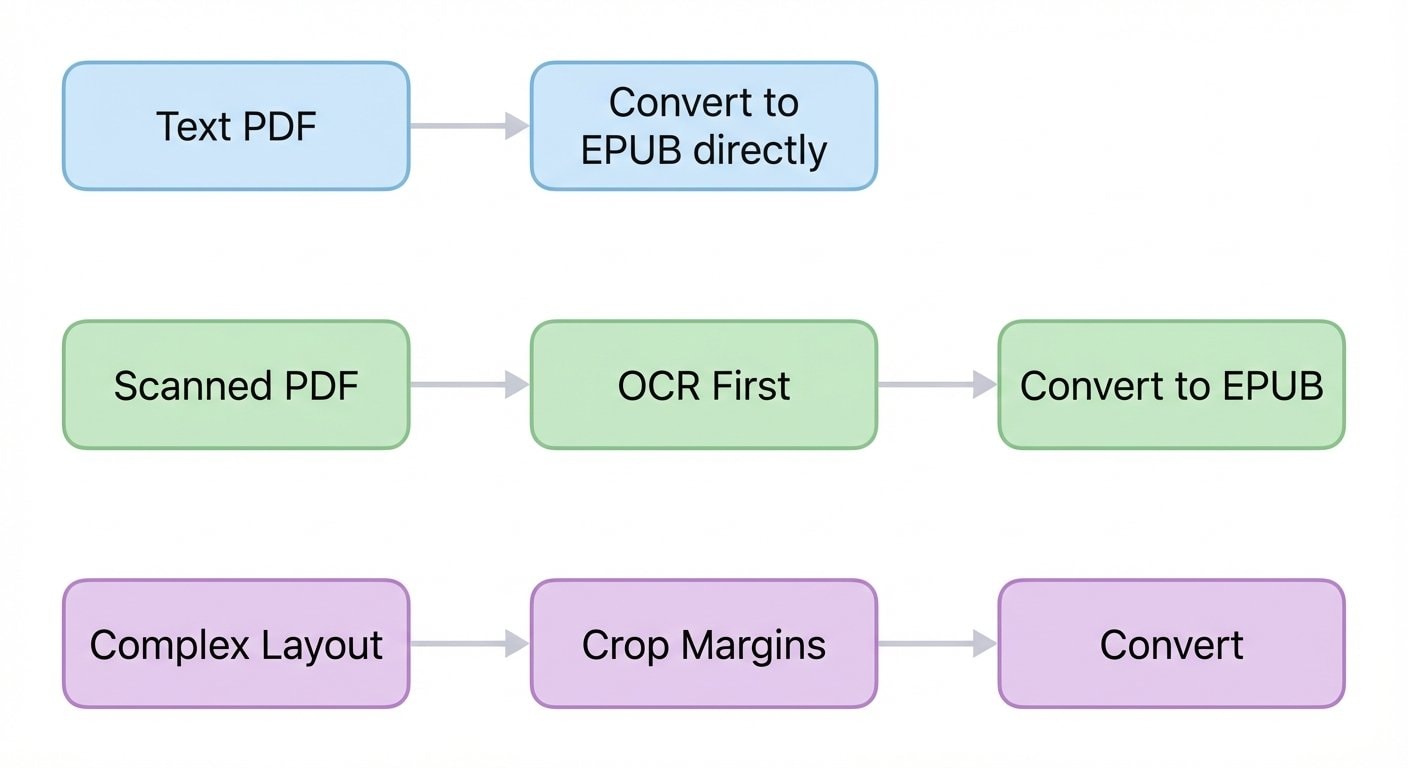
- Scanned PDFs: Content is images, not text — you must run OCR (Optical Character Recognition) first
- Encrypted or protected PDFs: Restrictions need to be removed before conversion
Scanned PDFs must be OCR'd first
If your PDF was generated by a scanner (the content is images), converting directly to EPUB will just give you a stack of images — no reflowable text at all.
The right approach: run OCR to recognize the text first, then convert to EPUB.
Step by Step: Converting PDF to EPUB
Step 1: Identify the PDF type
Open the PDF and try selecting text:
- Text selectable → text-based PDF, ready to convert
- Text not selectable → scanned PDF, needs OCR first
Step 2: Preprocess (if needed)
Scanned PDFs: Run OCR first.
Use the PDF OCR tool to add a text layer. Once OCR is complete, the image content is recognized as extractable text, setting the stage for conversion.
Excessive page margins: Crop the whitespace first.
Some PDFs — academic papers especially — have huge margins. Trimming them before conversion produces noticeably better results. Use the PDF Crop tool to remove excess margins.
Step 3: Convert to EPUB
Use the PDF to EPUB tool to run the conversion. Upload your PDF and the tool will automatically extract the text and generate an EPUB file.
Post-conversion checklist
- Table of contents: Verify that chapter navigation was generated correctly
- Text integrity: Skim a few chapters to confirm nothing is missing or garbled
- Images: Check that important figures and charts are preserved
- Paragraph spacing: Make sure paragraphs are properly separated — no weird merges or splits
Step 4: Transfer to your device
Kindle:
- Connect via USB and copy the EPUB file to the Kindle's
documentsfolder - Use Amazon's Send to Kindle service to email the file
- Recent Kindle firmware versions support EPUB natively
Phone / Tablet:
- iOS: Open directly in Apple Books
- Android: Use Google Play Books, Moon+ Reader, or similar apps
Special Handling for Academic Papers
Academic papers are one of the most common PDF-to-EPUB use cases — and also the most error-prone. Papers typically feature two-column layouts, heavy citations, footnotes, and figures, all of which make conversion trickier.
Recommended workflow:
- Crop pages → Remove headers, footers, and excess margins to eliminate noise
- OCR enhancement (if scanned) → Ensure text is extractable
- Convert to EPUB → Generate reflowable content
- Read on device → Enjoy comfortable reading on Kindle or phone
A note on two-column layouts
Most conversion tools automatically detect columns and extract text in the correct reading order. However, if the column structure is irregular — columns too close together, or asymmetric widths — text may come out jumbled.
If this happens, try cropping each page to a single column before converting.
When You Should Keep the PDF
EPUB isn't a silver bullet. In some cases, sticking with PDF is actually the better choice:
- Documents where layout is essential: Contracts, certificates, invoices — the formatting itself is part of the content
- Chart-heavy documents: Data tables, flowcharts, diagrams — reflowing them can actually hurt readability
- Books already available in EPUB: Many publications have an official EPUB edition that's far better than anything converted from PDF
Tip for large files
If your PDF is on the larger side (over 50 MB), consider running it through the PDF Compression tool first. This speeds up conversion and keeps the final EPUB file compact.
Setting Realistic Expectations
PDF-to-EPUB conversion is essentially deconstructing a fixed layout and reorganizing the content — some original formatting is inevitably lost in the process.
What you can expect:
- Complete text migration
- Basic chapter structure preserved
- Freedom to adjust font size and line spacing on small screens
What you shouldn't expect:
- Layout identical to the original PDF
- Perfect reproduction of complex tables
- Every font style preserved exactly
The ceiling of conversion quality depends on the original PDF's structure and complexity. The simpler and more standardized the PDF, the better the result.
Related Tools
PDF to EPUB
Convert PDF documents to EPUB format — optimized for e-readers and mobile reading
PDF OCR
Add a searchable text layer to scanned PDFs — a prerequisite for EPUB conversion
PDF Crop
Remove excess margins, headers, and footers to optimize pages before conversion
PDF Compression
Reduce PDF file size to speed up conversion